-
Interactive DashboardsCreate interactive BI dashboards with dynamic visuals.
-
End-User BI ReportsCreate and deploy enterprise BI reports for use in any vertical.
-
Wyn AlertsSet up always-on threshold notifications and alerts.
-
Localization SupportChange titles, labels, text explanations, and more.
-
Wyn ArchitectureA lightweight server offers flexible deployment.
-
 Wyn Enterprise 7.1 is ReleasedThis release emphasizes Wyn document embedding and enhanced analytical express...
 -
 Choosing an Embedded BI Solution for SaaS ProvidersAdding BI features to your applications will improve your products, better serve your customers, and more. But where to start? In this guide, we discuss the many options.
-
Visual GalleryInteractive sample dashboards and reports.
-
BlogExplore Wyn, BI trends, and more.
-
WebinarsDiscover live and on-demand webinars.
-
Customer SuccessVisualize operational efficiency and streamline manufacturing processes.
-
Knowledge BaseGet quick answers with articles and guides.
-
VideosVideo tutorials, trends and best practices.
-
WhitepapersDetailed reports on the latest trends in BI.
-
 Choosing an Embedded BI Solution for SaaS ProvidersAdding BI features to your applications will impr...
 -

- Getting Started
- Administration Guide
-
User Guide
- An Introduction to Wyn Enterprise
- Document Portal for End Users
- Data Governance and Modeling
- View and Manage Documents
- Working with Resources
- Working with Reports
- Working with Dashboards
- Working with Notebooks
- Wyn Analytical Expressions
- Section 508 Compliance
- Subscribe to RSS Feed for Wyn Builds Site
- Developer Guide
Document Portal
Here is a video walkthrough of the Wyn Document Portal.
Working with Documents
You can perform the following actions on a document. You can find the corresponding buttons near each document in the list or in the right corner at the top of the view.
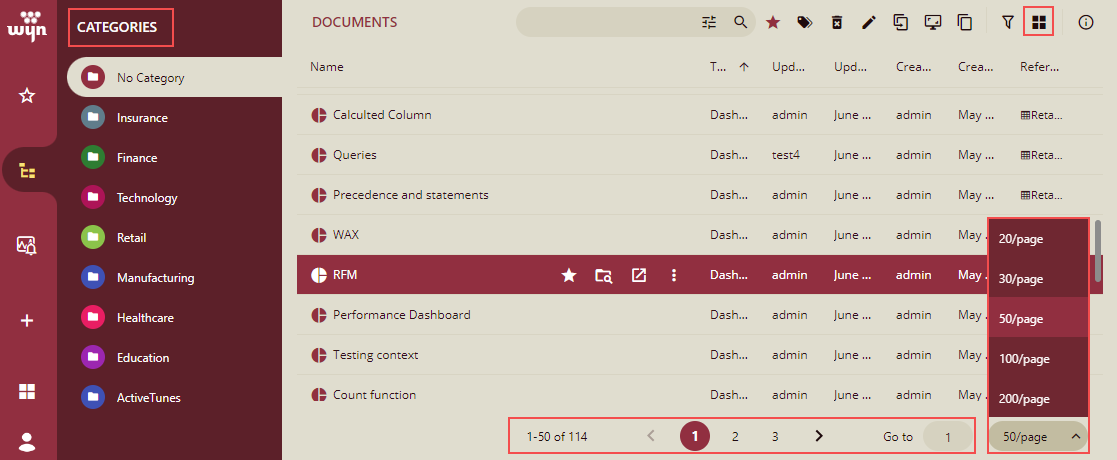
Note: It supports pagination for the document list. Documents are listed page-wise, so it helps in terms of overall navigation, and the process of listing the documents is also faster. You can specify the number of documents to be displayed per page from the drop-down list. Like here, we have selected 20 documents per page. If you want to go to a particular page, you can enter the page number in Go to and press Enter or click the page number, or you can use the Next Page/Previous Page arrows. This feature is available from Wyn 6.1 onwards.
Tile and List View
You can view the documents in a list view and tile view modes. In the above figure, by default, the documents are displayed in a list view. To view the documents in the tile view mode, click the Show documents as tile icon on the top right of the view. The documents will be listed in the tile view mode as shown below.
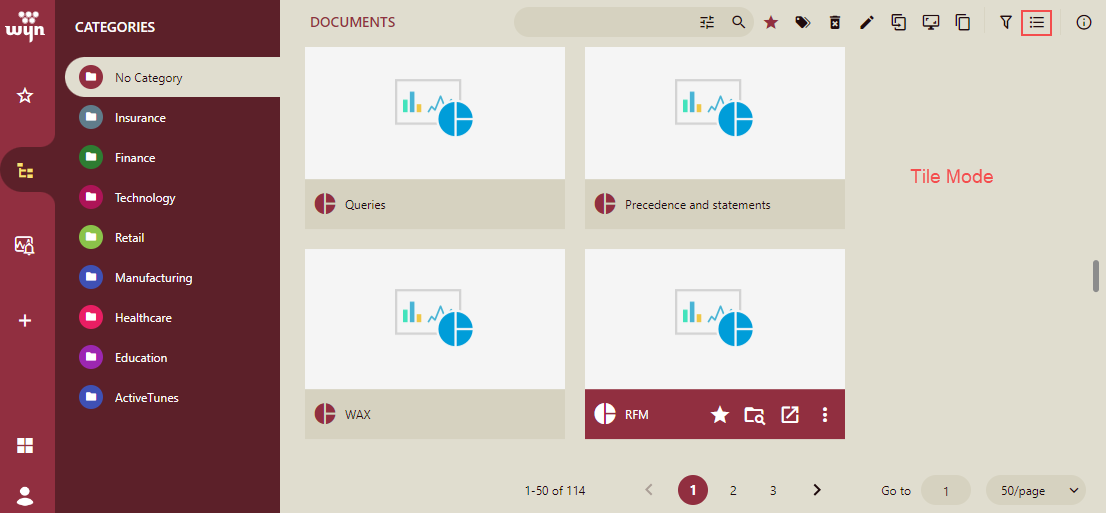
You can see the document thumbnail in the Tile view.
To go back to the list view mode, click the icon Show documents as list.
Note: The default view is as per the view mode settings done by the administrator or its default setting.
Refer to the section Adding a Thumbnail for details about how to add a thumbnail.
Dashboards
Action | Description |
|---|---|
Add to Favorites | Added the selected dashboard to the Favorites view. |
Remove from Favorites | Removes the selected dashboard from the Favorites view. |
Preview | Runs the dashboard and displays it in the Preview window. |
New Window | Opens the dashboard in a new window. |
Edit Dashboard | Displays the selected dashboard in the Designer. |
Duplicate | Duplicates the selected dashboard. |
Categories | Allows you to assign categories to the selected dashboard. Click the Categories button to open the Categories dialog. |
Rename | Allows you to rename the selected dashboard in the displayed Properties pane. |
Delete | Deletes the dashboard and removes it from the list. |
Note: You cannot restore a document once it is deleted if the recycle bin feature is not enabled.
Reports
Action | Description |
|---|---|
Add to Favorites | Adds the selected report to the Favorites view. |
Remove from Favorites | Removes the selected report from the Favorites view. |
Preview | Runs the report and displays it in the Preview window. |
New Window | Opens the report in a new window. |
Edit | Displays the selected report in the Designer. |
Export | Export the report to one of the following formats: PDF, Xlsx, HTML, CSV, JSON, Image, or Docx. |
Duplicate | Duplicates the selected report. |
Categories | Allows you to assign categories to the selected report. Click the Categories button to open the Categories dialog. |
Rename | Allows you to rename the selected report in the displayed Properties pane |
Delete | Deletes the report and removes it from the list. |
Note: You cannot restore a document once it is deleted if the recycle bin feature is not enabled.
Creating a new Document
The Create menu in Wyn Enterprise provides a central location for building new content. Users with the appropriate permissions can create dashboards, reports, notebooks, spreadsheets, pages, document binders, and embedded web pages directly from the Document Portal. This menu serves as the starting point for producing interactive analytics, formatted reports, narrative documents, and custom content.
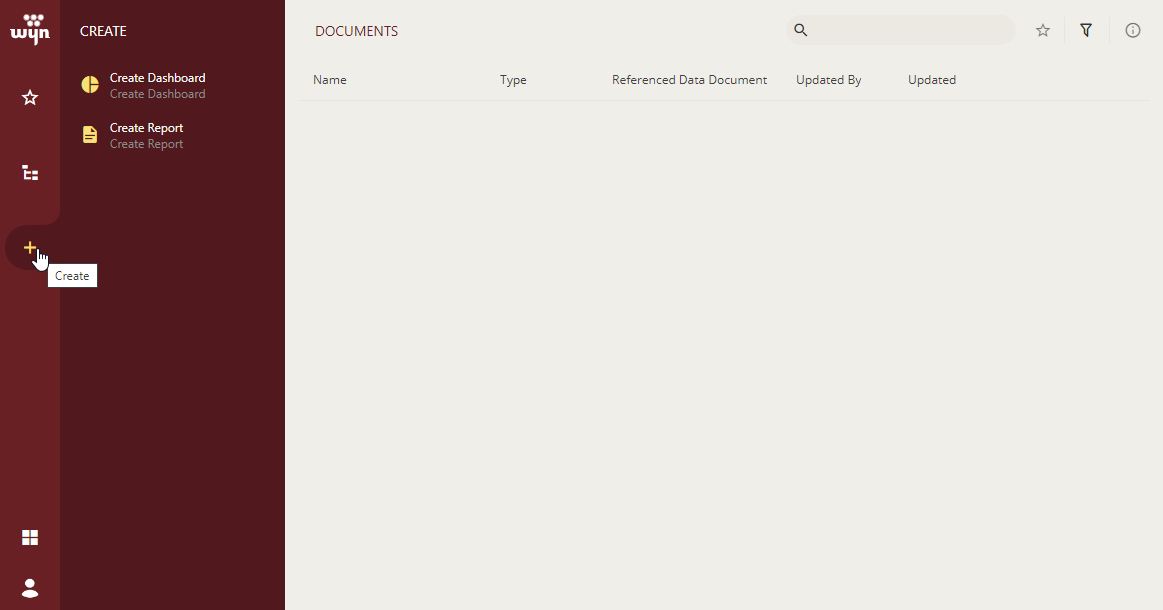
Create Dashboard
Opens the Dashboard Designer to build interactive visual dashboards using charts, widgets, filters, and layout components. Ideal for real‑time exploration and visual data monitoring.
Create Report
Launches the Report Designer for producing structured, paginated, export‑ready business reports. Suitable for formal documents such as statements, summaries, and multi‑page analytical reports.
Create Notebook
Creates a notebook that combines text, visualizations, and data analysis steps into a narrative-style document. Useful for walkthroughs, documentation, and analytical storytelling.
Create Document Binder
Allows users to merge multiple reports into a single binder-style document. Useful for monthly business books, grouped reports, or executive review packages.
Add Embedded Web Page
Enables adding an external webpage to the portal navigation for quick access. Supports integration of help pages, external dashboards, or internal systems.