-
Interactive DashboardsCreate interactive BI dashboards with dynamic visuals.
-
End-User BI ReportsCreate and deploy enterprise BI reports for use in any vertical.
-
Wyn AlertsSet up always-on threshold notifications and alerts.
-
Localization SupportChange titles, labels, text explanations, and more.
-
Wyn ArchitectureA lightweight server offers flexible deployment.
-
 Wyn Enterprise 7.1 is ReleasedThis release emphasizes Wyn document embedding and enhanced analytical express...
 -
 Choosing an Embedded BI Solution for SaaS ProvidersAdding BI features to your applications will improve your products, better serve your customers, and more. But where to start? In this guide, we discuss the many options.
-
Visual GalleryInteractive sample dashboards and reports.
-
BlogExplore Wyn, BI trends, and more.
-
WebinarsDiscover live and on-demand webinars.
-
Customer SuccessVisualize operational efficiency and streamline manufacturing processes.
-
Knowledge BaseGet quick answers with articles and guides.
-
VideosVideo tutorials, trends and best practices.
-
WhitepapersDetailed reports on the latest trends in BI.
-
 Choosing an Embedded BI Solution for SaaS ProvidersAdding BI features to your applications will impr...
 -

Wyn Enterprise: Manage Documents by Types
As an administrator, you can manage all documents in the Admin Portal through the Documents page. This page allows you to edit document permissions, update document categories, delete or download documents, and perform other document‑management tasks.
To manage documents by type, navigate to the Types tab on the Documents page. On this tab, documents are organized according to all available Wyn Enterprise document types.

All document types listed above follow the same management behavior in the Admin Portal. Whether you are working with dashboards, dashboard templates, component templates, reports, report templates, master reports, notebooks, spreadsheets, spreadsheet templates, smart documents, smart document templates, document binders, data sources, data models, datasets, data flows, data files, language resources, visualizations, floor plans, 3D models, 3D scenes, maps, hierarchical maps, themes, fonts, images, and web pages, each interface provides the same capabilities: downloading and deleting documents, searching for specific items, sorting by name or date, and editing permissions and categories.
The example below demonstrates these actions using the Dashboards interface, and the same actions apply consistently to all other document types on the Types tab.
The Dashboards interface allows you to easily manage all dashboards created in the Document Portal or Resource Portal. You can:
Download or delete dashboards
Search for a specific dashboard
Sort header information alphabetically or by date
Edit dashboard permissions and categories
To Download a Dashboard
On the Types tab of the Documents page, click Dashboards.
Click the Download button:
 The downloaded dashboard is saved as a
 .dbdfile.
To Delete a Dashboard
On the Types tab of the Documents page, click Dashboards.
Click the Delete button:
 In the Delete Document dialog box, click OK to confirm.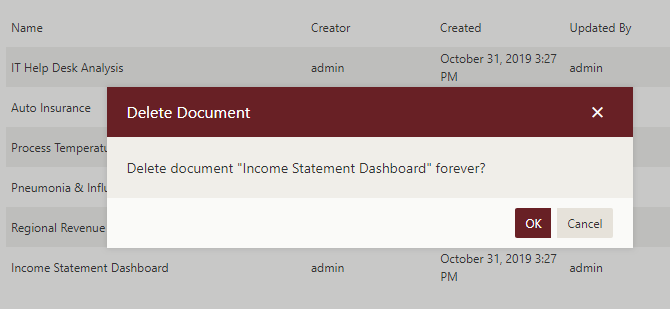
To delete multiple dashboards at the same time, click Show Check Box near the search bar to enable multi‑selection.
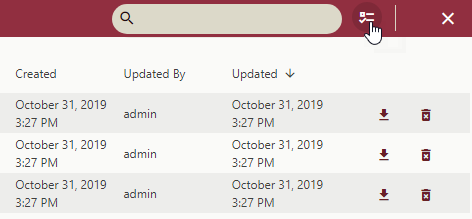
Select the dashboards you want to delete and click Delete Selected Documents.To select all dashboards at once, use the checkbox next to the Name header.
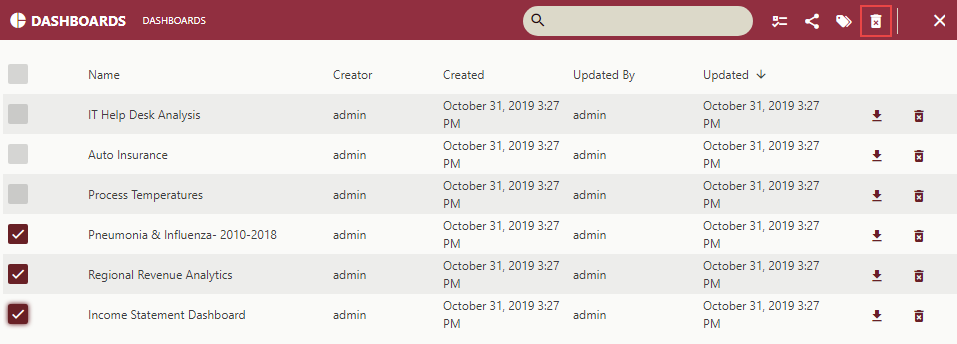
Note: Once a document is deleted, it cannot be recovered. Please be cautious while using the delete option.
To Edit Dashboard Permissions
On the Types tab of the Documents page, click Dashboards.
Click Show Check Box to enable selection.
Select the dashboards to update.
Click the Edit document permissions button:

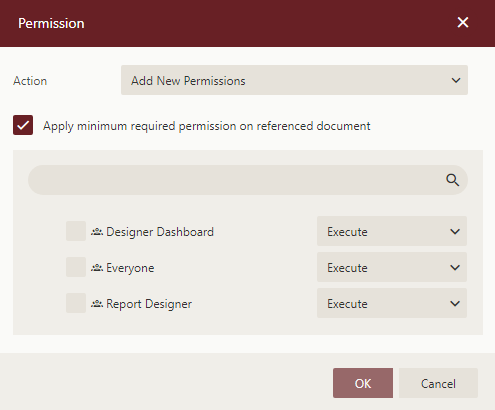
In the Permissions dialog, choose an Action:
Add New Permission
Remove Existing Permissions
Remove Existing And Add New Permissions
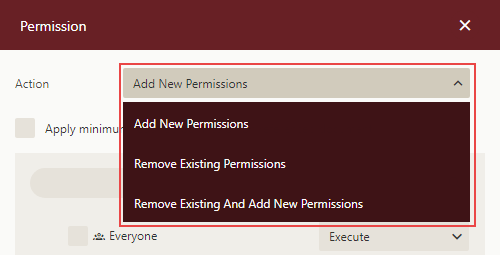
(Optional) Enable Apply minimum required permission on referenced document.
Choose a permission level:
Execute
Read
Read/Write
Full Control
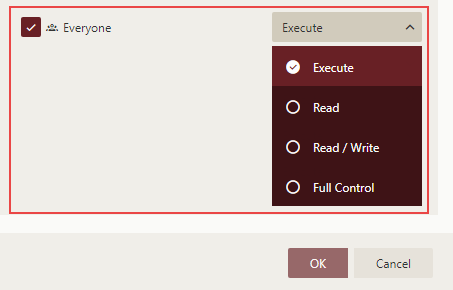
Click OK.
To Edit Dashboard Categories
On the Types tab, click Dashboards.
Click Show Check Box.
Select the dashboards to update.
Click the Categories button:

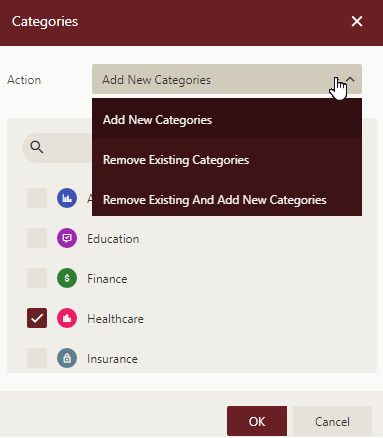
Click OK.