-
Interactive DashboardsCreate interactive BI dashboards with dynamic visuals.
-
End-User BI ReportsCreate and deploy enterprise BI reports for use in any vertical.
-
Wyn AlertsSet up always-on threshold notifications and alerts.
-
Localization SupportChange titles, labels, text explanations, and more.
-
Wyn ArchitectureA lightweight server offers flexible deployment.
-
 Wyn Enterprise 7.1 is ReleasedThis release emphasizes Wyn document embedding and enhanced analytical express...
 -
 Choosing an Embedded BI Solution for SaaS ProvidersAdding BI features to your applications will improve your products, better serve your customers, and more. But where to start? In this guide, we discuss the many options.
-
Visual GalleryInteractive sample dashboards and reports.
-
BlogExplore Wyn, BI trends, and more.
-
WebinarsDiscover live and on-demand webinars.
-
Customer SuccessVisualize operational efficiency and streamline manufacturing processes.
-
Knowledge BaseGet quick answers with articles and guides.
-
VideosVideo tutorials, trends and best practices.
-
WhitepapersDetailed reports on the latest trends in BI.
-
 Choosing an Embedded BI Solution for SaaS ProvidersAdding BI features to your applications will impr...
 -

- Getting Started
- Administration Guide
-
User Guide
- An Introduction to Wyn Enterprise
- Document Portal for End Users
- Data Governance and Modeling
- View and Manage Documents
- Working with Resources
- Working with Reports
- Working with Dashboards
- Working with Notebooks
- Wyn Analytical Expressions
- Section 508 Compliance
- Subscribe to RSS Feed for Wyn Builds Site
- Developer Guide
Resource Portal
The Resource Portal displays all resources on the server. The Data section contains data sources, datasets, and data models. Dashboards, reports, and web pages are displayed under the Documents section. Templates, images, and themes are grouped and displayed under the Other Resources section.
Here is a video walkthrough of the Wyn Resource Portal.
Working with Resources
You can perform the following actions on resources using the Resource Portal. The corresponding buttons are located near each document in the list or in the right corner, on top of the view.
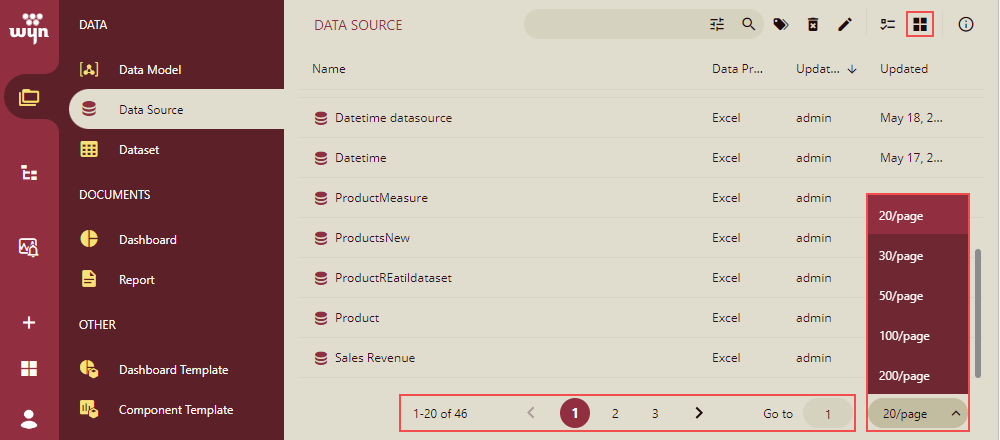
Note: It supports pagination for the document list. Documents are listed page-wise, so it helps in terms of overall navigation, and the process of listing the documents is also faster. You can specify the number of documents to be displayed per page from the drop-down list. Like here, we have selected 20 documents per page. If you want to go to a particular page, you can enter the page number in Go to and press Enter or click the page number, or you can use the Next Page/Previous Page arrows. This feature is available from Wyn 6.1 onwards.
Tile and List View
You can view the documents in a list view and tile view modes. In the above figure, by default, the documents are displayed in a list view. To view the documents in the tile view mode, click the Show documents as tile icon on the top right of the view. The documents will be listed in the tile view mode as shown below.
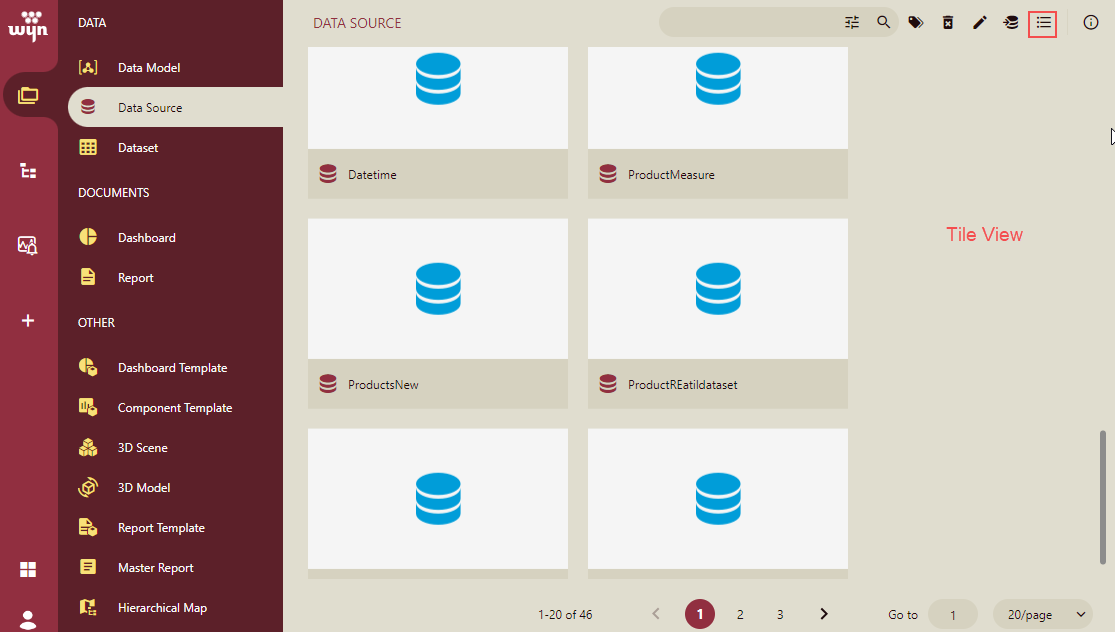
You can see the document thumbnail in the Tile view.
To go back to the list view mode, click the icon Show documents as list .
.
Note: The default view is as per the view mode settings done by the administrator or its default setting.
Refer to the section Adding a Thumbnail for details about how to add a thumbnail.
Document Type
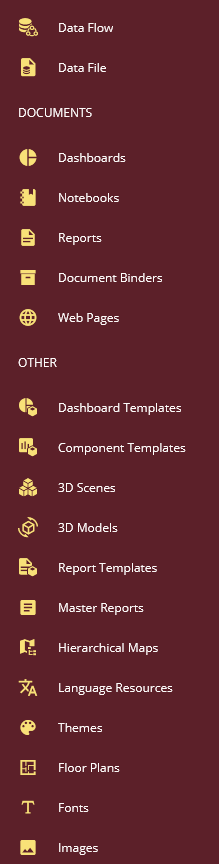
DATA
Data Models: Business-friendly structured models built from data sources to simplify complex schemas. Actions:
Edit the data model.
Duplicate the model.
Add the model to categories.
Rename the model.
Delete the model.
Download the model.
Data Sources: Connections to databases, files, services, or APIs that act as the backbone of all datasets. Actions:
Preview the data source.
Open in a new window.
Reconfigure its properties.
Append additional data.
Copy a shareable URL.
Add to categories.
Rename the data source.
Delete it from the list.
Download the data source.
Datasets: Prepared queries derived from data sources for dashboards, reports, spreadsheets, and notebooks. Actions:
Preview the dataset.
Open in a new window.
Edit dataset properties.
Duplicate the dataset.
Copy a shareable URL.
Add to categories.
Refresh the dataset cache.
Rename the dataset.
Delete it from the list.
Download the dataset.
Data Flow: ETL-style processes are used for transforming, cleaning, and joining data before analysis.
Data File: Uploaded static file-based data, such as Excel, CSV, or JSON, used as input sources.
DOCUMENTS
Dashboards: Interactive analytical dashboards are used for data visualization and exploration. Actions:
Preview the dashboard.
Open in a new window.
Edit in Dashboard Designer.
Duplicate the dashboard.
Copy a shareable URL.
Add to categories.
Rename the dashboard.
Delete the dashboard.
Download the dashboard.
Notebooks: Narrative-style documents combining text, visuals, and datasets for guided analysis.
Reports: Paginated, printable business documents suitable for exports. Actions:
Preview the report.
Open in a new window.
Export (PDF, Excel, HTML, CSV, JSON, Image, Docx).
Edit in Report Designer.
Save as a template.
Duplicate the report.
Copy a shareable URL.
Add to categories.
Rename the report.
Delete the report.
Download the report.
Document Binders: Documents that combine multiple reports into a single structured output.
Web Pages: Embedded external web content is accessible inside Wyn. Actions:
Preview the web page.
Open in a new window.
Edit in Designer.
Copy a shareable URL.
Add to categories.
Rename the web page.
Delete it.
Download the web page.
Note: An admin must enable Web Page documents.
OTHER
Dashboard Templates: Reusable dashboard layout foundations for rapid creation.
Component Templates: Reusable dashboard components designed to accelerate building.
3D Scenes: Predefined 3D layouts used for immersive visualization.
3D Models: Imported 3D assets used in dashboards or 3D scenes.
Report Templates: Blueprints for standardized report creation. Actions:
Preview the template.
Open in a new window.
Use it to create a new report.
Edit the template in Designer.
Copy a shareable URL.
Add to categories.
Rename the template.
Delete the template.
Download the template.
Master Reports: Base-format reports reused across multiple derived reports. Actions:
Add to categories.
Rename the master report.
Delete it.
Download the master report.
Hierarchical Maps: Multi-level geographic or logical map resources used for drilldown.
Language Resources: Localization files for multi-language support. Actions:
Preview the resource.
Open in a new window.
Edit in Language Designer.
Duplicate the resource.
Export to Excel.
Import from Excel.
Copy a shareable URL.
Add to categories.
Rename the resource.
Delete it.
Download the resource.
Themes: Reusable visual styling for dashboards, reports, and UI. Actions:
Preview the theme.
Open in a new window.
Copy a shareable URL.
Add to categories.-- Edit in Theme Designer.
Rename the theme.
Delete it.
Download the theme.
Floor Plans: Spatial layouts used to build a facility or floor-visual dashboards. Actions:
Preview the floor plan.
Open in a new window.
Edit in Floor Plan Designer.
Copy a shareable URL.
Add to categories.
Rename it.
Delete it.
Download the floor plan.
Fonts: Uploaded custom font files used across reports, dashboards, and pages. Actions:
Add the font to categories.
Rename the font.
Delete the font.
Download the font.
Images: Reusable shared image assets. Actions:
Preview the image.
Open in a new window.
Copy a shareable URL.
Add to categories.
Rename the image.
Delete the image.
Creating Resources

DATA SOURCE
Create Data Source: Create a new data source connection to databases, files, APIs, or services.
Create Data FlowCreate an ETL-style data flow used to prepare, clean, or transform data before consumption.
DASHBOARD
Prepare Data: Open the dataset creation workflow to prepare data for dashboards.
Create Dashboard: Open the Dashboard Designer to build an interactive analytical dashboard.
REPORT
Prepare Data: Open the dataset preparation workflow for use in report design.
Create Report: Open the Report Designer to create paginated, print-ready business reports.
NOTEBOOK
Create Notebook: Create a new notebook combining text, visualizations, datasets, and narrative for guided analysis.
OTHER
Create Floor Plan: Create or upload a floor plan used for facility or spatial dashboards.
Create 3D Scene: Create a 3D visualization scene for immersive analytical dashboards.
Create Hierarchical Map: Create a multi-level map resource for geographic or structural drilldown.
Add Language Resource: Add a localization file to support multi-language documents or UI.
Add Font: Upload a new custom font for use in dashboards, reports, and pages.
Create Theme: Create a custom visual theme defining colors, typography, and style.
Create Document Binder: Create a multi-report binder combining several reports into a single structured document.
Add Embedded Web Page: Add an external webpage to the portal for direct access and navigation.
UPLOAD
Drag & Drop Files: Upload files directly into the Wyn Enterprise portal by dragging them into the upload area or selecting them manually.
Info Tab
On the Info tab, you can view the basic information of the document, edit/update the name, add a document description, add a thumbnail, assign share permissions to the document, set document categories, share, caching (specific to a few documents), view referenced documents, etc.
To view the Info tab, select any document and click the Info icon in the top right corner.
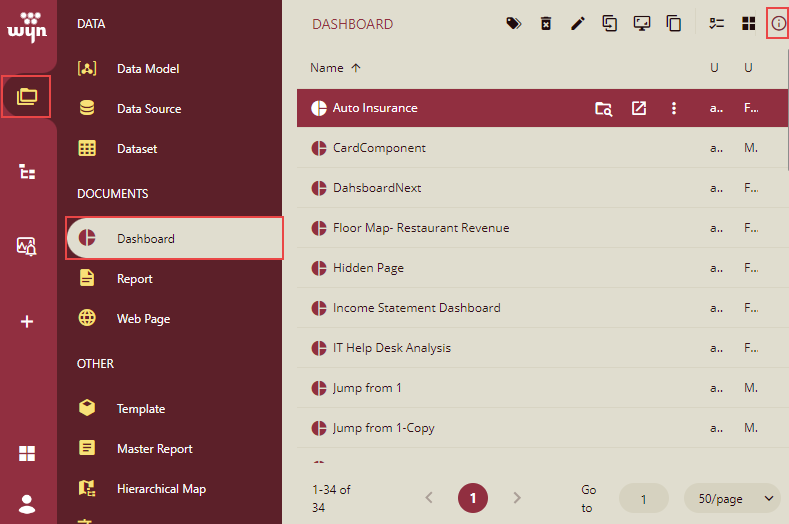
The Info tab is displayed.
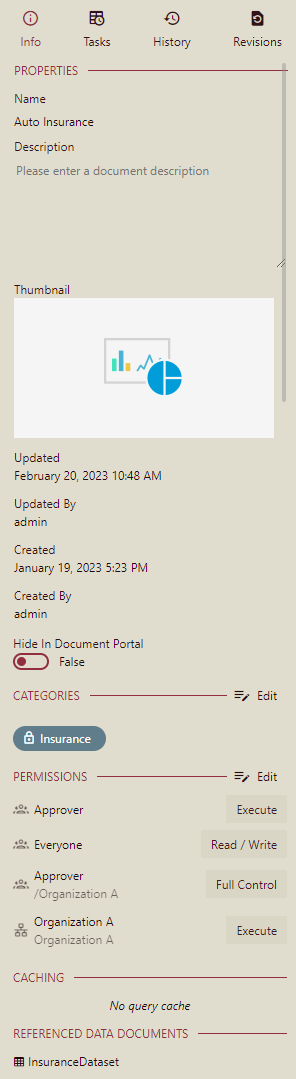
Properties
Description: Add the document description here.
Thumbnail: You can add a thumbnail from here by clicking and selecting the thumbnail image. You can delete the thumbnail by clicking the Remove thumbnail option.
You can also see the Update By, Update Date, Created By, and Created Date information about the document.
Categories: You can assign categories for the document from here. Click the Edit icon, and the CATEGORIES dialog box is displayed.
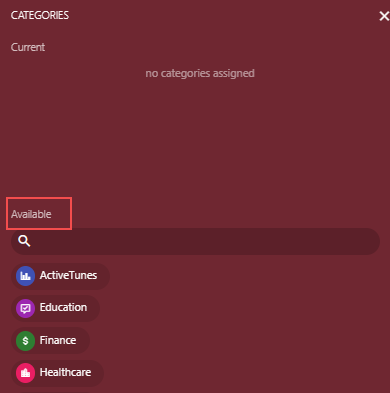
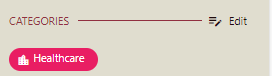
Select the categories from the Available list, and click the close button. The selected category will be displayed in the Info panel.
Assign Permissions in Info Tab
You can share the document(s) with other users if the administrator has enabled the other user's permissions to view such shared documents.
When sharing, you can share the documents with Read Only, Read/Write, Execute, or Full Control permissions. For more information on how to set sharing permissions for the selected document in the Info tab, see the Share Document article.
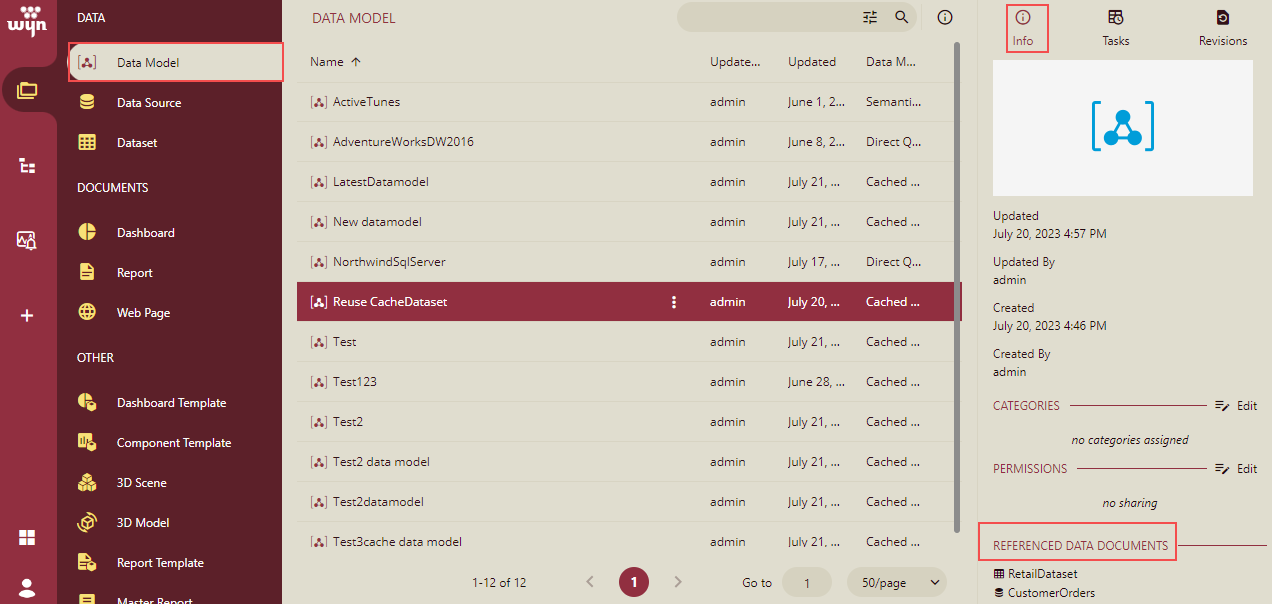
Referenced Data Documents
All the referenced Datasources and Datasets are displayed under Referenced Data Documents as shown below.
Important points
When sharing the permission, the "minimum needed permission", all referenced documents shown in the "Permission Information" will be shared.
When reverting the Cached Dataset or the Cached Data Model, the referenced Cached Dataset info will be updated.