-
Interactive DashboardsCreate interactive BI dashboards with dynamic visuals.
-
End-User BI ReportsCreate and deploy enterprise BI reports for use in any vertical.
-
Wyn AlertsSet up always-on threshold notifications and alerts.
-
Localization SupportChange titles, labels, text explanations, and more.
-
Wyn ArchitectureA lightweight server offers flexible deployment.
-
 Wyn Enterprise 7.1 is ReleasedThis release emphasizes Wyn document embedding and enhanced analytical express...
 -
 Choosing an Embedded BI Solution for SaaS ProvidersAdding BI features to your applications will improve your products, better serve your customers, and more. But where to start? In this guide, we discuss the many options.
-
Visual GalleryInteractive sample dashboards and reports.
-
BlogExplore Wyn, BI trends, and more.
-
WebinarsDiscover live and on-demand webinars.
-
Customer SuccessVisualize operational efficiency and streamline manufacturing processes.
-
Knowledge BaseGet quick answers with articles and guides.
-
VideosVideo tutorials, trends and best practices.
-
WhitepapersDetailed reports on the latest trends in BI.
-
 Choosing an Embedded BI Solution for SaaS ProvidersAdding BI features to your applications will impr...
 -

- Getting Started
- Administration Guide
-
User Guide
- An Introduction to Wyn Enterprise
- Document Portal for End Users
- Data Governance and Modeling
- View and Manage Documents
- Working with Resources
- Working with Reports
- Working with Dashboards
- Working with Notebooks
- Wyn Analytical Expressions
- Section 508 Compliance
- Subscribe to RSS Feed for Wyn Builds Site
- Developer Guide
KPI Chart
Data Binding
Actual Value – Bind the primary metric you want to display on the KPI chart.
Ellipsis Menu – Click the ellipsis to access:
Data Format – Opens the data format window to customize numeric or date formatting.
Display Unit – Choose how values are scaled: Auto (default), None, Thousands, Millions, Billions, or Trillions.
Target Value – Bind the comparison metric or target value for the KPI chart.
Trend Axis – Bind the data to represent the trend over a period, typically used for sparklines or trend lines within the KPI.
Trellis Columns – Bind a field to create multiple columns of KPI charts for different data segments.
Trellis Rows – Bind a field to create multiple rows of KPI charts for different data segments.
Customization
Value Setting
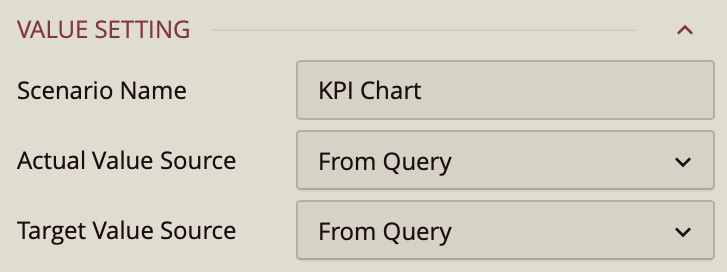
Value Settings
Scenario Name - The name of that appears in the Explorer. By default its the same as the name of the scenario, but you can change it to something else.
Actual Value Source – Dropdown:
From Query – Uses a field from the dataset.
Custom Input – Allows manual entry.
Value – Enter a numerical value.
Target Value Source – Same options as Actual Value Source.
Chart Style
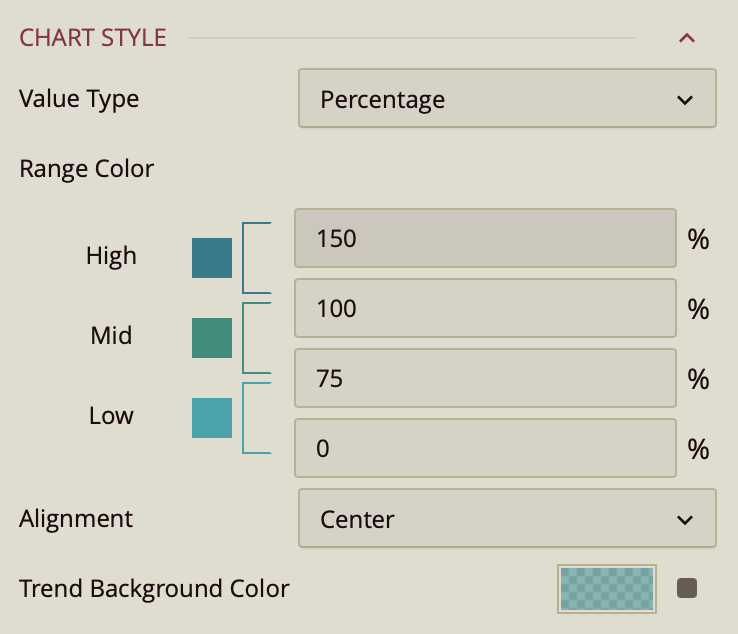
Value Type – Determines how the gauge interprets values:
Percentage (default) – Values are displayed relative to the range as a percentage.
Constant – Values are displayed as raw numbers on a fixed numeric scale.
Range Colors – Assigns colors to ranges within the gauge for visual context:
High: 100–150%
Mid: 75–100%
Low: 0–75%
(Thresholds are fully editable to match your data.)
The Properties tab allows you to customize the appearance and layout of the KPI chart.
Alignment – Determines the horizontal alignment of the KPI chart content. Options include Center (default), Left, or Right.
Trend Background Color – Sets the background color for the trend axis area.
Sub Title
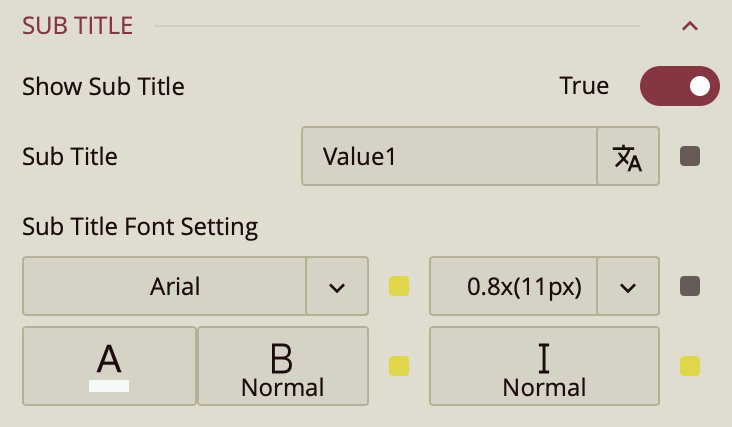
Show Subtitle – Toggles whether a subtitle is displayed.
Subtitle Text – Enter the text for the subtitle.
Font Setting – Set the subtitle’s font family, size, color, weight, and style.
Data Label
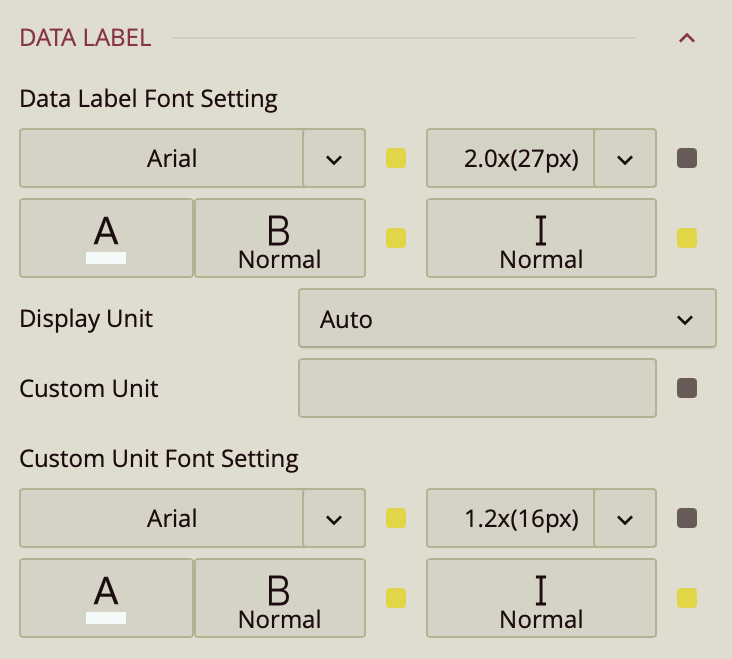
Font Settings – Font family, size, color, weight, style.
Display Unit – Auto (default), None, Thousands, Millions, Billions, Trillions.
Custom Unit – Enter a custom label (e.g., "kg").
Custom Unit Font Settings – Font family, size, color, weight, style.
Comparison Label
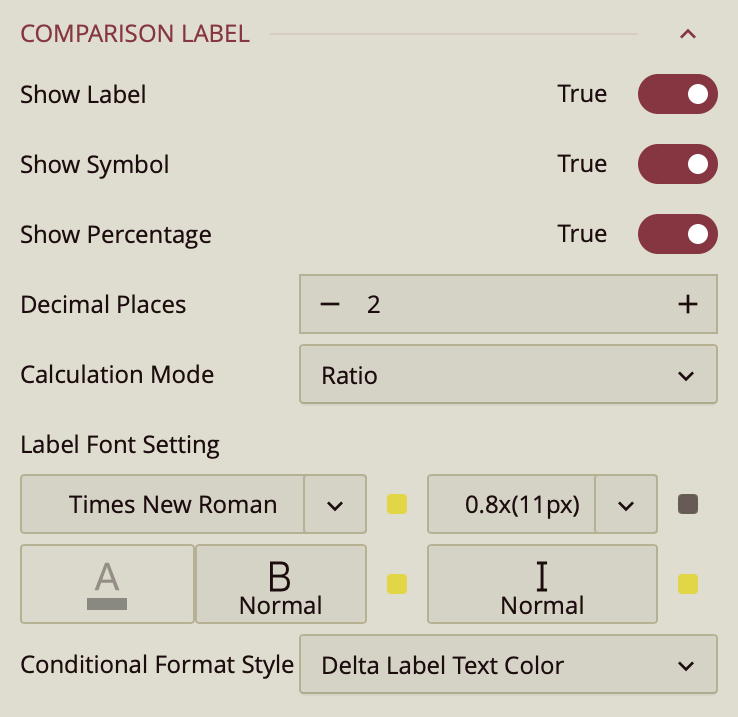
The Comparison Label displays contextual information that compares the actual and target values on the KPI Chart. It provides visual and numeric indicators that help users quickly evaluate performance against goals.
Show Label
Toggles the visibility of the comparison label. When set to True (default), the comparison result is displayed on the chart. When set to False, the label is hidden.
Show Symbol
Determines whether a visual indicator (such as an arrow) appears alongside the comparison value. The default value is True.
Show Percentage
Controls whether the comparison is expressed as a percentage relative to the target value. The default value is True.
Decimal Places
Specifies the number of decimal places displayed for the comparison value and related data attributes. By default, this property is set to 2. Adjusting this setting allows you to control the numeric precision of the comparison label, ensuring consistency with reporting standards or business requirements.
Calculation Mode
Defines how the comparison value is calculated:
Ratio (default) – Displays the ratio of the actual value to the target value.
Delta – Displays the arithmetic difference between the actual and target values.
Label Font Settings
Configures the typography of the comparison label, including font family, size, color, weight, and style.
Conditional Format Style
Determines how color is applied to the comparison result when both actual and target data attributes are bound to the KPI Chart.
Delta Label Text Color (default) – Applies the delta color directly to the label text.
Delta Label Background Color – Applies the delta color as the background of the label, while the label text remains white.
The color used to indicate positive or negative variance is defined in the Chart Style settings under the Range property. The Conditional Format Style setting determines whether that color affects the label’s text or its background.