-
Interactive DashboardsCreate interactive BI dashboards with dynamic visuals.
-
End-User BI ReportsCreate and deploy enterprise BI reports for use in any vertical.
-
Wyn AlertsSet up always-on threshold notifications and alerts.
-
Localization SupportChange titles, labels, text explanations, and more.
-
Wyn ArchitectureA lightweight server offers flexible deployment.
-
 Wyn Enterprise 7.1 is ReleasedThis release emphasizes Wyn document embedding and enhanced analytical express...
 -
 Choosing an Embedded BI Solution for SaaS ProvidersAdding BI features to your applications will improve your products, better serve your customers, and more. But where to start? In this guide, we discuss the many options.
-
Visual GalleryInteractive sample dashboards and reports.
-
BlogExplore Wyn, BI trends, and more.
-
WebinarsDiscover live and on-demand webinars.
-
Customer SuccessVisualize operational efficiency and streamline manufacturing processes.
-
Knowledge BaseGet quick answers with articles and guides.
-
VideosVideo tutorials, trends and best practices.
-
WhitepapersDetailed reports on the latest trends in BI.
-
 Choosing an Embedded BI Solution for SaaS ProvidersAdding BI features to your applications will impr...
 -

- Getting Started
-
Administration Guide
-
Installing Wyn Enterprise
- System Requirements
- Installing on Windows
- Installing on Linux
- Installing using Docker
- Deploying to Kubernetes
- Deploying to Cloud App Services
- Deploying to a Distributed Environment
- Post-Installation How-Tos
- Configuration Settings
- Account Management
- Security Management
- System Management
- Document Management
- How To and Troubleshooting
-
Installing Wyn Enterprise
- User Guide
- Developer Guide
Functional Roles for Workers
Functional roles in Wyn Enterprise determine the type of tasks that can be assigned to the workers. Wyn Enterprise offers three functional roles: Report Worker, Cot Worker, and Dashboard Worker. With the default configurations, all workers can perform all types of tasks. However, with functional roles, you get an option to configure specific roles for the workers. This aids in better managing the roles based on usage and available resources. This help article contains the instructions to configure functional roles for each type of worker in Wyn Enterprise deployed in a K8s environment.
The functional roles for each type of worker are listed in the tables below,
Report Workers Functional Roles
Functional Role | Description |
|---|---|
preview | Handles rendering report visuals. |
scheduledTask | Handles scheduled tasks on reports. |
export | Manages to export reports from Wyn. |
others | Includes downloads, bursting, and thumbnail generation of reports. |
Cot Worker Functional Roles
Functional Role | Description |
|---|---|
cot | Used to refresh the dataset cache. |
model | Used to refresh the data model cache. |
Dashboard Workers
Functional Role | Description |
|---|---|
export | Manages exporting dashboards from Wyn. |
Note: Since there is only one functional role for Dashboard Worker, configuring the functional role is not necessary.
Before configuring the functional roles, ensure the following,
You have access to a Kubernetes (K8s) environment.
Read the Deploying to Local Kubernetes help article to familiarize yourself with the K8s environment and Wyn installation.
You have installed the latest Wyn Enterprise version.
Steps to configure functional roles for each worker are described below,
Report Worker
To configure the above-mentioned functional roles for report workers.
All Functional Roles
To add all the functional roles to the environment variables, run the following command as shown in below code snippet. By default, workers can perform all functional roles.
cd services
vi reporting-worker.yaml
# Add all functional roles to environment variables.
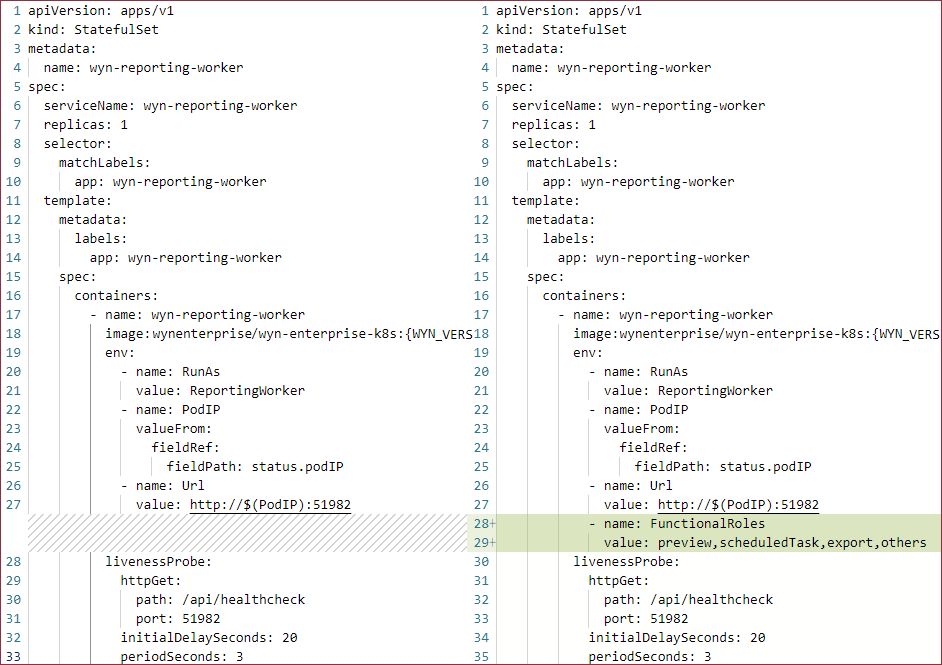
- name: FunctionalRoles
  value: preview,scheduledTask,export,others
Update the text marked in green in the YAML file, as shown in the image below.
Preview
To specify only the preview functional role in the YAML file,
Create a backup of the reporting-worker.yaml file in the Services folder using the following command:
cd services
mv reporting-worker.yaml reporting-worker.yaml.origin
Create a new file named, reporting-worker-preview.yaml by copying the original file using the following command:
cp reporting-worker.yaml.origin reporting-worker-preview.yamlModify the worker names and add the preview functional role to the environment variables in reporting-worker-preview.yaml using the following command:
vi reporting-worker-preview.yaml
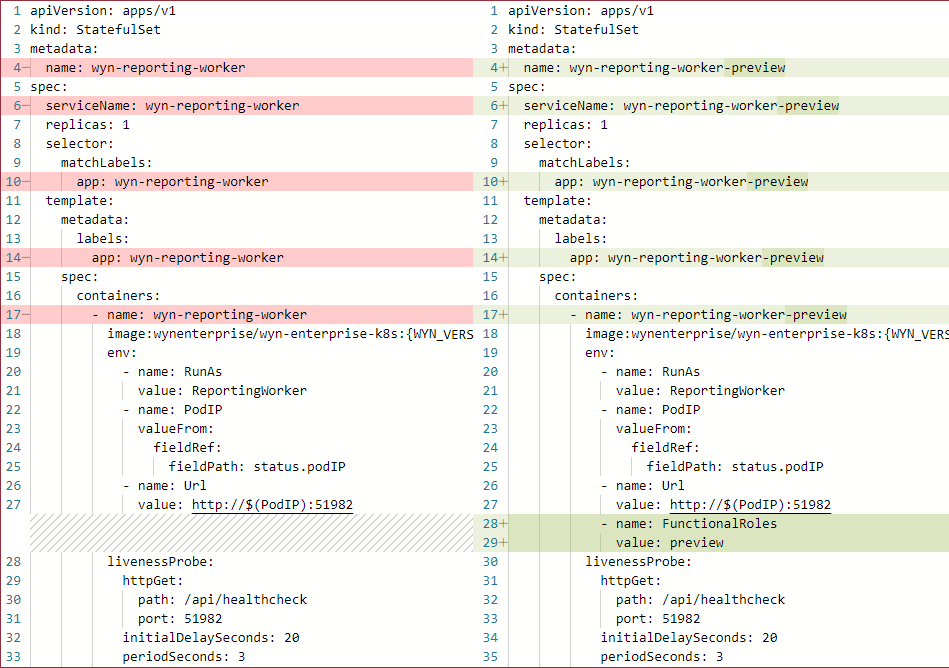
# Modify the worker name from 'wyn-reporting-worker' to 'wyn-reporting-worker-preview'
# Add the preview functional roles to the environment variables
- name: FunctionalRoles
  value: preview
Update the text marked in red to the text marked in green, as shown in the image below.
Note: Environment variables specify the configuration settings for workers. Adding only the preview functional role ensures that the worker is configured to handle only preview-related tasks.
Scheduled Task
To specify only the Scheduled Task functional role in the YAML file,
Create a backup of the reporting-worker.yaml file in the Services folder using the following command:
cd services
mv reporting-worker.yaml reporting-worker.yaml.origin
Create a new file named, reporting-worker-scheduledTask.yaml by copying the original file using the following command:
cp reporting-worker.yaml.origin reporting-worker-scheduledTask.yamlModify the worker names and add the ScheduledTask functional role to the environment variables in reporting-worker-scheduledTask.yaml using the following command:
vi reporting-worker-scheduledTask.yaml
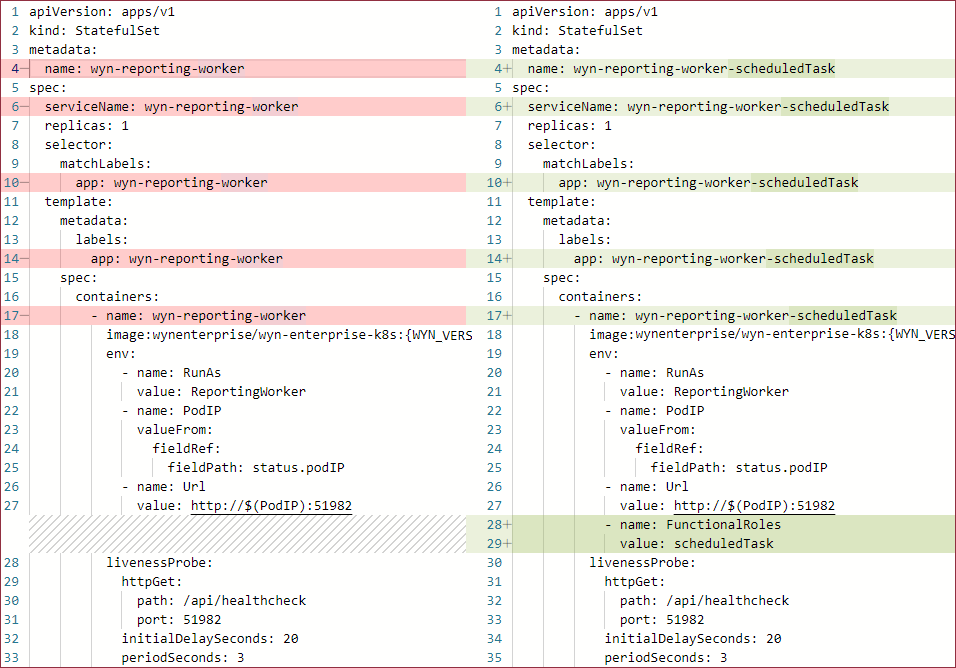
# Modify the worker name from 'wyn-reporting-worker' to 'wyn-reporting-worker-scheduledTask'
# Add the scheduledTask functional role to the environment variables
- name: FunctionalRoles
  value: scheduledTask
Update the text marked in red to the text marked in green, as shown in the image below.
Note: Environment variables specify the configuration settings for workers. Adding only the ScheduledTask functional role ensures that the worker is configured to handle only schedule-related tasks.
Export
To specify only the Export functional role in the YAML file,
Create a backup of the reporting-worker.yaml file in the Services folder using the following command:
cd services
mv reporting-worker.yaml reporting-worker.yaml.origin
Create a new file named, reporting-worker-export.yaml by copying the original file using the following command:
cp reporting-worker.yaml.origin reporting-worker-export.yamlModify the worker names and add the export functional role to the environment variables in reporting-worker-export.yaml using the following command:
vi reporting-worker-export.yaml
# Modify the worker name from 'wyn-reporting-worker' to 'wyn-reporting-worker-export'
# Add the export functional role to the environment variables
- name: FunctionalRoles
  value: export
Update the text marked in red to the text marked in green, as shown in the image below.
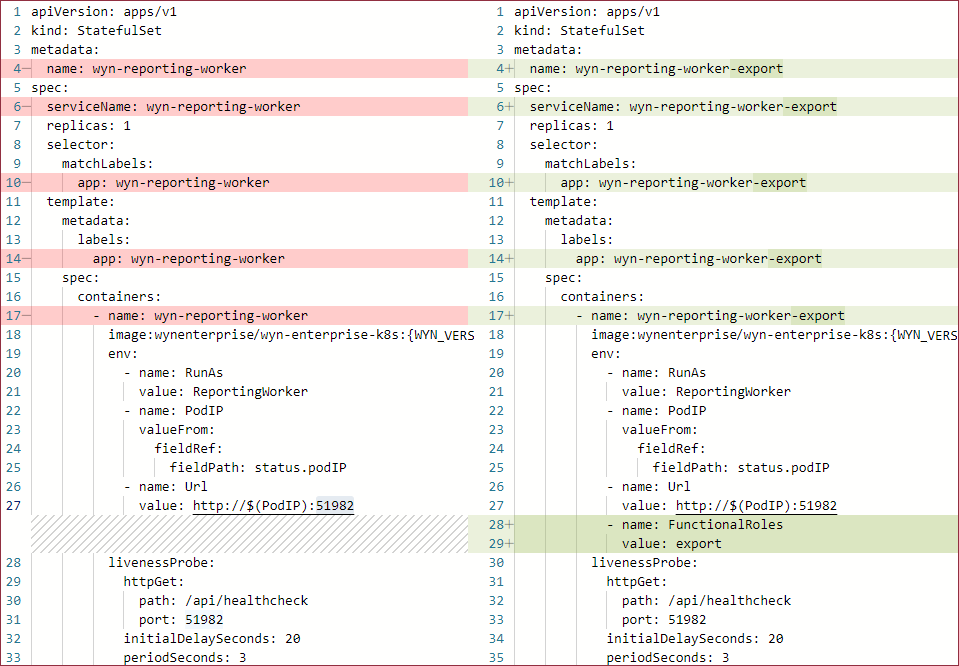
Note: Environment variables specify the configuration settings for workers. Adding only the export functional role ensures that the worker is configured to handle only export-related tasks.
Others
To specify the Others functional role in the YAML file,
Create a backup of the reporting-worker.yaml file in the Services folder using the following command:
cd services
mv reporting-worker.yaml reporting-worker.yaml.origin
Create a new file named, reporting-worker-others.yaml by copying the original file using the following command:
cp reporting-worker.yaml.origin reporting-worker-others.yamlModify the worker names and add the others functional role to the environment variables in reporting-worker-others.yaml using the following command:
vi reporting-worker-others.yaml
# Modify the worker name from 'wyn-reporting-worker' to 'wyn-reporting-worker-others'
# Add the others functional role to the environment variables
- name: FunctionalRoles
  value: others
Update the text marked in red to the text marked in green, as shown in the image below.
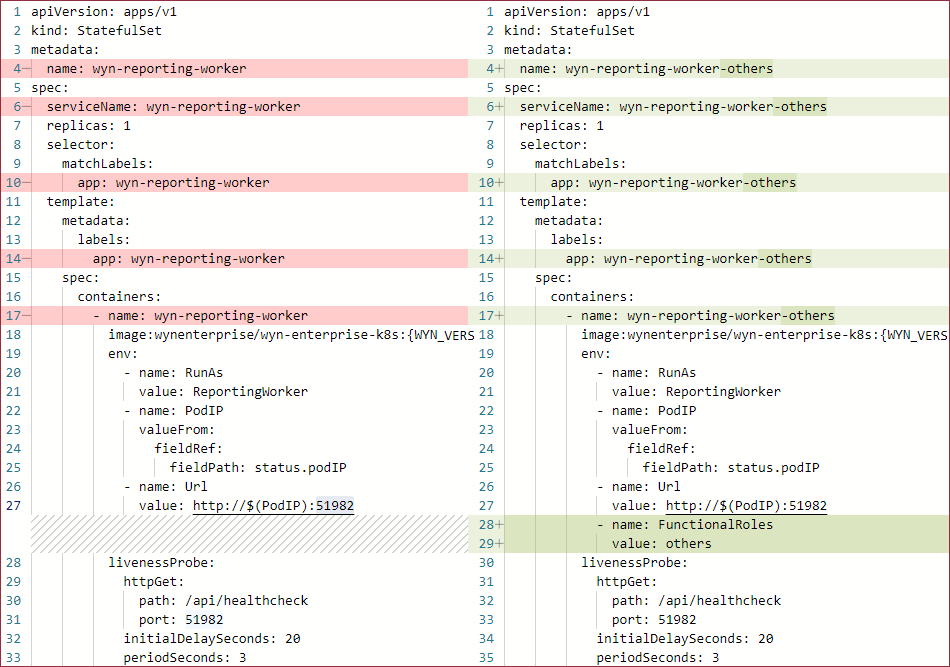
Note: Environment variables specify the configuration settings for workers. Adding only the others functional role ensures that the worker is configured to handle only the download, bursting, and thumbnail generation tasks.
Cot Worker
To configure the above-mentioned functional roles for Cot workers.
All Functional Roles
To add all the functional roles to the environment variables, run the following command as shown in below code snippet. By default, workers can perform all functional roles.
cd services
vi cot-worker.yaml
 # Add all functional roles to environment variables.
- name: FunctionalRoles
value: cot,model
Update the text marked in green in the YAML file, as shown in the image below.
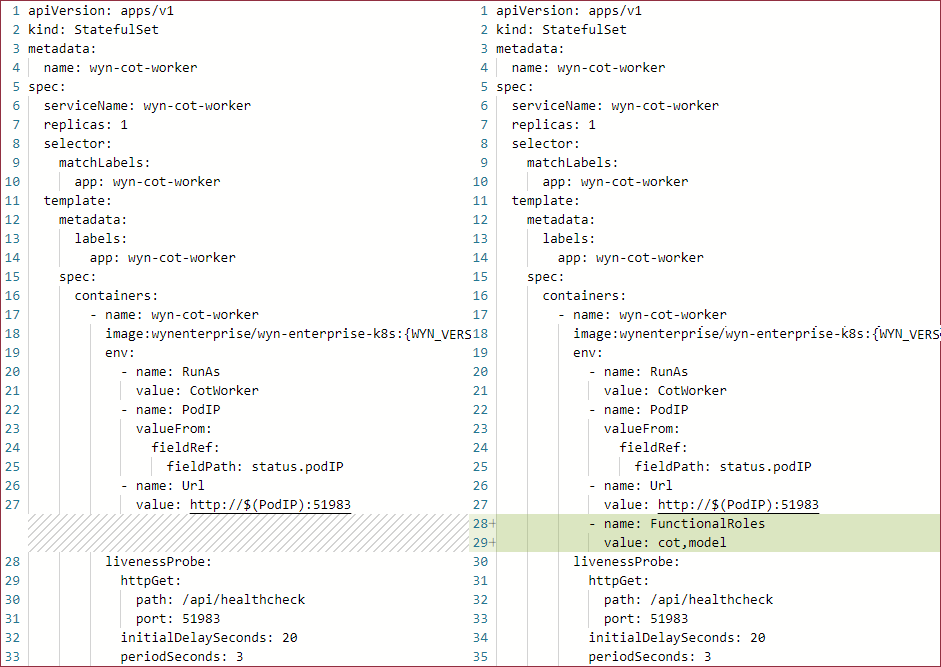
Refresh Dataset Cache
Create a backup of the cot-worker.yaml file in the Services folder using the following command:
cd services
mv cot-worker.yaml cot-worker.yaml.origin
Create a new file named, cot-worker-cots.yaml by copying the original file using the following command:
cp cot-worker.yaml.origin cot-worker-cot.yamlModify the worker names and add the refresh dataset cache functional role to the environment variables in cot-worker-cot.yaml using the following command:
vi cot-worker-cot.yaml
# Modify the worker name from 'wyn-cot-worker' to 'wyn-cot-worker-cot'
# Add the refresh dataset cache functional role to the environment variables
- name: FunctionalRoles
  value: cot
Update the text marked in red to the text marked in green, as shown in the image below.
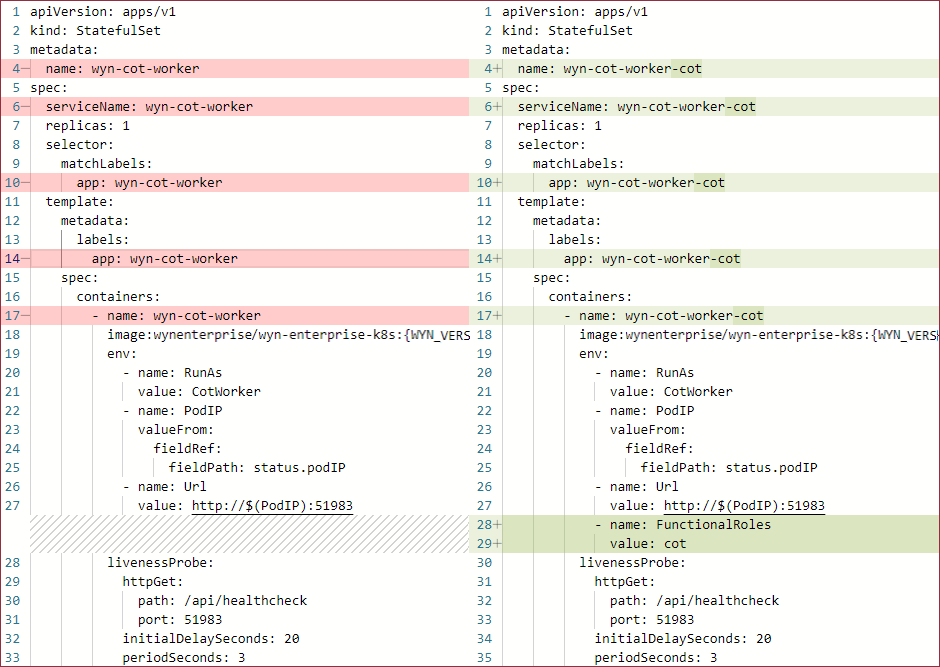
Refresh Model Cache
Create a backup of the cot-worker.yaml file in the Services folder using the following command:
cd services
mv cot-worker.yaml cot-worker.yaml.origin
Create a new file named, cot-worker-model.yaml by copying the original file using the following command:
cp cot-worker.yaml.origin cot-worker-model.yamlModify the worker names and add the refresh model cache functional role to the environment variables in cot-worker-model.yaml using the following command:
vi cot-worker-model.yaml
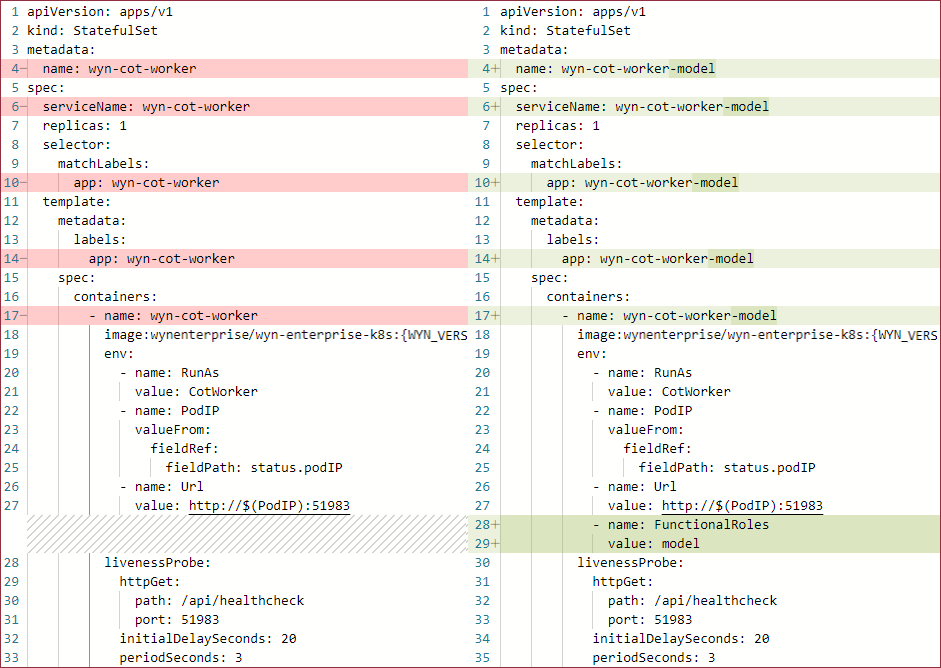
# Modify the worker name from 'wyn-cot-worker' to 'wyn-cot-worker-model'
# Add the refresh model cache functional role to the environment variables
- name: FunctionalRoles
  value: model
Update the text marked in red to the text marked in green, as shown in the image below.