-
Interactive DashboardsCreate interactive BI dashboards with dynamic visuals.
-
End-User BI ReportsCreate and deploy enterprise BI reports for use in any vertical.
-
Wyn AlertsSet up always-on threshold notifications and alerts.
-
Localization SupportChange titles, labels, text explanations, and more.
-
Wyn ArchitectureA lightweight server offers flexible deployment.
-
 Wyn Enterprise 7.1 is ReleasedThis release emphasizes Wyn document embedding and enhanced analytical express...
 -
 Choosing an Embedded BI Solution for SaaS ProvidersAdding BI features to your applications will improve your products, better serve your customers, and more. But where to start? In this guide, we discuss the many options.
-
Visual GalleryInteractive sample dashboards and reports.
-
BlogExplore Wyn, BI trends, and more.
-
WebinarsDiscover live and on-demand webinars.
-
Customer SuccessVisualize operational efficiency and streamline manufacturing processes.
-
Knowledge BaseGet quick answers with articles and guides.
-
VideosVideo tutorials, trends and best practices.
-
WhitepapersDetailed reports on the latest trends in BI.
-
 Choosing an Embedded BI Solution for SaaS ProvidersAdding BI features to your applications will impr...
 -

- Getting Started
- Administration Guide
-
User Guide
- An Introduction to Wyn Enterprise
- Document Portal for End Users
- Data Governance and Modeling
- View and Manage Documents
- Working with Resources
- Working with Reports
- Working with Dashboards
- Working with Notebooks
- Wyn Analytical Expressions
- Section 508 Compliance
- Subscribe to RSS Feed for Wyn Builds Site
- Developer Guide
Add a Relationship
A relationship represents the association between two entities. The direction of the arrows represents the relationship cardinality between the source and the target entities. In this article, you can find the steps to add a relationship and descriptions about the important properties. For more information, refer to the following sections.
Add a Relationship
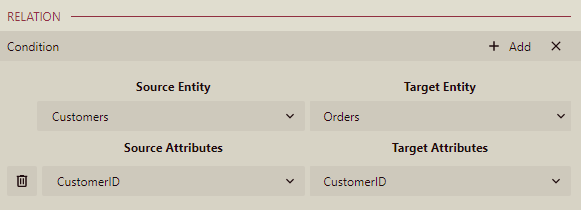
This section describes the steps to add a relation between the Customers and Orders entities such that zero or one Customer record corresponds to many Orders records.
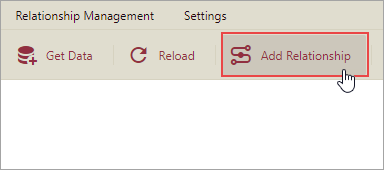
To add a new relation, click the Add Relationship button at the top of the model editor.
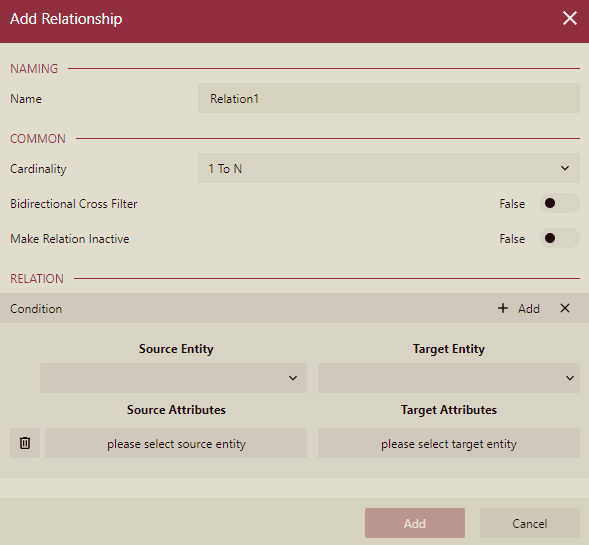
In the Add Relationship dialog box that appears, enter the name for the new relationship.
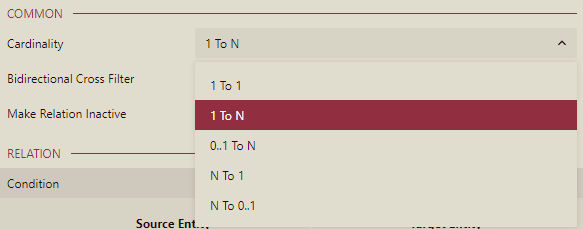
Set the relationship cardinality to '1 To 1', '1 To N', '0..1 To N', 'N To 1', and 'N To 0..1'.
Use the Bidirectional Cross Filter and Make Relation Inactive toggle buttons to
control the behavior of the relationship.
Under the Relations section, specify a source entity from the list, and choose its desired attribute.
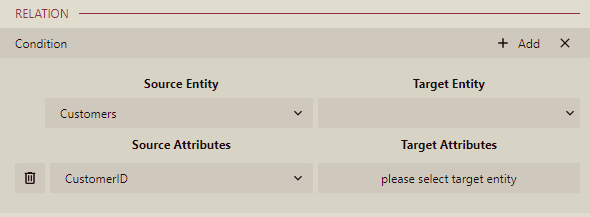
Similarly, specify the target entity from the list, and choose its desired attribute.
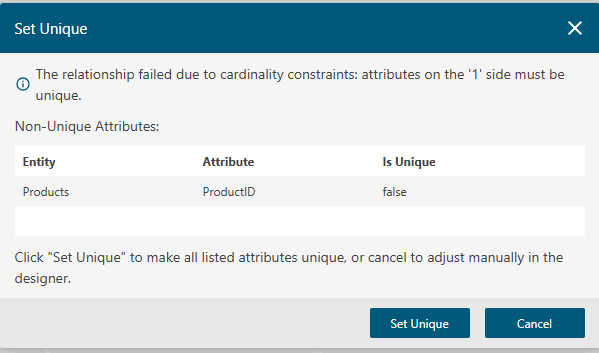
If the isUnique property of the source attribute on the 1-side of the relationship is not set to True, a dialog box will pop up where you can enable it.
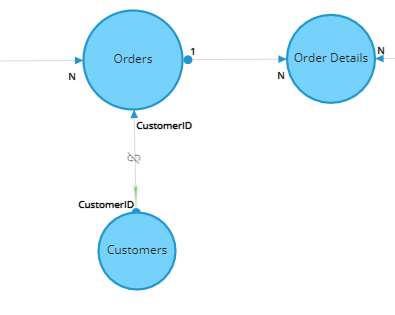
Click the Add button. A newly added relation will appear in the list of relations of the data model's entity.
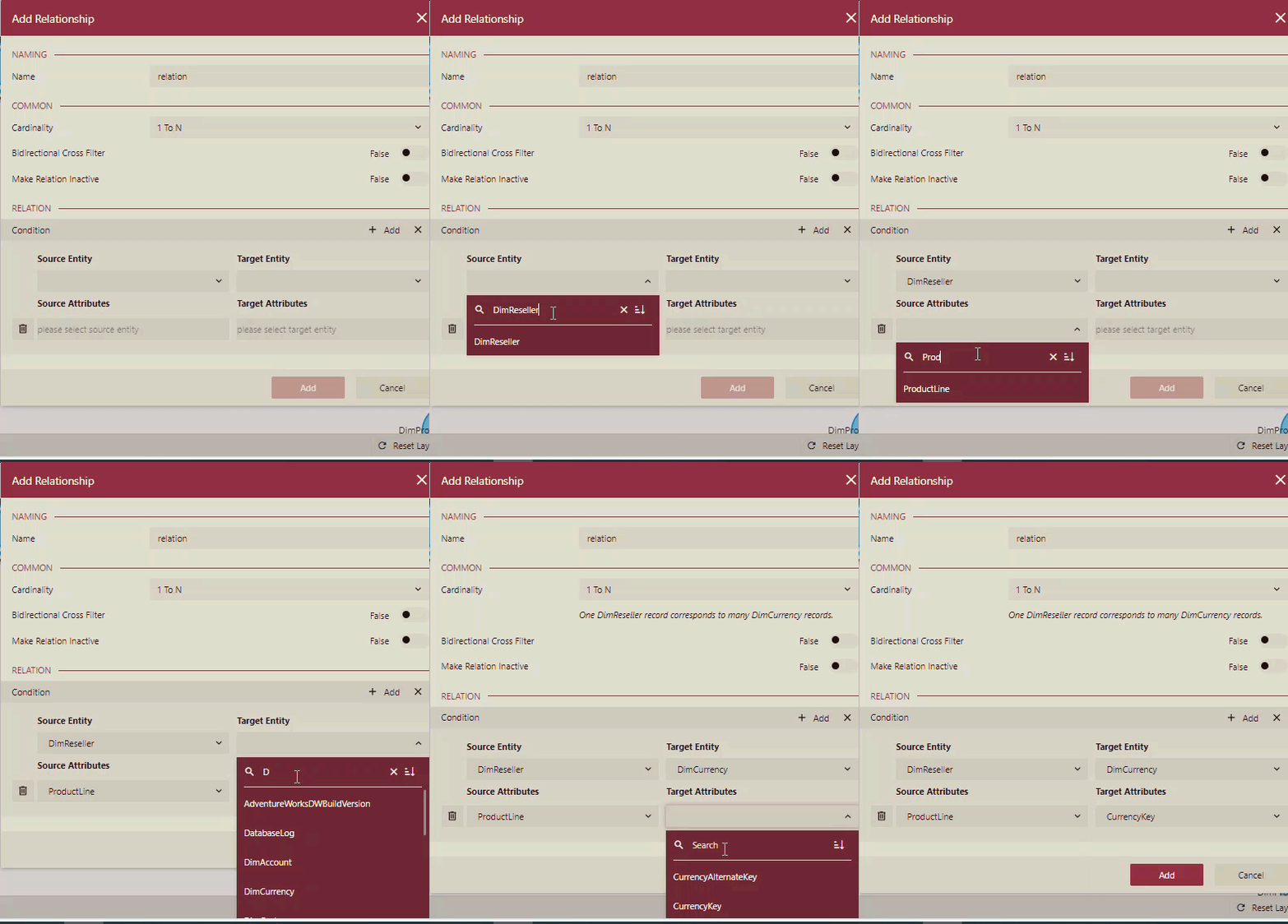
Search an Entity/Attribute
While adding a relationship, you can search for an Entity and its associated Attributes by using the search bar in the Source Entity/Attributes dropdown list, and the Target Entity/Attributes dropdown list as shown below.
Important Properties
The following table describes the important properties of a relationship that you can set in the Data Model Designer.
Property Name | Description |
|---|---|
Name | The name of the relation. |
Cardinality | Defines the rules and restrictions for the relation's behavior in the entity tree and query building. Possible values are '1 To 1', '1 To N', '0..1 To N', 'N To 1', and 'N To 0..1'. This property determines whether the Recursive property affects the relation. |
Bidirectional Cross Filter | Lets you apply a filter on both sides of the relationship. You cannot enable a bidirectional cross filter in the case of a one-to-one relationship. |
Make Relation Inactive | Enables you to create a relationship active/inactive based on your requirements. |
Condition | Indicates whether to base this relation on an existing logical relation from the list. |