-
Interactive DashboardsCreate interactive BI dashboards with dynamic visuals.
-
End-User BI ReportsCreate and deploy enterprise BI reports for use in any vertical.
-
Wyn AlertsSet up always-on threshold notifications and alerts.
-
Localization SupportChange titles, labels, text explanations, and more.
-
Wyn ArchitectureA lightweight server offers flexible deployment.
-
 Wyn Enterprise 7.1 is ReleasedThis release emphasizes Wyn document embedding and enhanced analytical express...
 -
 Choosing an Embedded BI Solution for SaaS ProvidersAdding BI features to your applications will improve your products, better serve your customers, and more. But where to start? In this guide, we discuss the many options.
-
Visual GalleryInteractive sample dashboards and reports.
-
BlogExplore Wyn, BI trends, and more.
-
WebinarsDiscover live and on-demand webinars.
-
Customer SuccessVisualize operational efficiency and streamline manufacturing processes.
-
Knowledge BaseGet quick answers with articles and guides.
-
VideosVideo tutorials, trends and best practices.
-
WhitepapersDetailed reports on the latest trends in BI.
-
 Choosing an Embedded BI Solution for SaaS ProvidersAdding BI features to your applications will impr...
 -

- Getting Started
- Administration Guide
-
User Guide
- An Introduction to Wyn Enterprise
- Document Portal for End Users
- Data Governance and Modeling
-
View and Manage Documents
- View Documents
- Duplicate a Document
- Delete a Document
- Rename a Document
- Copy URL
- Hide a Document
- Share a Document
- Document Binder
-
Schedule a Task
- Report Bursting
- Task Delegation
- Document Binding
- Create a Scheduled Task to Run a Report
- Create a Scheduled Task to Run a Dashboard
- Create a Scheduled Task to Run a Datasource
- Create a Scheduled Task to Run a Dataset
- Create a Scheduled Task to Run a Data Model
- Create a Scheduled Task to Print a Report
- Create a Scheduled Task to Cache a Report
- Create a Scheduled Task on a SharePoint Site
- Enable Report Caching
- Restore Deleted Documents
- Monitor Data with Alerts
- Advanced Filter Settings
- Working with Resources
- Working with Reports
- Working with Dashboards
- Working with Notebooks
- Wyn Analytical Expressions
- Section 508 Compliance
- Subscribe to RSS Feed for Wyn Builds Site
- Developer Guide
Create a Scheduled Task to Cache a Report
On the Document Portal, select the report you want to schedule.
With the report selected, click the Info button on the top-right corner of the portal.
In the Info panel that appears, navigate to the Tasks tab and click the + Add Task button to create a new scheduled task.
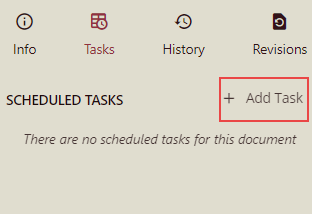
Enter the task description in the Details field.

By default, tasks are manually scheduled in Wyn Enterprise. Choose Caching from the Task Type. If the Execution field is set to One-Time, then you can specify the Start date-time and Executing Timezone as per your requirement.
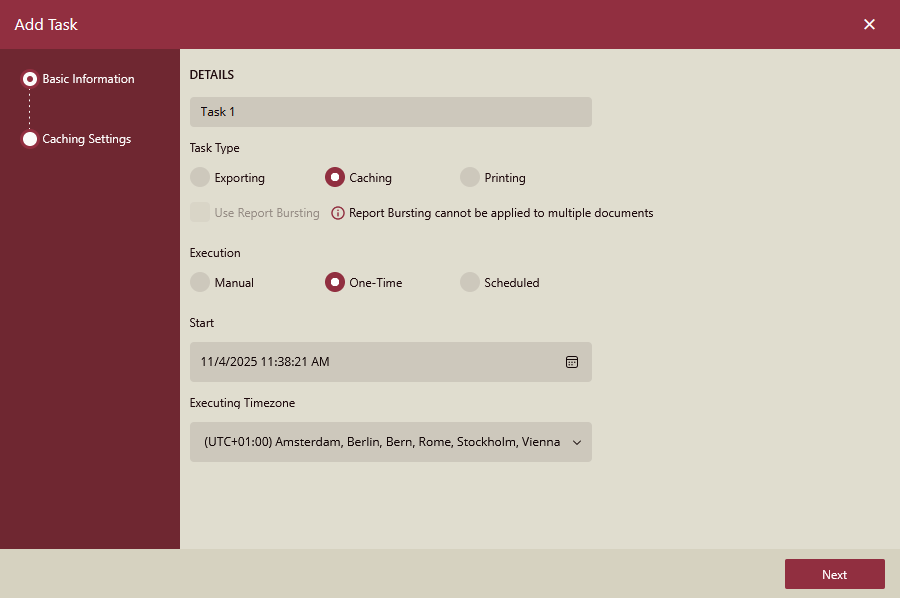
To create a task that runs at fixed intervals of time, set the Execution field to Scheduled.
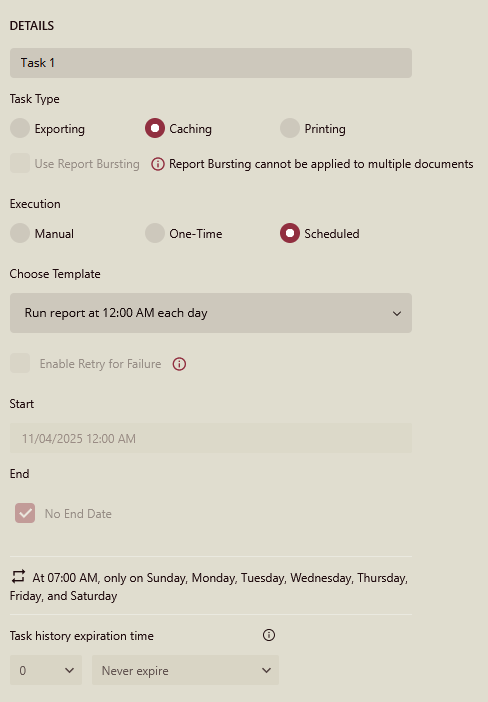
From the Choose Template dropdown, select a suitable schedule template that matches your requirements. The list shows both the built-in and custom templates on the server. For more information on how to create a custom schedule template, visit this article.

The Start and the End fields pick the default values specified in the chosen schedule template. These default values are unchangeable.

Click Next to proceed with configuring Caching Settings.
Caching Settings

Maximum Caching Age
Specifies the maximum age for cached data before it expires.
Current Value:
1.Controls: Increment (
+) or decrement (-) buttons.Unit: Defined by Caching Interval.
Caching Interval
Defines the time unit for the maximum caching age.
Current Value: Hour.
Other Values: Minute, Day, Week, and Month.
Override Preview Settings
Allows overriding default preview settings for caching.
Current Value: Enabled (toggle switch).
Other Values: Disabled.
Display Type
Specifies how the content is displayed when preview settings are overridden.
Current Value: Page.
Other Values: Galley.
Chart Animation
Enables or disables animation for charts in the preview.
Current Value: Enabled (toggle switch).
Other Values: Disabled.
Click OK: The task will cache data for the specified duration based on Maximum Caching Age and Caching Interval, unless overridden by preview settings.
To Manage a Scheduled Task
To manage a scheduled task, click the Actions button  in the Tasks tab. You can use this button to disable, edit, duplicate, or delete a scheduled task.
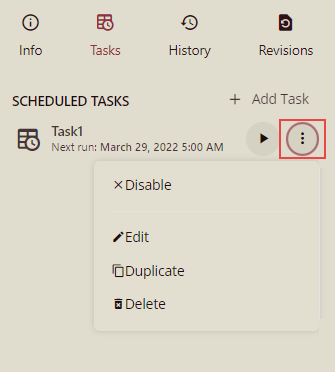
Disable - Deactivates all the future scheduled executions for that task. You can resume the task execution once you enable the scheduled task by clicking the Actions button.
Edit - Enables you to modify the existing information for that task.
Duplicate - Creates a new task with all the settings defined the same as in the originally scheduled task. This way, you can reuse the settings and save time and effort by not recreating a scheduled task from scratch.
Delete - Discards the scheduled task. Please note that once you delete a scheduled task, it is permanently deleted.