-
Interactive DashboardsCreate interactive BI dashboards with dynamic visuals.
-
End-User BI ReportsCreate and deploy enterprise BI reports for use in any vertical.
-
Wyn AlertsSet up always-on threshold notifications and alerts.
-
Localization SupportChange titles, labels, text explanations, and more.
-
Wyn ArchitectureA lightweight server offers flexible deployment.
-
 Wyn Enterprise 7.1 is ReleasedThis release emphasizes Wyn document embedding and enhanced analytical express...
 -
 Choosing an Embedded BI Solution for SaaS ProvidersAdding BI features to your applications will improve your products, better serve your customers, and more. But where to start? In this guide, we discuss the many options.
-
Visual GalleryInteractive sample dashboards and reports.
-
BlogExplore Wyn, BI trends, and more.
-
WebinarsDiscover live and on-demand webinars.
-
Customer SuccessVisualize operational efficiency and streamline manufacturing processes.
-
Knowledge BaseGet quick answers with articles and guides.
-
VideosVideo tutorials, trends and best practices.
-
WhitepapersDetailed reports on the latest trends in BI.
-
 Choosing an Embedded BI Solution for SaaS ProvidersAdding BI features to your applications will impr...
 -

- Getting Started
- Administration Guide
-
User Guide
- An Introduction to Wyn Enterprise
- Document Portal for End Users
- Data Governance and Modeling
- View and Manage Documents
- Working with Resources
- Working with Reports
- Working with Dashboards
- Working with Notebooks
- Wyn Analytical Expressions
- Section 508 Compliance
- Subscribe to RSS Feed for Wyn Builds Site
- Developer Guide
Chart Color Palettes
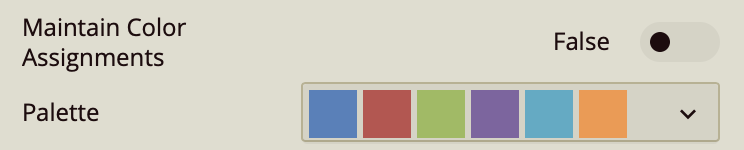
You can either manually assign colors to chart data points or Wyn can assign them from a color palette you choose. To manually assign colors for a chart, toggle on the Maintain Color Assignments in the Chart Style property group of the scenario.
When Maintain Color Assignments is toggled off, you can select the color palette for the chart data points. When it is toggled on, a dialog box will pop up for you to choose the color of each chart data point. Manually assigning color is useful when you have few categorical values in your chart and you want to maintain consistent colors for them.
Each theme in Wyn Enterprise includes a full set of colors (often up to 20). A smaller palette—typically around seven colors—is automatically extracted for use in visualizations. These palette colors are either a curated selection or shades of a dominant theme color to support consistent styling across scenarios.
Automatically Apply Colors from Palette
To apply the global color palette:
Select a scenario in your dashboard (e.g., Column Chart, Bar Chart, Pie Chart).
Go to the Inspector tab.
Under the Chart Style group, ensure that Maintain Color Assignments is set to False (this is the default setting).
In the Palette property, choose a color palette from the dropdown.
The selected palette will automatically apply to the data series in the chart.
Maintain and Assign Custom Colors
If you want to assign specific colors to individual data fields—such as measures or categories—you can override the default palette by enabling Maintain Color Assignments. This lets you manually control the appearance of each data series.
To assign custom colors:
Select the scenario you want to customize.
Go to the Inspector tab.
In the Chart Style section, toggle Maintain Color Assignments to True.
The Palette dropdown will be replaced with the Color Assignments property.
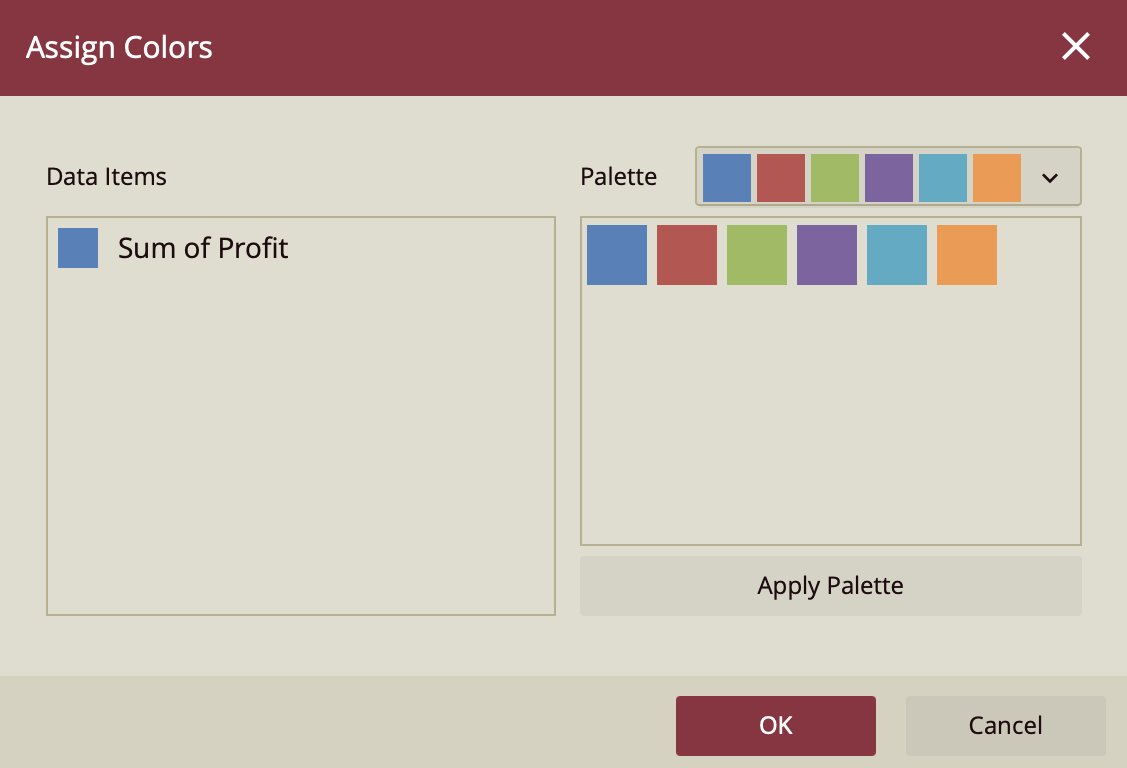
Click Manage next to Color Assignments to open the color assignment dialog.
A list of data items (e.g., “Sum of Profit”) appears.
If no data is available, a message will display: "No Data Items Can Assign Color."
Click the colored box next to each data item to open the color picker.
Choose a color from the Theme Colors, Web Colors, or use a Custom RGB value.
Click OK to apply the color.
Tips for Color Consistency
Stick to one theme throughout the dashboard for a cohesive look.
Use color purposefully (e.g., consistent colors for categories across visuals).
Choose high-contrast text and background colors for better accessibility.