-
Interactive DashboardsCreate interactive BI dashboards with dynamic visuals.
-
End-User BI ReportsCreate and deploy enterprise BI reports for use in any vertical.
-
Wyn AlertsSet up always-on threshold notifications and alerts.
-
Localization SupportChange titles, labels, text explanations, and more.
-
Wyn ArchitectureA lightweight server offers flexible deployment.
-
 Wyn Enterprise 7.1 is ReleasedThis release emphasizes Wyn document embedding and enhanced analytical express...
 -
 Choosing an Embedded BI Solution for SaaS ProvidersAdding BI features to your applications will improve your products, better serve your customers, and more. But where to start? In this guide, we discuss the many options.
-
Visual GalleryInteractive sample dashboards and reports.
-
BlogExplore Wyn, BI trends, and more.
-
WebinarsDiscover live and on-demand webinars.
-
Customer SuccessVisualize operational efficiency and streamline manufacturing processes.
-
Knowledge BaseGet quick answers with articles and guides.
-
VideosVideo tutorials, trends and best practices.
-
WhitepapersDetailed reports on the latest trends in BI.
-
 Choosing an Embedded BI Solution for SaaS ProvidersAdding BI features to your applications will impr...
 -

- Getting Started
-
Administration Guide
- Installing Wyn Enterprise
- Configuration Settings
- Account Management
- Security Management
- System Management
- Document Management
- How To and Troubleshooting
- User Guide
- Developer Guide
AI Settings
Wyn Enterprise is your analysts' and users' portal to your enterprise data. They can use it to query a data source by directly building datasets and data models. Wyn AI adds a Chat Analysis feature, which makes it possible for your analysts and users to query and analyze that data by chatting with a large language model, which helps provide more insights. They can perform data analysis and get insights using simple natural language conversational interactions.
Wyn AI makes it possible for analysts and users to:
Analyze data using natural language, which speeds up data queries and responses. Users can ask questions about certain information, and Chat Analysis would automatically find the relevant datasets.
Analyze data in Wyn datasets and data models: Users can analyze Wyn datasets as well as data models.
Access to information in business documents: Users are not limited to gaining insight from information available only in data sources. They can relate information in datasets to information only available in an unstructured format in business documents uploaded to Wyn.
Get Data Insights: by requesting the model to build and interpret data visualizations.
Perform advanced analysis, which shows the reasoning the model went through to reach its conclusions.
To make the Wyn AI available to analysts and users, a Wyn administrator should enable the feature and add and configure models. An analyst can then add descriptive information to datasets and data models and make them available to users to query and analyze them in natural language. They can also upload documents to augment the model's knowledge base with information that is not part of the model's training data.
To enable Chat Analysis in Wyn, a Wyn administrator should:
Enable AI in Wyn
Add one or more LLMs and select one LLM to be used in Chat Analysis. The LLM is the model with which users will converse through Chat Analysis in the Document Portal.
Add a Text Embeddings model: the text embeddings model is used by the Wyn AI service to turn descriptions of datasets, data model descriptions, and knowledge base documents into embedding vectors, which makes this information retrievable and is added to the LLM's context.
Add AI permissions to organizations or roles.
Once this is done, analysts would be able to make datasets and data models available to users, and users, in turn, would be able to perform data analysis using natural language in the Chat Analysis screen in the Document Portal.
LLM Settings
Wyn AI should be enabled and configured in the Admin portal. Navigate to Configuration and then AI Settings.
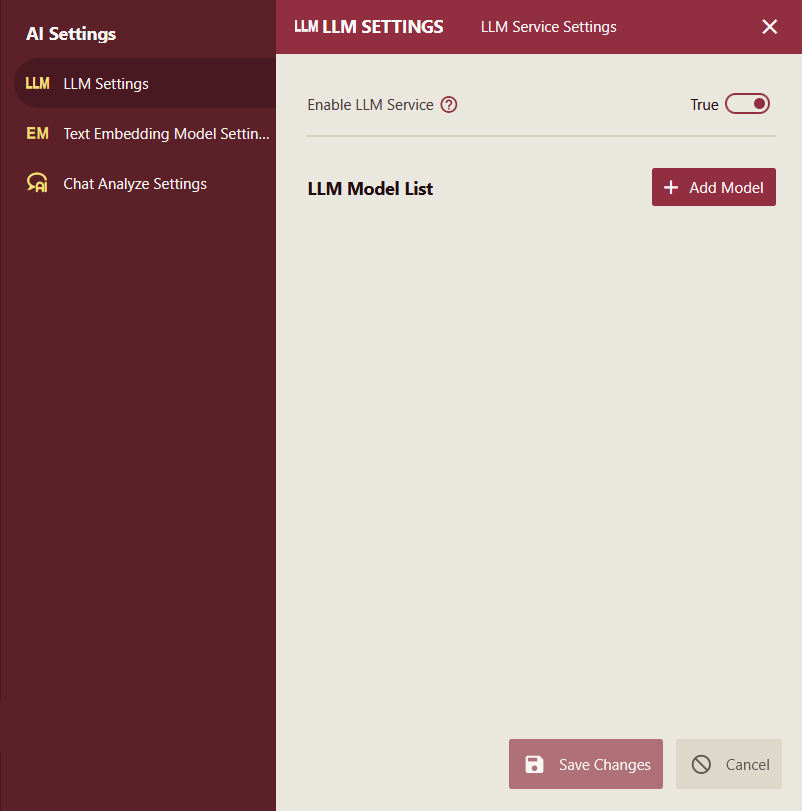
Enable LLM Service: The LLM Service is enabled by default. Disabling it hides Chat Analysis from the navigation bar of the Document Portal.
LLM Model List
To add an LLM model, open the Admin Portal and navigate to Configuration, AI Settings. In the LLM Settings panel, click the "+ Add Model" button and fill in the model configuration that you can get from the AI provider or ask your administrator for the configuration of locally installed models:
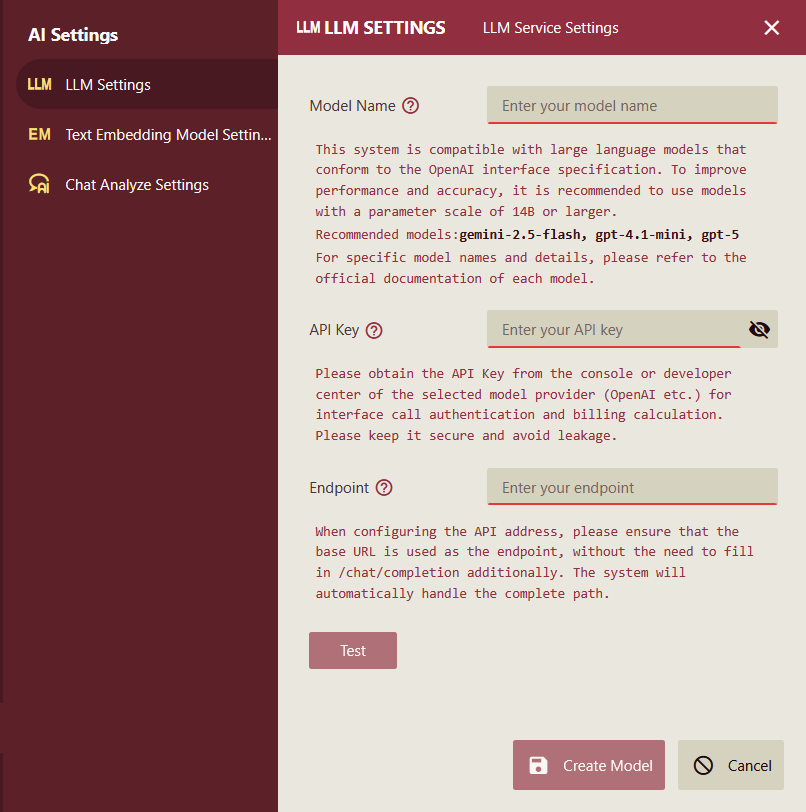
Model Name: enter the exact model name. Refer to the official documentation or provider's guide for specific model names (e.g.,
google/gemini-2.5-flash-lite).API Key: Copy the API key from the AI provider's console and paste it in this field. Toggle the icon to verify that the key was pasted correctly. An API key is not needed for locally installed AI models.
API Endpoint: Provide the base URL for an OpenAI-compatible API endpoint. For example, OpenAI's API base address is
https://openrouter.ai/api/v1.Note: If you have one model in the list of LLM models from an AI provider and you want to add another LLM from the same provider, click the duplicate button and change the model name.
Before you save the model information, it is recommended that you test the connection to the model. Click the "Test" button. If you get a connection success message, you can save the model settings. If the connection failed, double-check the model settings or network connection from the Wyn Server to the AI provider or to the machine where the AI model is installed. Repeat the steps above to add other large language models.
Finally, if you have more than one LLM configured, select the required language model, then click the "Save Changes" button to complete the language model service configuration.
Text Embeddings Model Settings
Wyn AI requires a text embedding model with a similar configuration to the LLM model. The text embeddings model is primarily used to convert text into embedding vectors in advance, facilitating semantic retrieval. The model converts the input text into a list of numbers, called a vector or an embedding. This vector captures the semantic meaning of the text. Texts with similar meanings will have similar vectors. In this system, the text embeddings model is widely applied to dataset retrieval, entity retrieval within data models, and knowledge base queries. For example, when users interact with the system through conversation and ask questions, the system can leverage embedding vectors to efficiently search for and match relevant tables or fields, thereby improving the accuracy and efficiency of analysis.
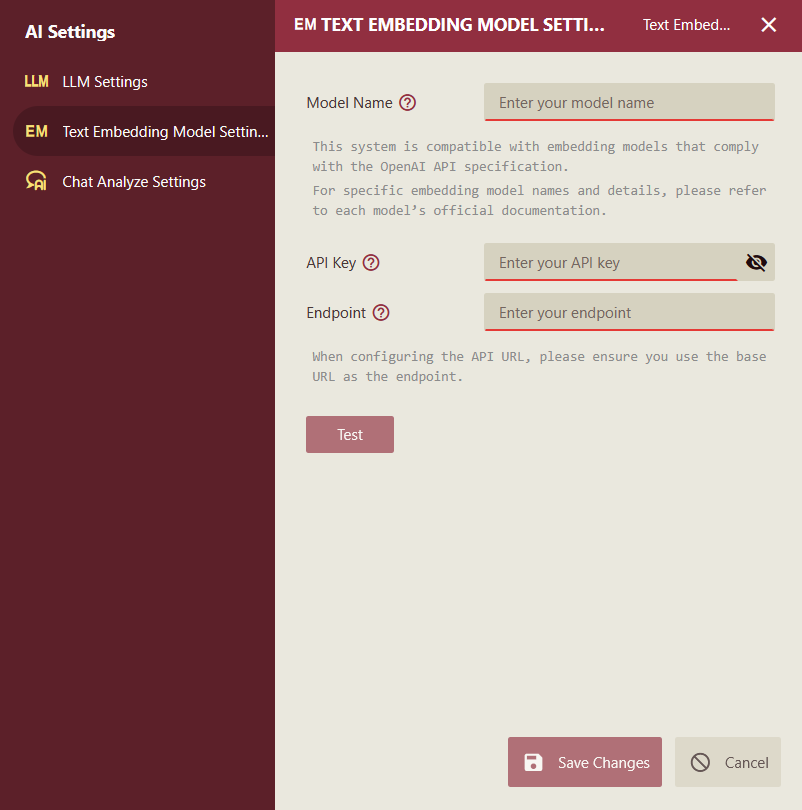
To add an embedding model, open the Admin Portal and navigate to Configuration, AI Settings. In the Text Embeddings Model Settings panel, click the "+ Add Model" button and fill in the model settings. The settings for the embeddings model are similar to the LLM model. You need to provide:
Model Name: enter the exact model name. Refer to the official documentation or provider's guide for specific model names (e.g.,
text-embedding-v2).API Key: Enter the API key that you can get from the console of the AI provider. An API key is not needed for locally installed AI models.
API Endpoint: Provide the base URL for an OpenAI-compatible API endpoint. For example:
https://dashscope.aliyuncs.com/compatible-mode/v1.Test and save the embedding model.
Chat Analyze Settings
Administrators can fine-tune the behaviour of the Chat Analysis component used by users to enhance the user experience and improve analysis capabilities. In the Admin Portal, navigate to Configuration, AI Settings, and open the Chat Analyze Settings.
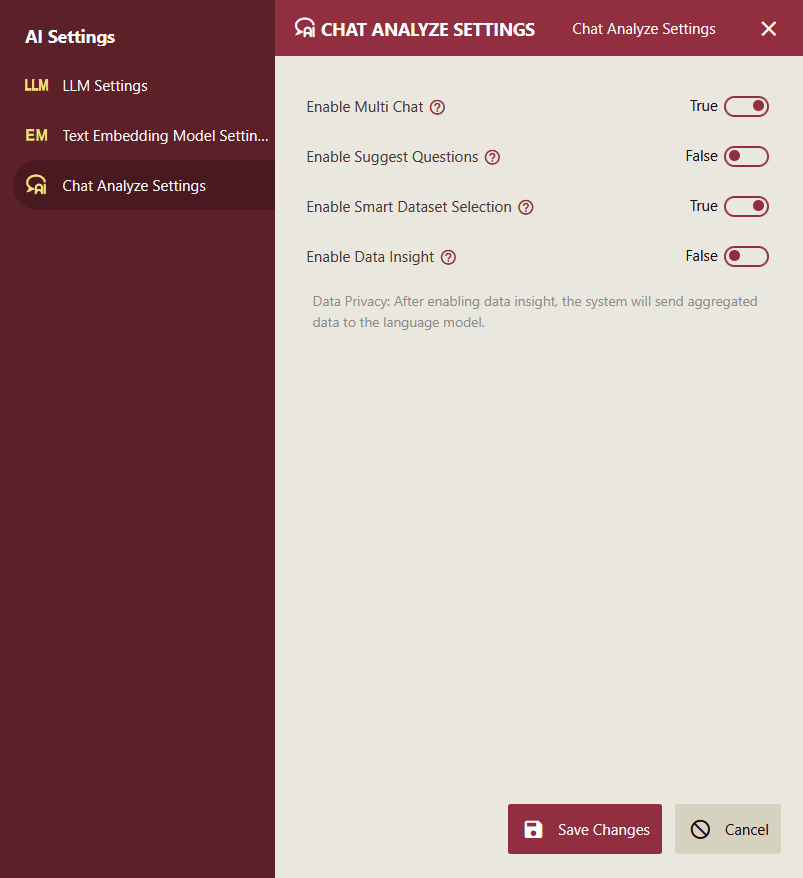
These settings provide options to enable advanced functionalities that make interactions more intuitive, contextual, and efficient. You can enable or disable the following options for the Chat Analysis:
Enable Suggest Questions: When activated, this setting automatically generates three recommended follow-up questions at the end of the response for each user query. The user can click one of the recommended questions to continue the conversation. This helps guide users toward deeper exploration of data insights, suggesting relevant queries based on the current context and analysis results.
For example, after analyzing sales trends, it might suggest questions like "What are the top-performing regions?" or "How do these trends compare year-over-year?" This feature encourages iterative analysis and can be particularly useful for users new to data exploration.
Enable Multi Chat: This option activates multi-turn conversation mode, where each subsequent question is processed in the context of the entire session history. It maintains continuity across interactions, allowing the AI to reference previous questions, answers, and insights for more coherent and refined responses. For instance, if a user asks about total sales and then follows up with "Compare to last year," the AI will automatically link the two for accurate comparisons. This is ideal for complex, ongoing analyses, but may increase processing time for very long sessions.
Enable Smart Dataset Selection: Enabling this allows the system to intelligently match and recommend the most relevant datasets or data models based on user queries. By leveraging semantic matching technology, the system can automatically identify suitable datasets or data models, thereby streamlining the analysis process and reducing the need for manual selection. To ensure this feature works effectively, the text embedding model must be properly configured (see the "Text Embedding Model Configuration" section for details). If this feature is disabled, users will need to manually select the datasets.
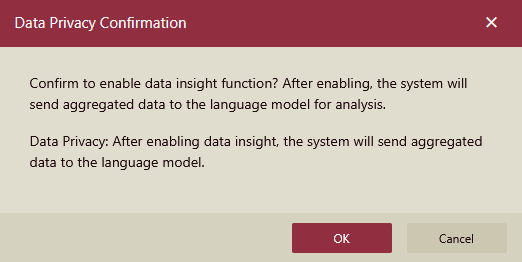
Enable Data Insight: This setting unlocks advanced data insight generation, where the AI provides deeper interpretations, patterns, and visualizations from the queried data. It enhances simple queries by offering summaries and trends. Be cautious, however, as enabling this involves sending aggregated data to the large language model (LLM) for processing, which may raise privacy or data security concerns depending on your organization's policies. Ensure compliance with data protection regulations before activation, and consider limiting its use to non-sensitive datasets. If privacy is a priority, test this feature in a controlled environment first.
Note: After enabling Data Insights, the system will send aggregated data to the language model.
Click Save Changes to apply the changes you made to the settings, or click Cancel to keep the settings.
Each of these configurations can be toggled on or off as needed, and changes take effect immediately for new sessions. It's recommended to test each setting in a development environment to understand its impact on performance and user experience. If enabling multiple options, monitor system resources, as they may increase computational load. For optimal results, combine these with proper language models and knowledge base setups.