-
Interactive DashboardsCreate interactive BI dashboards with dynamic visuals.
-
End-User BI ReportsCreate and deploy enterprise BI reports for use in any vertical.
-
Wyn AlertsSet up always-on threshold notifications and alerts.
-
Localization SupportChange titles, labels, text explanations, and more.
-
Wyn ArchitectureA lightweight server offers flexible deployment.
-
 Wyn Enterprise 7.1 is ReleasedThis release emphasizes Wyn document embedding and enhanced analytical express...
 -
 Choosing an Embedded BI Solution for SaaS ProvidersAdding BI features to your applications will improve your products, better serve your customers, and more. But where to start? In this guide, we discuss the many options.
-
Visual GalleryInteractive sample dashboards and reports.
-
BlogExplore Wyn, BI trends, and more.
-
WebinarsDiscover live and on-demand webinars.
-
Customer SuccessVisualize operational efficiency and streamline manufacturing processes.
-
Knowledge BaseGet quick answers with articles and guides.
-
VideosVideo tutorials, trends and best practices.
-
WhitepapersDetailed reports on the latest trends in BI.
-
 Choosing an Embedded BI Solution for SaaS ProvidersAdding BI features to your applications will impr...
 -

- Getting Started
- Administration Guide
-
User Guide
- An Introduction to Wyn Enterprise
- Document Portal for End Users
- Data Governance and Modeling
- View and Manage Documents
- Working with Resources
- Working with Reports
- Working with Dashboards
- Working with Notebooks
- Wyn Analytical Expressions
- Section 508 Compliance
- Subscribe to RSS Feed for Wyn Builds Site
- Developer Guide
Format Painter
You can synchronize the appearance and style of one dashboard component with another by using Format Painter. You can reuse the component property quickly, instead of setting the properties one by one, to save more time using Format Painter.
Using Format Painter
Format Painter allows you to copy styles related to the appearance of the original component and apply them to the target component, such as color settings, rounded radians, header styles, etc. Attributes such as data classes, interaction classes, layouts, or animations that involve component content cannot be copied.
Perform the following steps to apply Format Painter
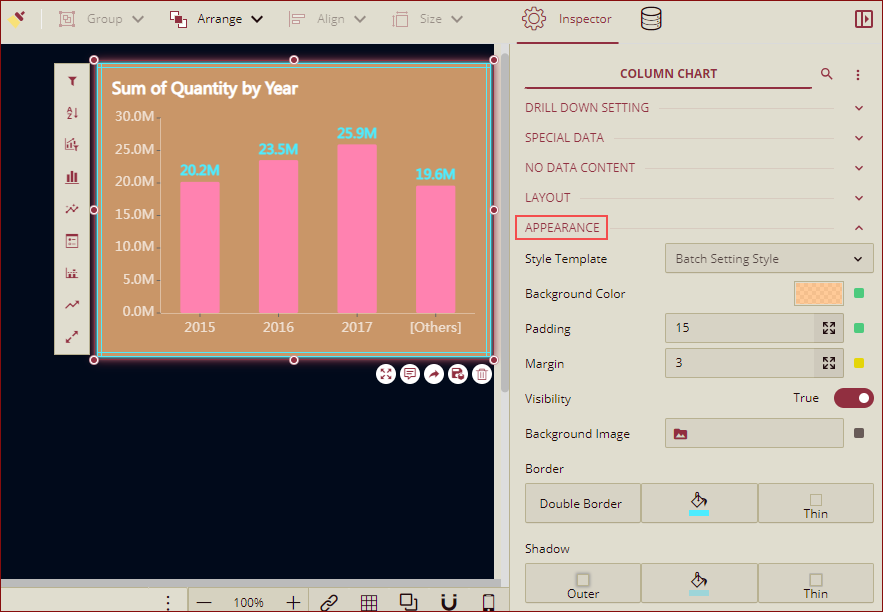
Drag and drop a column chart (Example: Column Chart 1) onto the design area and bind it to a dataset. Set its Appearance as shown below.
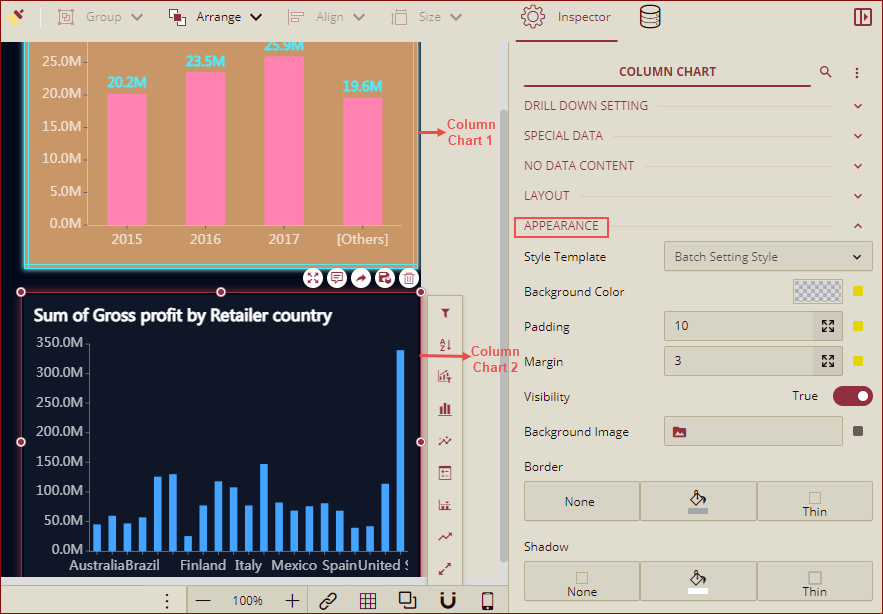
Drag and drop another column chart (Example: Column Chart 2) and bind it to a dataset. By default, the Appearance is as shown below.
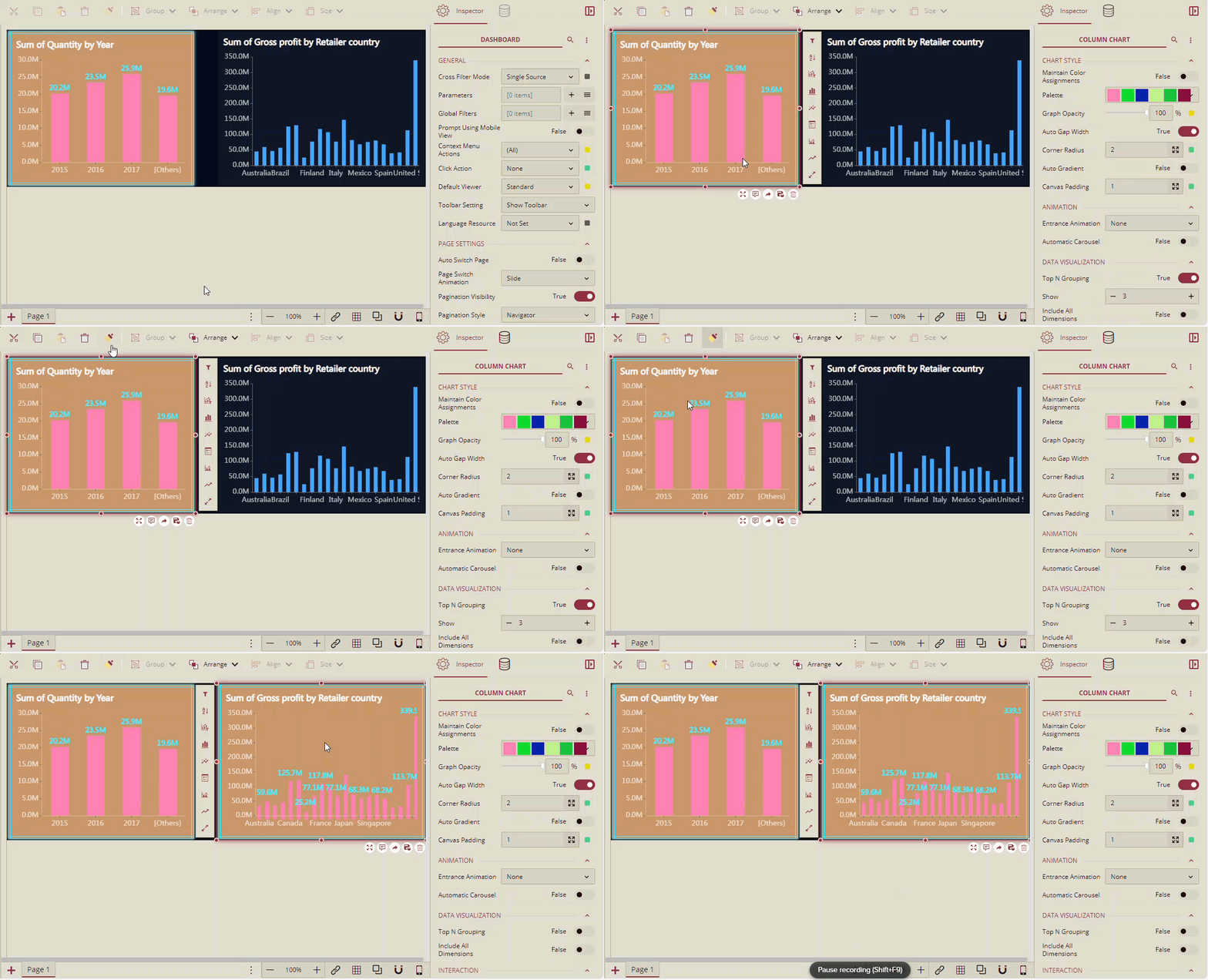
3. To set the appearance style for column chart 2, same as column chart 1, select column chart 1, the Format Painter option is available. Click the Format Painter option and then click the column chart 2. The same appearance style will be applied.
Note: When syncing scenarios of different types like a table and a chart, only common property categories available in both scenarios are synced.
List of Properties supported by Format Painter
Common Property Category
Category | Supported | Comments |
|---|---|---|
Appearance | Yes | Visibility property is not supported. |
Data Labels | Yes | Display Pattern property is not supported. |
Tooltip | Yes | Tooltip Mode property is not supported. |
Axis-Category | Yes | |
Axis-Value | Yes | |
Legend | Yes | |
Series | Yes | |
Trellis | Yes | |
Special Data | No | |
Title | Yes | Title property is not supported. |
No Data | Yes | |
Animation | No | |
Interaction | No | |
Layout | No | |
Data Visualization | No | |
Chart Style | Yes | Maintain Color Assignments property is not supported. |
Drill Down Setting | Yes |
Note: Format painter sync policy listed in the table above applies to all controls that have the respective properties.
Table
Category | Supported | Comments |
|---|---|---|
Table Setting | Yes | |
Column Headers | Yes | |
Row Headers | Yes | |
Corner Area | Yes | |
Sub Totals Area | Yes | |
Grand Totals Area | Yes | |
First Data Stripe | Yes | |
Second Data Stripe | Yes |
Image
Category | Supported | Comments |
|---|---|---|
Content | No | |
Hover Style | No |
Rich Text
Category | Supported | Comments |
|---|---|---|
Richtext Style | Yes |
Map
Category | Supported | Comments |
|---|---|---|
Cluster Setting | Yes | |
Bubble Style | Yes | |
HeatMap Style | Yes | |
Area Style | Yes | |
Flow Line Style | Yes | |
Symbol | Yes | |
Map Setting | Yes | Only supports Base Map and Boundary style. |
Slicer
Category | Supported | Comments |
|---|---|---|
Slicer Style | Yes | |
Group Style | Yes | |
Regular Style | Yes | |
Hover Style | Yes | |
Selected Style | Yes |
Tab Container
Category | Supported | Comments |
|---|---|---|
Tab Strip | Yes | |
Group Style | Yes | |
Regular Style | Yes | |
Hover Style | Yes | |
Selected Style | Yes |
Note: Only common properties are supported for 3D Scene, EmbeddedDashboard, EmbeddedReport, Calc Chart, and Multi-Source Chart.