-
Interactive DashboardsCreate interactive BI dashboards with dynamic visuals.
-
End-User BI ReportsCreate and deploy enterprise BI reports for use in any vertical.
-
Wyn AlertsSet up always-on threshold notifications and alerts.
-
Localization SupportChange titles, labels, text explanations, and more.
-
Wyn ArchitectureA lightweight server offers flexible deployment.
-
 Wyn Enterprise 7.1 is ReleasedThis release emphasizes Wyn document embedding and enhanced analytical express...
 -
 Choosing an Embedded BI Solution for SaaS ProvidersAdding BI features to your applications will improve your products, better serve your customers, and more. But where to start? In this guide, we discuss the many options.
-
Visual GalleryInteractive sample dashboards and reports.
-
BlogExplore Wyn, BI trends, and more.
-
WebinarsDiscover live and on-demand webinars.
-
Customer SuccessVisualize operational efficiency and streamline manufacturing processes.
-
Knowledge BaseGet quick answers with articles and guides.
-
VideosVideo tutorials, trends and best practices.
-
WhitepapersDetailed reports on the latest trends in BI.
-
 Choosing an Embedded BI Solution for SaaS ProvidersAdding BI features to your applications will impr...
 -

- Getting Started
- Administration Guide
-
User Guide
- An Introduction to Wyn Enterprise
- Document Portal for End Users
- Data Governance and Modeling
- View and Manage Documents
- Working with Resources
- Working with Reports
- Working with Dashboards
- Working with Notebooks
- Wyn Analytical Expressions
- Section 508 Compliance
- Subscribe to RSS Feed for Wyn Builds Site
- Developer Guide
Parameters
The Parameters section in Report Designer provides various editors to create interactive input controls for reports. These controls allow users to filter data, select values, and customize report content dynamically.
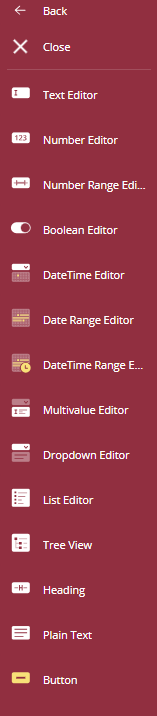
Text Editor – Accepts plain text input. Useful for string-based parameters like names or IDs.
Number Editor – Allows entry of a single numeric value. Ideal for parameters requiring one numeric input (e.g., quantity).
Number Range Editor – Enables selection of a numeric range (start and end values). Commonly used for filtering data within numeric intervals (e.g., price range).
Boolean Editor – Provides a toggle (True/False). Suitable for enabling/disabling conditions or binary choices.
DateTime Editor – Select a single date and time. Supports Min/Max limits and validation for out-of-range values.
Date Range Editor – Choose a start and end date (without time). Includes common range presets (Last, Current, Next) and Min/Max restrictions.
DateTime Range Editor – Select start and end dates with time. Ideal for precise datetime intervals and supports common range presets.
Multivalue Editor – Allows selection of multiple values. Useful for parameters that accept multiple choices (e.g., multiple regions).
Dropdown Editor – Displays a dropdown list of predefined options. Best for single selection from a list.
List Editor – Displays a list for multiple selections. Suitable for selecting multiple items from a list.
Tree View – Enables hierarchical selection of items. Commonly used for structured data like categories and subcategories.
Heading – Adds a heading text in the parameter panel. Helps organize parameter sections.
Plain Text – Displays static text. Useful for instructions or descriptions.
Button – Adds an action button. Can trigger custom actions or refresh data.