-
Interactive DashboardsCreate interactive BI dashboards with dynamic visuals.
-
End-User BI ReportsCreate and deploy enterprise BI reports for use in any vertical.
-
Wyn AlertsSet up always-on threshold notifications and alerts.
-
Localization SupportChange titles, labels, text explanations, and more.
-
Wyn ArchitectureA lightweight server offers flexible deployment.
-
 Wyn Enterprise 7.1 is ReleasedThis release emphasizes Wyn document embedding and enhanced analytical express...
 -
 Choosing an Embedded BI Solution for SaaS ProvidersAdding BI features to your applications will improve your products, better serve your customers, and more. But where to start? In this guide, we discuss the many options.
-
Visual GalleryInteractive sample dashboards and reports.
-
BlogExplore Wyn, BI trends, and more.
-
WebinarsDiscover live and on-demand webinars.
-
Customer SuccessVisualize operational efficiency and streamline manufacturing processes.
-
Knowledge BaseGet quick answers with articles and guides.
-
VideosVideo tutorials, trends and best practices.
-
WhitepapersDetailed reports on the latest trends in BI.
-
 Choosing an Embedded BI Solution for SaaS ProvidersAdding BI features to your applications will impr...
 -

- Getting Started
- Administration Guide
-
User Guide
- An Introduction to Wyn Enterprise
- Document Portal for End Users
- Data Governance and Modeling
- View and Manage Documents
- Working with Resources
- Working with Reports
- Working with Dashboards
- Working with Notebooks
- Wyn Analytical Expressions
- Section 508 Compliance
- Subscribe to RSS Feed for Wyn Builds Site
- Developer Guide
Show Data Table Style
The Show Data Table Style property group controls the visual appearance of the data table displayed when users click Show Data in Focus mode. This setting allows dashboard authors to define how tabular data is formatted, ensuring consistency, readability, and alignment with organizational design standards.
Tabular Style Templates
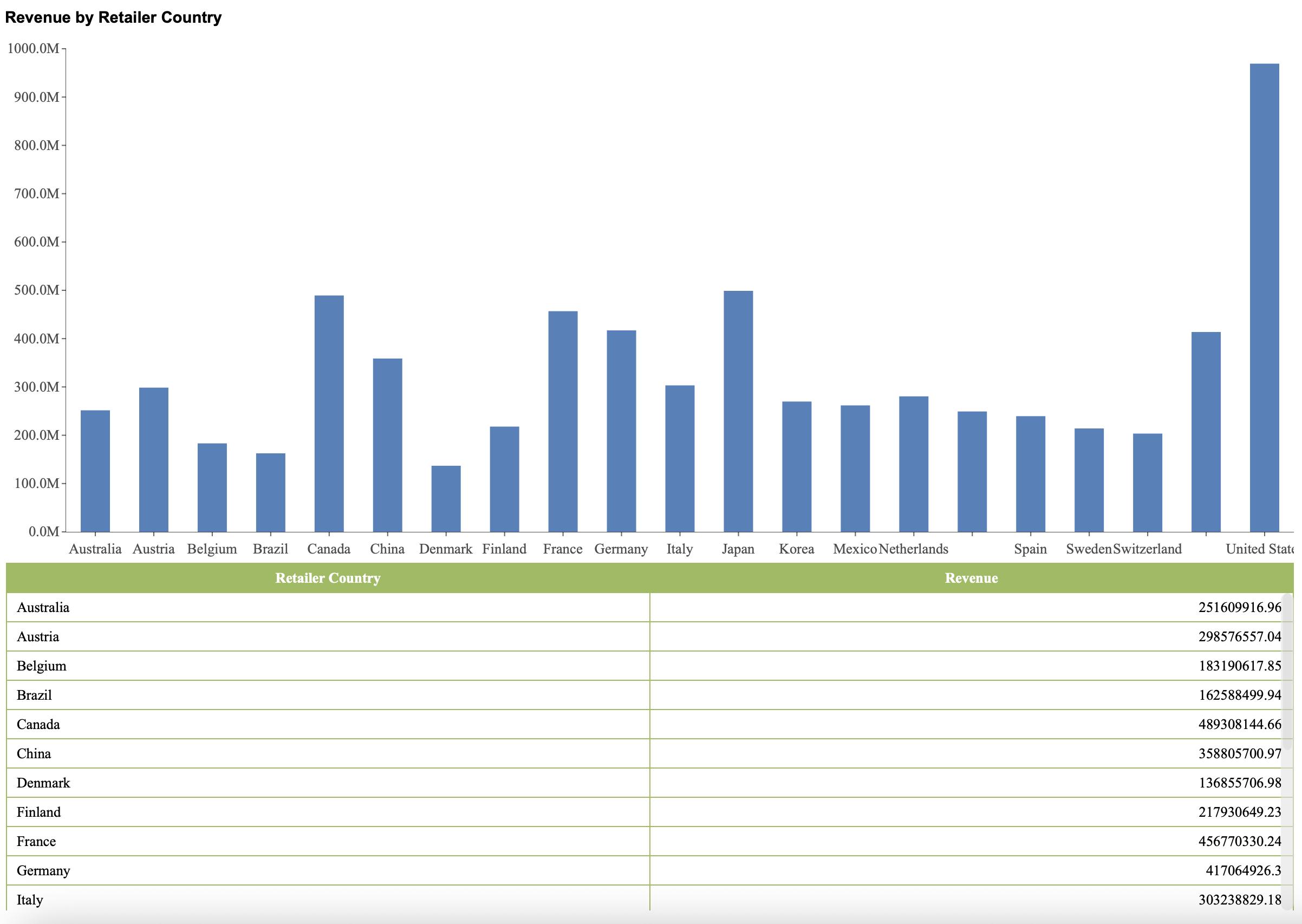
The Tabular Style Templates property provides a dropdown menu for applying predefined formatting styles to the data table.
By default, the dropdown displays Batch Setting Style. This option indicates that a complete table style can be applied in a single action. When expanded, the dropdown presents a collection of built-in table styles. Each style includes coordinated formatting for headers, rows, totals, and other structural elements of the table.
Selecting a template immediately updates the table’s appearance, applying consistent formatting rules across all supported table elements. These templates are designed to provide visually balanced combinations of text styling, background fills, borders, and row striping, helping improve clarity and structure without requiring manual formatting of each element.
In addition to the predefined options, you can create fully customized styles using Add New Style.
Add New Style
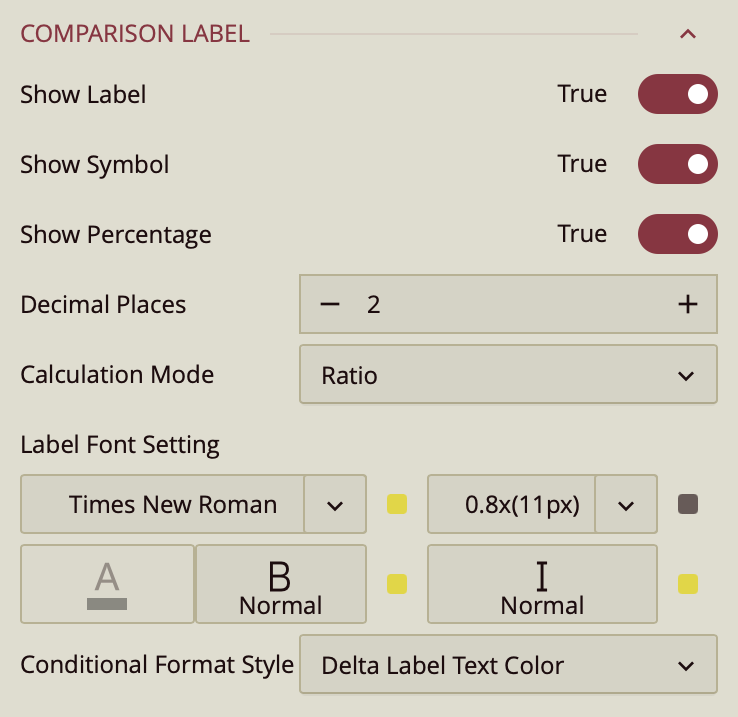
The Add New Style option opens the Tabular Style Templates dialog, where you can define a custom table style tailored to your reporting needs.
Define the Style
At the top of the dialog, you provide:
Name – Assign a unique name to identify your custom style.
Base Style – Select an existing style as the foundation. The new style inherits its structure and formatting, which you can then modify as needed.
Using a base style allows you to start with a predefined layout and adjust specific elements instead of building a design from scratch.
Table Elements
You can apply individual formatting rules to specific table elements, giving you granular control over the table’s appearance. The available elements include:
Whole Table
Corner Header
Column Header
Row Header
First Data Stripe
Second Data Stripe
Sub Totals
Grand Totals
Selecting an element allows you to customize its styling independently from the rest of the table.
Style Properties
For each selected table element, you can configure the following properties:
Text Style
Controls how text appears within the selected element. You can define:
Font family
Font size
Font color
Font weight (such as bold)
Font style (italic or regular)
Fill Color
Specifies the background color for the selected table element.
Border Color
Defines the color of the borders surrounding the selected element, helping establish separation and visual hierarchy.
Preview
A live preview pane displays how your style selections will appear when applied, allowing you to validate formatting choices before saving.
Use Alternate Row Style
The Use Alternate Row Style toggle enables row striping within the table. When turned on, the First Data Stripe and Second Data Stripe settings are applied in an alternating pattern across data rows. This improves readability, especially in tables with large datasets, by visually distinguishing adjacent rows.