-
Interactive DashboardsCreate interactive BI dashboards with dynamic visuals.
-
End-User BI ReportsCreate and deploy enterprise BI reports for use in any vertical.
-
Wyn AlertsSet up always-on threshold notifications and alerts.
-
Localization SupportChange titles, labels, text explanations, and more.
-
Wyn ArchitectureA lightweight server offers flexible deployment.
-
 Wyn Enterprise 7.1 is ReleasedThis release emphasizes Wyn document embedding and enhanced analytical express...
 -
 Choosing an Embedded BI Solution for SaaS ProvidersAdding BI features to your applications will improve your products, better serve your customers, and more. But where to start? In this guide, we discuss the many options.
-
Visual GalleryInteractive sample dashboards and reports.
-
BlogExplore Wyn, BI trends, and more.
-
WebinarsDiscover live and on-demand webinars.
-
Customer SuccessVisualize operational efficiency and streamline manufacturing processes.
-
Knowledge BaseGet quick answers with articles and guides.
-
VideosVideo tutorials, trends and best practices.
-
WhitepapersDetailed reports on the latest trends in BI.
-
 Choosing an Embedded BI Solution for SaaS ProvidersAdding BI features to your applications will impr...
 -

- Getting Started
- Administration Guide
-
User Guide
- An Introduction to Wyn Enterprise
- Document Portal for End Users
- Data Governance and Modeling
- View and Manage Documents
- Working with Resources
- Working with Reports
-
Working with Dashboards
- Tour the Dashboard Designer
- Create a Dashboard
- Configure Dashboard
- Dashboard Data Binding
- Scenarios
- Appearance
- Component Management
- Parameters
- Interactions
- Finalize Your Dashboard
- Using AI in Wyn
- Working with Notebooks
- Wyn Analytical Expressions
- Section 508 Compliance
- Subscribe to RSS Feed for Wyn Builds Site
- Developer Guide
Multi-dimensional Slicer
The Multi-Dimensional Slicer allows users to filter dashboard data using a hierarchy of multiple attributes. The slicer displays a tree-style list with expandable levels, offering a structured way to slice data across dimensions.
Example
In this example, we have a multi-dimensional slicer that is bound to the Year and Quarter columns. Column Chart article.

In the example, we:
Dragged the Year and the Quarter data attributes to the data binding tab.
Set Slicer Title "Year, Quarter"
Data Binding
Use the ellipsis menu next to the data binding menu to choose the binding mode. Each mode displays specific binding slots:
Multi-Dimensions (default)
Dimensions – Bind the fields you want to use as filtering dimensions. Each selected field becomes a separate filtering category in the slicer.
Parent-Child
ParentId – Bind the field containing the parent node identifier for each item.
Id – Bind the field containing the unique identifier for each item.
Display – Bind the field containing the label or name to display for each item in the slicer.
Hierarchy
Hierarchy – Bind the field containing the hierarchical structure used for navigation and filtering.
Display – Bind the field containing the label or name to display for each level in the hierarchy.
Multi-Dimensional Slicer Properties
You can customize the appearance and behavior of the Multi-dimensional Dropdown Slicer using the Inspector Panel. Make sure the slicer is selected to see the available styling options.
Slicer Style
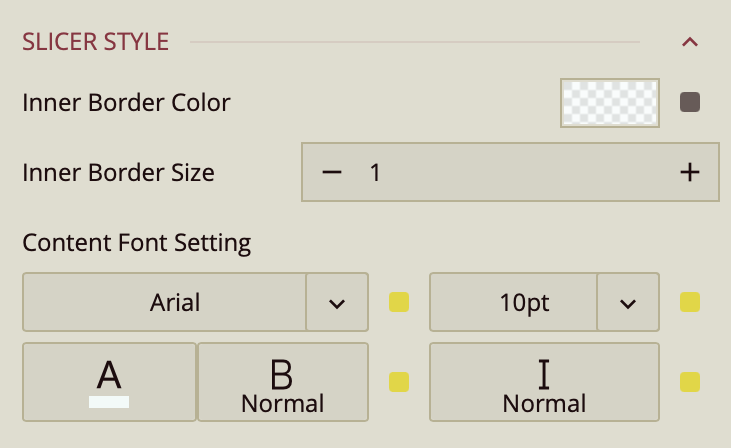
In the Slicer Style section, you can adjust the look of the dropdown menu:
Inner Border Color and Inner Border Size control the border inside the dropdown.
Content Font Settings let you set the font family, size, color, weight, and style for the slicer's text.