-
Interactive DashboardsCreate interactive BI dashboards with dynamic visuals.
-
End-User BI ReportsCreate and deploy enterprise BI reports for use in any vertical.
-
Wyn AlertsSet up always-on threshold notifications and alerts.
-
Localization SupportChange titles, labels, text explanations, and more.
-
Wyn ArchitectureA lightweight server offers flexible deployment.
-
 Wyn Enterprise 7.1 is ReleasedThis release emphasizes Wyn document embedding and enhanced analytical express...
 -
 Choosing an Embedded BI Solution for SaaS ProvidersAdding BI features to your applications will improve your products, better serve your customers, and more. But where to start? In this guide, we discuss the many options.
-
Visual GalleryInteractive sample dashboards and reports.
-
BlogExplore Wyn, BI trends, and more.
-
WebinarsDiscover live and on-demand webinars.
-
Customer SuccessVisualize operational efficiency and streamline manufacturing processes.
-
Knowledge BaseGet quick answers with articles and guides.
-
VideosVideo tutorials, trends and best practices.
-
WhitepapersDetailed reports on the latest trends in BI.
-
 Choosing an Embedded BI Solution for SaaS ProvidersAdding BI features to your applications will impr...
 -

- Getting Started
- Administration Guide
-
User Guide
- An Introduction to Wyn Enterprise
- Document Portal for End Users
- Data Governance and Modeling
- View and Manage Documents
- Working with Resources
- Working with Reports
-
Working with Dashboards
- Tour the Dashboard Designer
- Create a Dashboard
- Configure Dashboard
- Dashboard Data Binding
- Scenarios
- Appearance
- Component Management
- Parameters
- Interactions
- Finalize Your Dashboard
- Using AI in Wyn
- Working with Notebooks
- Wyn Analytical Expressions
- Section 508 Compliance
- Subscribe to RSS Feed for Wyn Builds Site
- Developer Guide
Slicer Control Buttons
When building dashboards that handle large datasets, optimizing performance and improving user experience becomes critical. Wyn’s slicer control buttons allow users to configure how and when slicer selections affect the visualizations on a dashboard.
This article covers the three slicer control buttons—Apply Slicers, Reset Slicers, and Clear Slicers—explaining how each one works and how they behave in different layout scenarios.
Overview of Slicer Control Buttons
Wyn offers the following slicer control buttons:
Button | Purpose |
|---|---|
Apply Slicers | Allows deferred application of slicer selections |
Reset Slicers | Restores slicers to their initial state |
Clear Slicers | Removes all selections from slicers |
These buttons are especially useful in dashboards with many visualizations or when working with massive datasets.
Apply Slicers Button

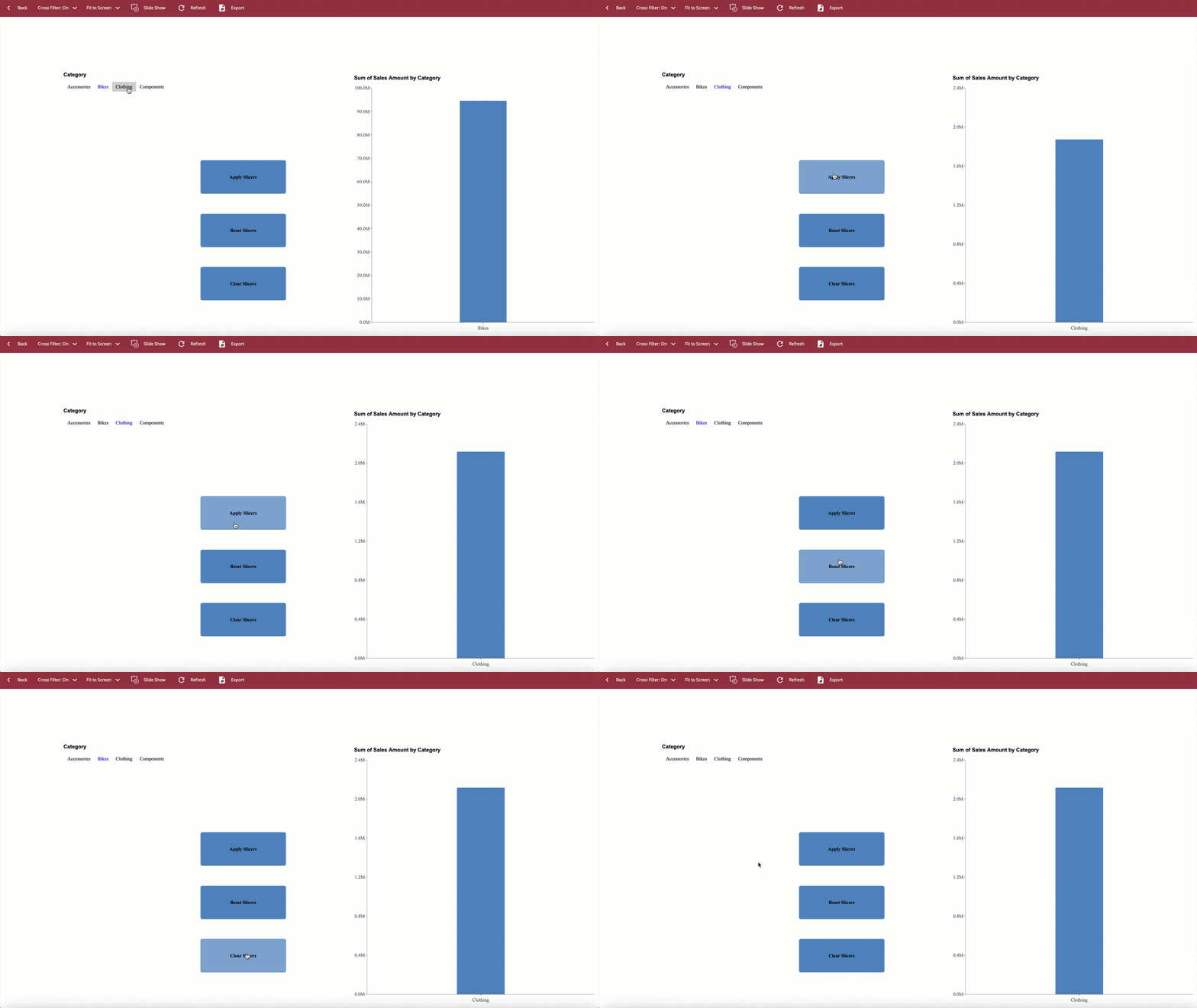
The Apply Slicers Button gives users control over when slicer selections take effect. Instead of immediately updating visualizations when a selection is made, this button queues the selection until the user is ready to apply all filters.
How It Works
When the Apply Slicers Button is present on a page, slicer selections do not directly impact charts as they're made.
Clicking the button applies all selected slicer settings to the affected visualizations.
Other slicers on the page are still updated automatically.
Behavior with Containers
The scope of the button’s effect depends on its placement in relation to containers:
Inside a container: If the Apply Slicers Button, slicers, and scenarios are all placed within the same container, the button applies only to visualizations inside that container.
Outside containers: If all these elements exist on the page and no container is used, the button applies to every scenario on the page.
Note:
The Apply Slicers Button only functions in preview mode.
In the Designer, manually interacting with slicers affects visualizations immediately unless slicers have been pre-configured with default settings.
Reset Slicers Button
The Reset Slicers Button restores slicers to their default state — the state they were configured in when the dashboard was loaded.
Example Use Case
If a slicer was configured in the Designer to pre-select a specific category or date range, clicking Reset Slicersduring preview restores those selections, even after they’ve been changed.
Clear Slicers Button

The Clear Slicers Button removes all active selections from slicers, effectively returning them to a neutral state (no filters applied).
Critical Behavior Note
If no default selections were set for a slicer in the Designer, the Clear Slicers Button and Reset Slicers Button will behave identically. Both will simply remove all filter selections, leaving the slicer unfiltered.
Here is an example of all three slicer buttons: