-
Interactive DashboardsCreate interactive BI dashboards with dynamic visuals.
-
End-User BI ReportsCreate and deploy enterprise BI reports for use in any vertical.
-
Wyn AlertsSet up always-on threshold notifications and alerts.
-
Localization SupportChange titles, labels, text explanations, and more.
-
Wyn ArchitectureA lightweight server offers flexible deployment.
-
 Wyn Enterprise 7.1 is ReleasedThis release emphasizes Wyn document embedding and enhanced analytical express...
 -
 Choosing an Embedded BI Solution for SaaS ProvidersAdding BI features to your applications will improve your products, better serve your customers, and more. But where to start? In this guide, we discuss the many options.
-
Visual GalleryInteractive sample dashboards and reports.
-
BlogExplore Wyn, BI trends, and more.
-
WebinarsDiscover live and on-demand webinars.
-
Customer SuccessVisualize operational efficiency and streamline manufacturing processes.
-
Knowledge BaseGet quick answers with articles and guides.
-
VideosVideo tutorials, trends and best practices.
-
WhitepapersDetailed reports on the latest trends in BI.
-
 Choosing an Embedded BI Solution for SaaS ProvidersAdding BI features to your applications will impr...
 -

- Getting Started
- Administration Guide
-
User Guide
- An Introduction to Wyn Enterprise
- Document Portal for End Users
- Data Governance and Modeling
- View and Manage Documents
- Working with Resources
- Working with Reports
-
Working with Dashboards
- Tour the Dashboard Designer
- Create a Dashboard
- Configure Dashboard
-
Dashboard Data Binding
- Data Attributes
- Scenarios
- Appearance
- Component Management
- Parameters
- Interactions
- Finalize Your Dashboard
- Using AI in Wyn
- Working with Notebooks
- Wyn Analytical Expressions
- Section 508 Compliance
- Subscribe to RSS Feed for Wyn Builds Site
- Developer Guide
Moving Calculation
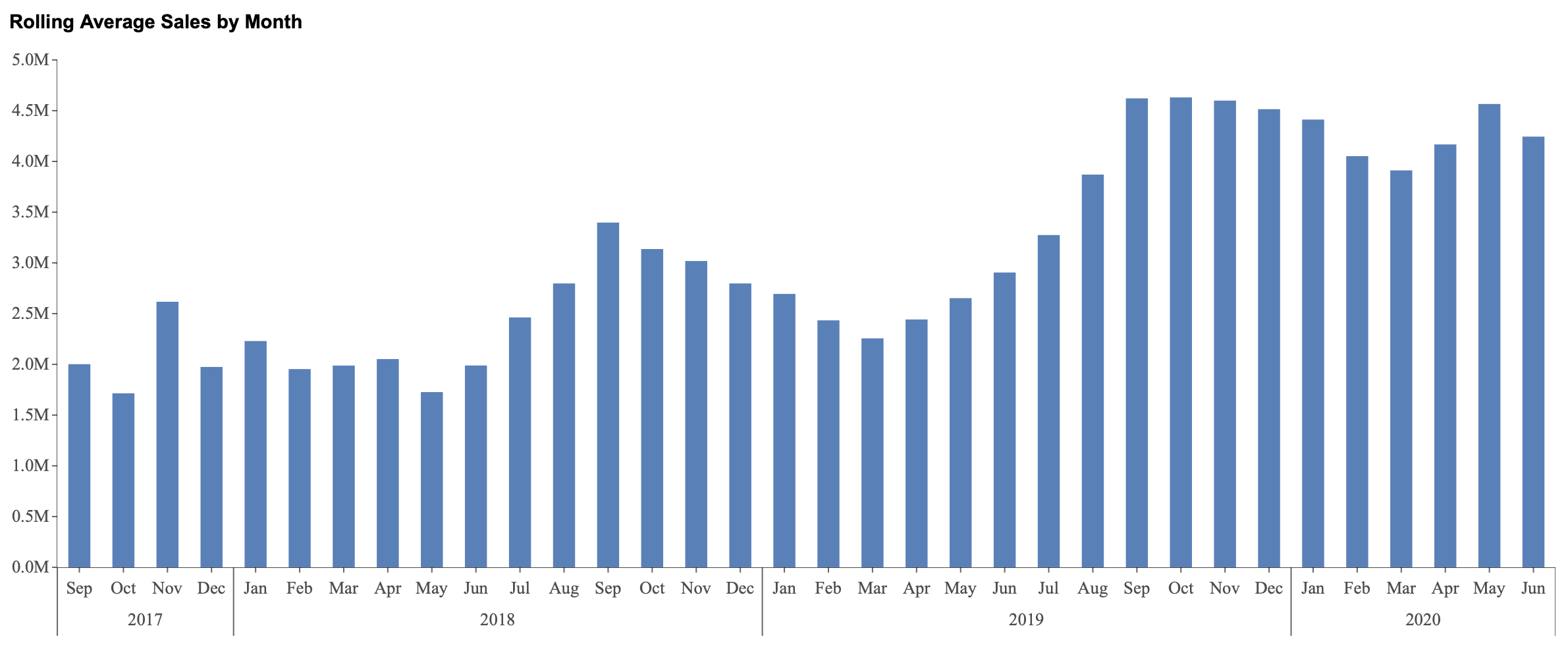
Moving calculations apply a calculation over a sliding range of values. Instead of evaluating each value independently, the chart recalculates the result for each category based on the values around it.
Moving calculations are useful when you want to smooth out fluctuations, identify trends, or compare a value against its surrounding values. For example, a moving average can reduce short-term spikes and dips, making longer-term patterns easier to interpret.
In this section, moving calculations are demonstrated using a column chart titled Rolling Average Sales by Month. This example illustrates how moving calculations can be used to smooth monthly sales data and reveal broader performance trends over time.
Applying a moving calculation fundamentally changes how the chart is interpreted. The value axis no longer represents only the value for a single category. Instead, it represents a calculation based on a range of neighboring values. As a result, column heights reflect trends and patterns rather than isolated values.
Understanding Moving Calculation Settings
When you select Moving Calculation from the Quick Functions menu, a configuration panel appears with settings that determine how the moving calculation is applied.
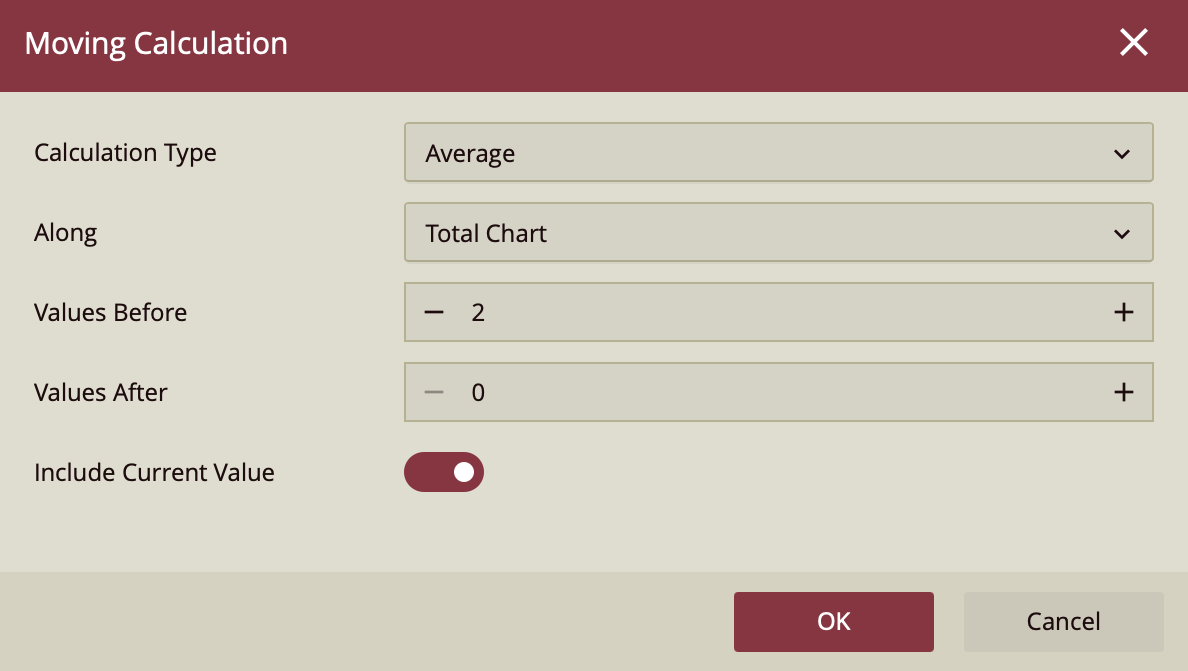
Calculation Type
The Calculation Type setting determines which moving operation is used.
Sum calculates a rolling total across the selected range of values.
Average calculates a rolling average across the selected range of values.
Max displays the highest value found within the selected range.
Min displays the lowest value found within the selected range.
The selected calculation type determines how the moving result is calculated for each category.
Along
The Along setting determines the scope in which the moving calculation is applied.
Total Chart applies the moving calculation across the entire chart sequence.
Trellis Row applies the moving calculation independently within each trellis row.
Trellis Column applies the moving calculation independently within each trellis column.
Trellis Cell applies the moving calculation independently within each individual trellis panel when both trellis rows and trellis columns are present.
When a chart contains both trellis rows and trellis columns, the result is a grid of smaller charts. In that scenario, Trellis Cell limits the moving calculation to each individual chart in the grid, while Trellis Row and Trellis Column allow the calculation to continue across multiple charts in the same row or column.
Values Before
The Values Before setting determines how many preceding values are included in the moving calculation window.
For example, if Values Before is set to 2, the calculation includes the two previous values before the current category.
Values After
The Values After setting determines how many subsequent values are included in the moving calculation window.
For example, if Values After is set to 1, the calculation includes the next value after the current category.
Include Current Value
The Include Current Value toggle determines whether the current category value is included in the moving calculation window.
When enabled, the current value is included along with the preceding and following values defined by Values Beforeand Values After. When disabled, only neighboring values are used.
Moving Calculations on a Column Chart
In this example, a moving calculation is applied across the entire dataset to show a rolling average of monthly sales.
Create a column chart and bind Sales Amount to the Values data binding slot.
Bind Date (Year) and Date (Month) to the Axis (Category) data binding slot, in that order, to create a hierarchical time sequence.
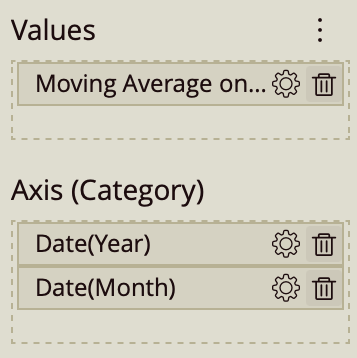
Open the Quick Functions menu for Sales Amount (gear icon) and select Moving Calculation.
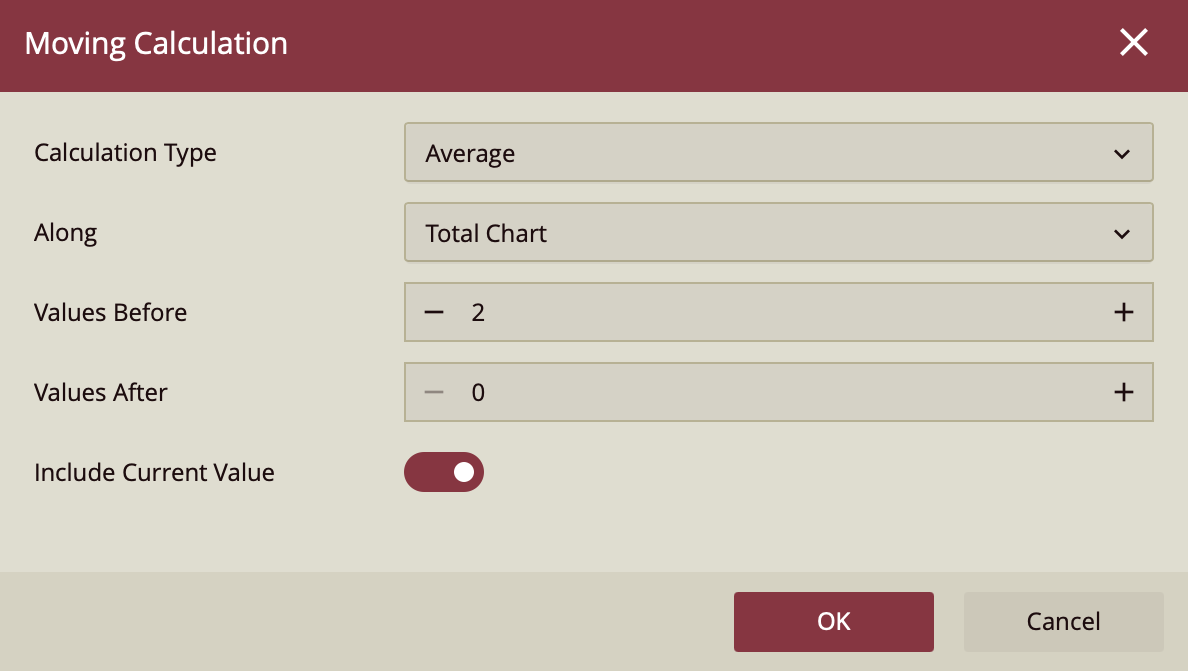
Use the following settings:
Calculation Type: Average
Along: Total Chart
Values Before: 2
Values After: 0
Include Current Value: Enabled
In the Inspector panel, expand the Title section and set the title to Rolling Average Sales by Month.
In this configuration, the moving calculation is applied across all months in sequence. Each column represents the average of the current month and the two preceding months. This smooths out short-term fluctuations and makes it easier to identify broader sales trends over time.