-
Interactive DashboardsCreate interactive BI dashboards with dynamic visuals.
-
End-User BI ReportsCreate and deploy enterprise BI reports for use in any vertical.
-
Wyn AlertsSet up always-on threshold notifications and alerts.
-
Localization SupportChange titles, labels, text explanations, and more.
-
Wyn ArchitectureA lightweight server offers flexible deployment.
-
 Wyn Enterprise 7.1 is ReleasedThis release emphasizes Wyn document embedding and enhanced analytical express...
 -
 Choosing an Embedded BI Solution for SaaS ProvidersAdding BI features to your applications will improve your products, better serve your customers, and more. But where to start? In this guide, we discuss the many options.
-
Visual GalleryInteractive sample dashboards and reports.
-
BlogExplore Wyn, BI trends, and more.
-
WebinarsDiscover live and on-demand webinars.
-
Customer SuccessVisualize operational efficiency and streamline manufacturing processes.
-
Knowledge BaseGet quick answers with articles and guides.
-
VideosVideo tutorials, trends and best practices.
-
WhitepapersDetailed reports on the latest trends in BI.
-
 Choosing an Embedded BI Solution for SaaS ProvidersAdding BI features to your applications will impr...
 -

- Getting Started
- Administration Guide
-
User Guide
- An Introduction to Wyn Enterprise
- Document Portal for End Users
- Data Governance and Modeling
- View and Manage Documents
- Working with Resources
- Working with Reports
- Working with Dashboards
- Working with Notebooks
- Wyn Analytical Expressions
- Section 508 Compliance
- Subscribe to RSS Feed for Wyn Builds Site
- Developer Guide
Column Chart
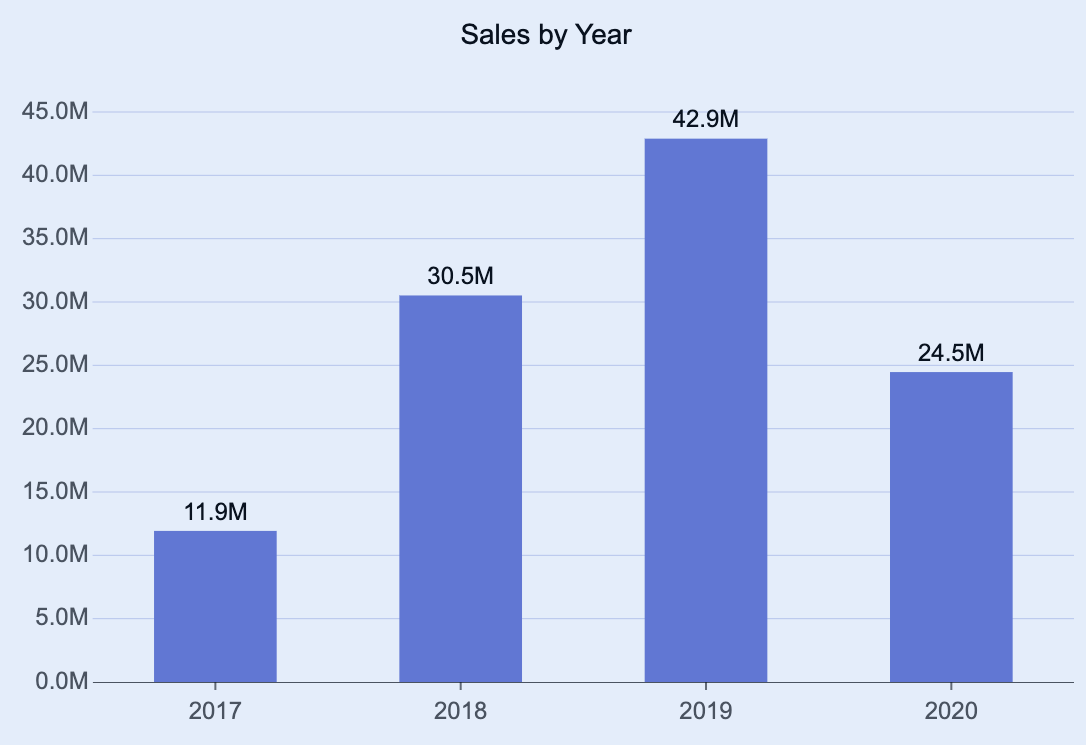
Column charts are a visualization used to display data values as vertical bars, making it easy to compare values across categories or track changes over time. The height of each bar represents its corresponding value, providing a clear visual comparison between different categories.
You can use column charts to highlight trends, monitor performance, or analyze category-based distributions in your data. You can also build grouped column charts to analyze and compare multiple series side by side — for example, comparing product performance across regions or tracking monthly revenue by department. You can also use column charts to compare monthly sales performance for multiple products, analyze expenses by department or cost center, track year-over-year growth across various regions, or display survey results across different demographic groups.
This article explains the requirements for creating column charts and provides an overview of key properties and configuration options available in Wyn Notebooks. This topic explains how to create and customize column charts and explains the most frequently used properties.
Create a Column Chart
To create a column chart, click on the Plus (+) button, opening the dropdown from which you can select your chart.
Bind Data to Column Chart
For a basic column chart, you need to determine:
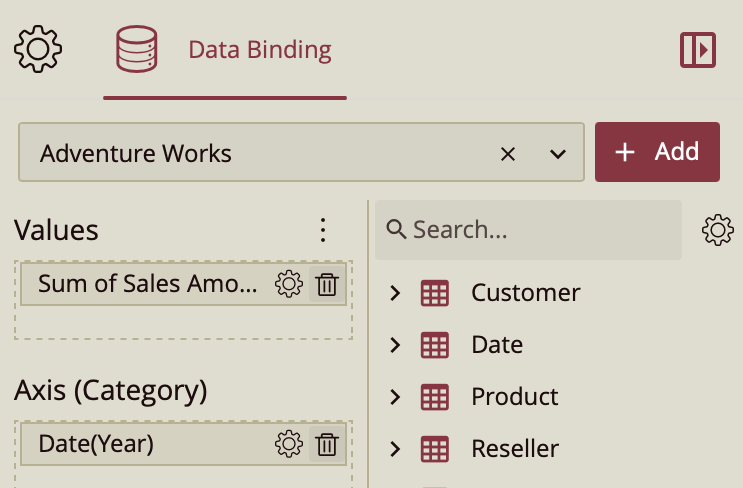
Values (Y-Axis): The measure displayed on the y-axis. Typically, this is a numeric field, such as Sales, Quantity, or Expenses.
Axis (Category / X-Axis): The data displayed on the x-axis. Typically, this is a categorical or time-based field, such as Month, Product, or Year.
Once your data source is selected, all data attributes appear in the Data Binding tab. You can drag the following to the binding slots of the chart:
Data attribute: Drag and drop any field from the data source.
Measure: Hover over the data source table name, click the gear icon (⚙), and select Add measure…. Define a name and an expression, click OK, then drag the measure to a binding slot.
Calculated column: Hover over the data source table name, click the gear icon (⚙), and select Add calculated column…. Define your calculation, click OK, then drag it to a binding slot.
Add Aggregations
You can control how data is aggregated and labeled in the chart:
Aggregation method: Click the gear icon (⚙) next to a bound data attribute, and select an aggregation type (e.g., Sum, Average, Count).
Rename data attribute: Click the gear icon (⚙) next to a bound data attribute and select Rename to modify how it appears in the chart.
Set Chart Title
By default, Wyn generates a chart title based on the selected data attributes.
You can modify this title in the Inspector Panel:
Click the gear icon (⚙) next to the Data Binding tab to open the Inspector Panel.
Under Title, type a custom title for your chart.
Note: Once a custom title is entered, changes to the data attributes will no longer automatically update the chart title.
Add Tooltip
To include more details in the chart’s tooltip, drag one or more data attributes into the Tooltip binding slot. Tooltips appear when hovering over chart elements, providing contextual details without cluttering the chart area.
Customize Colors
You can adjust the color scheme of your column chart in Inspector Panel > Chart Style > Palette.
Choose from:
Theme: A seven-color palette based on a theme.
Standard: A set of predefined seven-color palettes.
Custom: Define your own palette to match brand colors or visualization standards.
Group Data
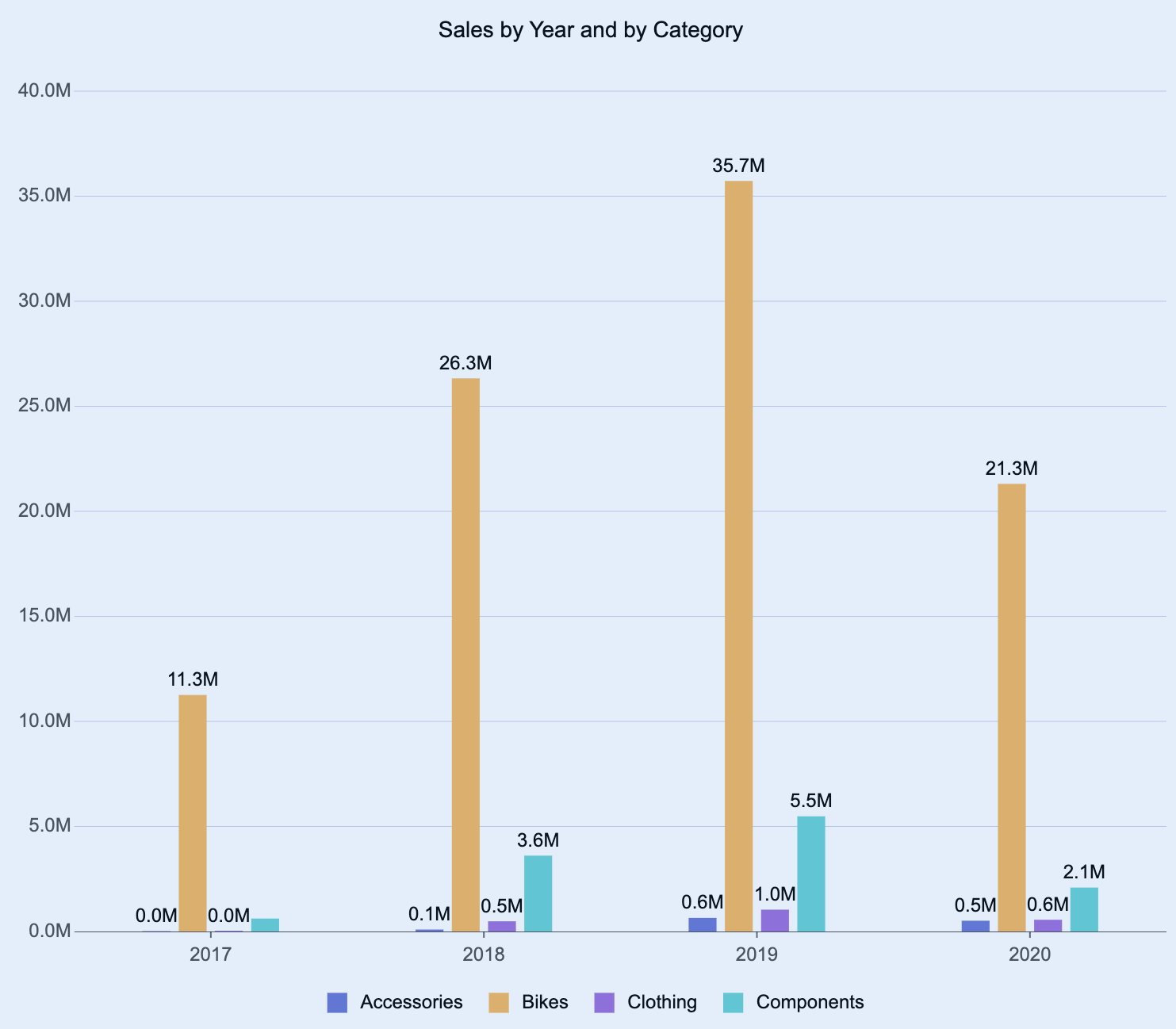
A grouped column chart is used to compare multiple data series across common categories. Each group represents a category, while each bar within the group represents a series. This makes it ideal for analyzing segmented data — for example, comparing Sales by Product across Regions.
To create a grouped column chart, drag the desired comparison field into the Legend (Series) binding slot. This groups the columns by the selected field, enabling side-by-side comparison within each category.
Build a Chart Trellis
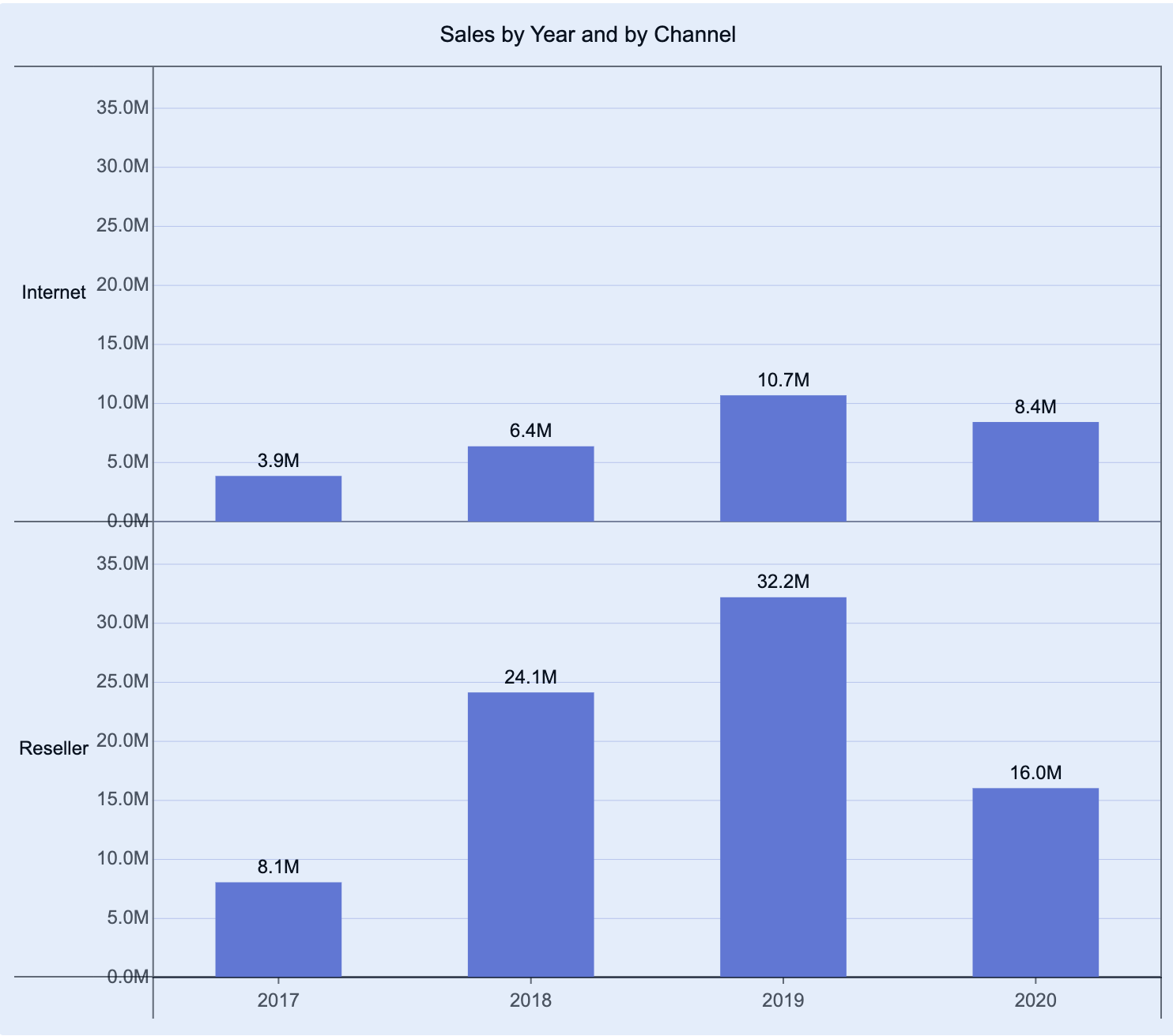
A trellis column layout (also known as a small multiples view) creates a set of individual charts arranged horizontally. Each chart represents a subset of the data, determined by the field you assign.
To create a series of trellis column charts, drag a data attribute into the Trellis Columns binding slot. Each unique value in that field generates a separate chart displayed in columns across the dashboard.
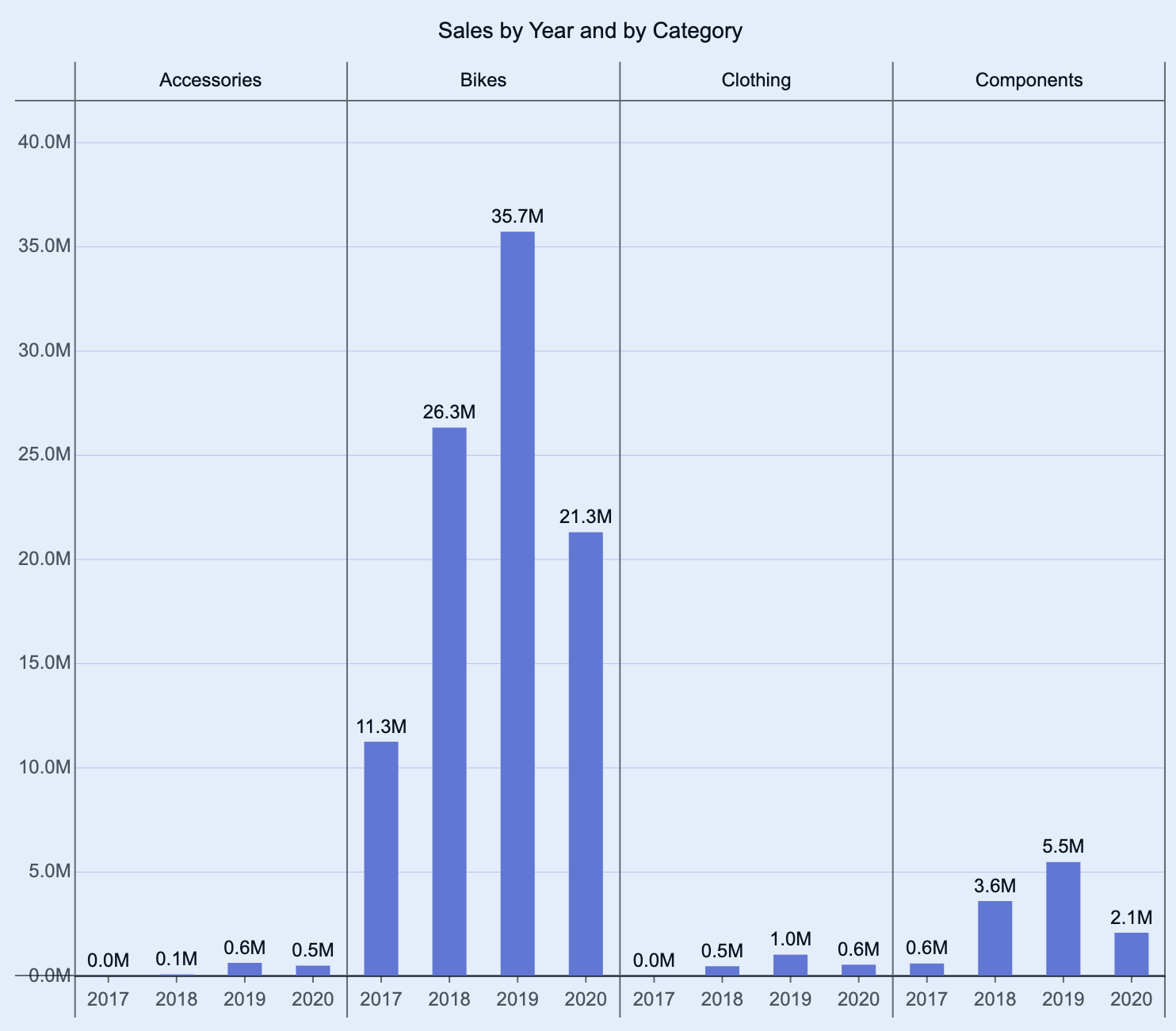
A trellis row layout arranges multiple charts vertically, each showing a subset of data for a particular category or group.
To create a series of trellis row charts, drag a data attribute into the Trellis Rows binding slot. Each unique value generates an individual chart displayed in rows down the dashboard.