-
Interactive DashboardsCreate interactive BI dashboards with dynamic visuals.
-
End-User BI ReportsCreate and deploy enterprise BI reports for use in any vertical.
-
Wyn AlertsSet up always-on threshold notifications and alerts.
-
Localization SupportChange titles, labels, text explanations, and more.
-
Wyn ArchitectureA lightweight server offers flexible deployment.
-
 Wyn Enterprise 7.1 is ReleasedThis release emphasizes Wyn document embedding and enhanced analytical express...
 -
 Choosing an Embedded BI Solution for SaaS ProvidersAdding BI features to your applications will improve your products, better serve your customers, and more. But where to start? In this guide, we discuss the many options.
-
Visual GalleryInteractive sample dashboards and reports.
-
BlogExplore Wyn, BI trends, and more.
-
WebinarsDiscover live and on-demand webinars.
-
Customer SuccessVisualize operational efficiency and streamline manufacturing processes.
-
Knowledge BaseGet quick answers with articles and guides.
-
VideosVideo tutorials, trends and best practices.
-
WhitepapersDetailed reports on the latest trends in BI.
-
 Choosing an Embedded BI Solution for SaaS ProvidersAdding BI features to your applications will impr...
 -

- Getting Started
- Administration Guide
-
User Guide
- An Introduction to Wyn Enterprise
- Document Portal for End Users
- Data Governance and Modeling
- View and Manage Documents
- Working with Resources
- Working with Reports
-
Working with Dashboards
- Tour the Dashboard Designer
- Create a Dashboard
- Configure Dashboard
- Dashboard Data Binding
-
Scenarios
- Common Scenario Properties
- Charts
- Tables
- Indicators
- Maps
- Slicers
- Others
- Topology
- ECharts
- 3D Scenes
- Floorplan
- Component Templates
- Appearance
- Component Management
- Parameters
- Interactions
- Finalize Your Dashboard
- Using AI in Wyn
- Working with Notebooks
- Wyn Analytical Expressions
- Section 508 Compliance
- Subscribe to RSS Feed for Wyn Builds Site
- Developer Guide
Filter Compact-Date Data Using a Standard-Date Slicer
Some data sources store dates in compact numeric formats, such as 20240101, while others use standard date formats such as 2024-01-01. When you combine these datasets in a dashboard, filtering may not work as expected because the formats do not match. This feature allows you to filter a visualization that uses compact-format dates by connecting it to a slicer that uses standard-format dates.
By configuring a field-level interaction between two datasets, you can create a unified filtering experience even when the underlying data structures differ. This approach is useful when working with legacy systems, mixed-format extracts, or environments where you cannot modify the original data.
Note
If you want to recreate this example, download the sample datasets used in this article:
Prerequisites
Before you begin, ensure you have:
Two datasets:
A dataset containing compact-format date values (for example,
20240101)A dataset containing standard-format date values (for example,
2024-01-01)
A dashboard open in the Dashboard Designer
Add Both Datasets to the Dashboard
Open the dashboard in the Dashboard Designer.
In the Data Binding panel, upload both datasets:
The dataset with compact-format dates
The dataset with standard-format dates
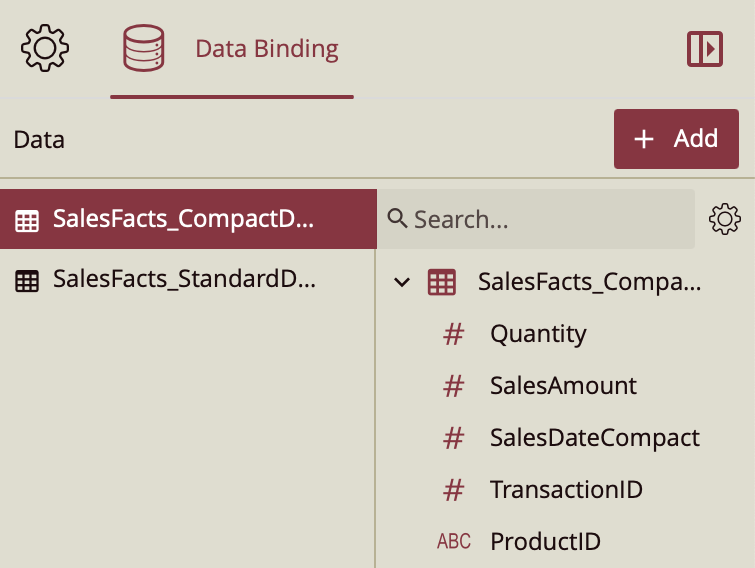
This makes both tables available for binding and interaction.
Add a Data Table and Bind Compact-Date Data
From the Dashboard Visualizations panel, drag a Data Table onto the design surface.
Bind the table to the dataset containing compact-format dates.
In the Data Binding panel, drag fields from the dataset and place them in the table’s column bindings.
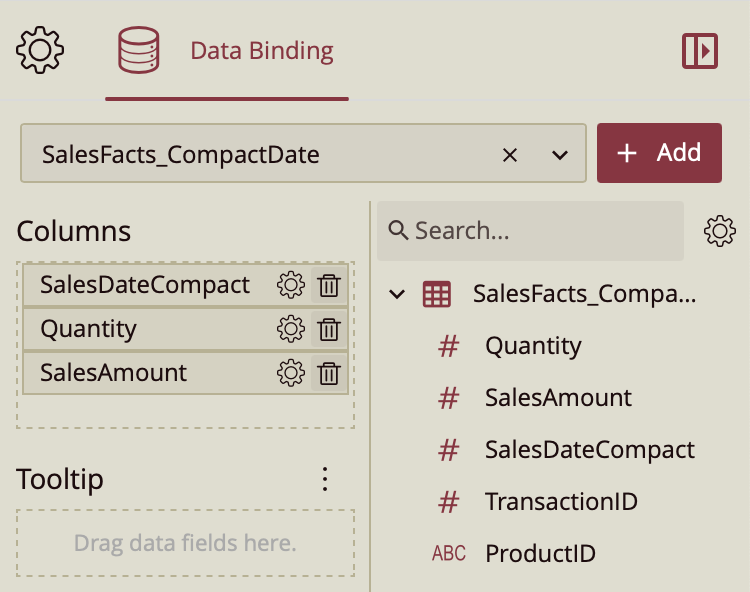
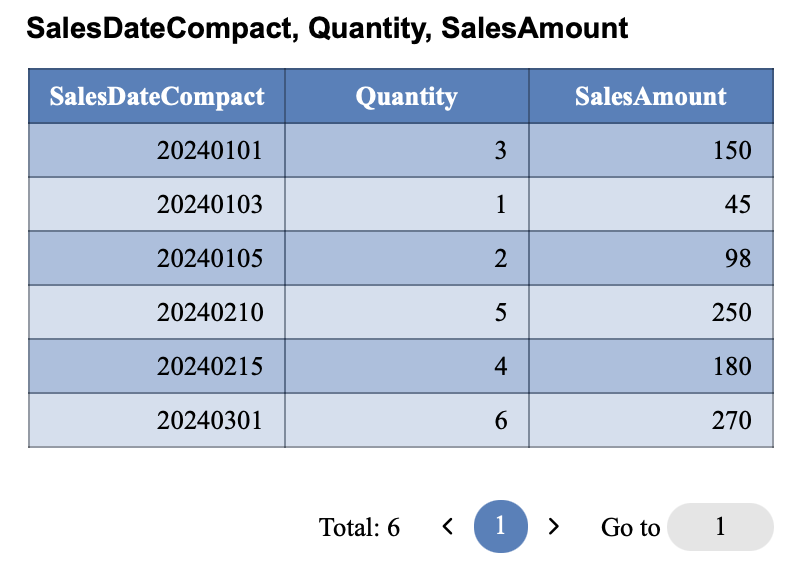
The data table now displays the unformatted, compact date values.
Add and Configure the Standard-Date Slicer
Drag a Multi-Dimensional Dropdown slicer onto the dashboard.
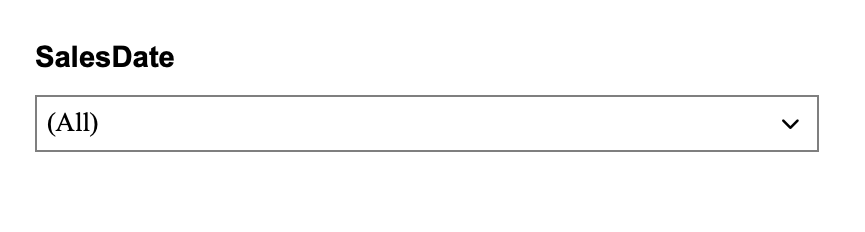
Bind the slicer to the dataset containing standard-format date values.
In the Data Binding panel, drag the standard date field to the Dimension area of the slicer.
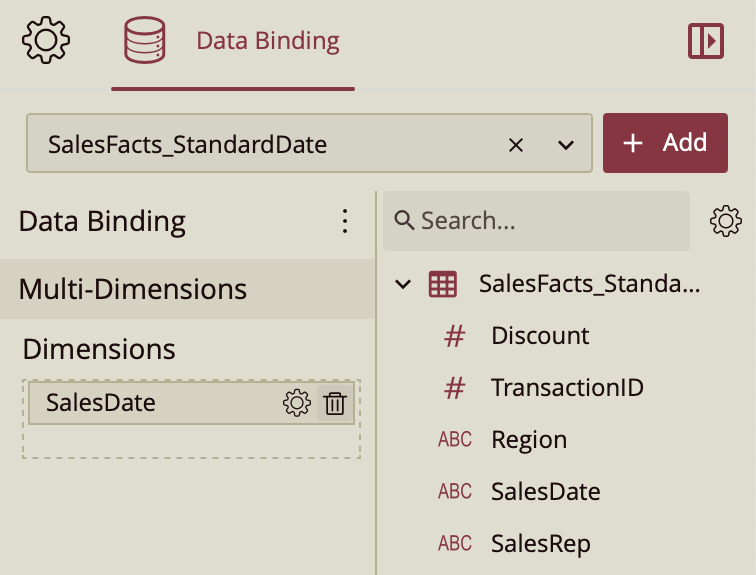
The slicer now displays readable date values.
Configure the Interaction Between the Slicer and the Table
Select the slicer.
On the Page Setup bar, choose Interaction Setting.

In the Interaction Setting window, select the data table to enable its interaction with the slicer.
Select + to add a field mapping.
For Source Field, choose the standard-format date field from the slicer’s dataset.
For Target Field, choose the linking field from the compact-format dataset (for example, a shared transaction or record ID).
Select OK to apply the interaction.
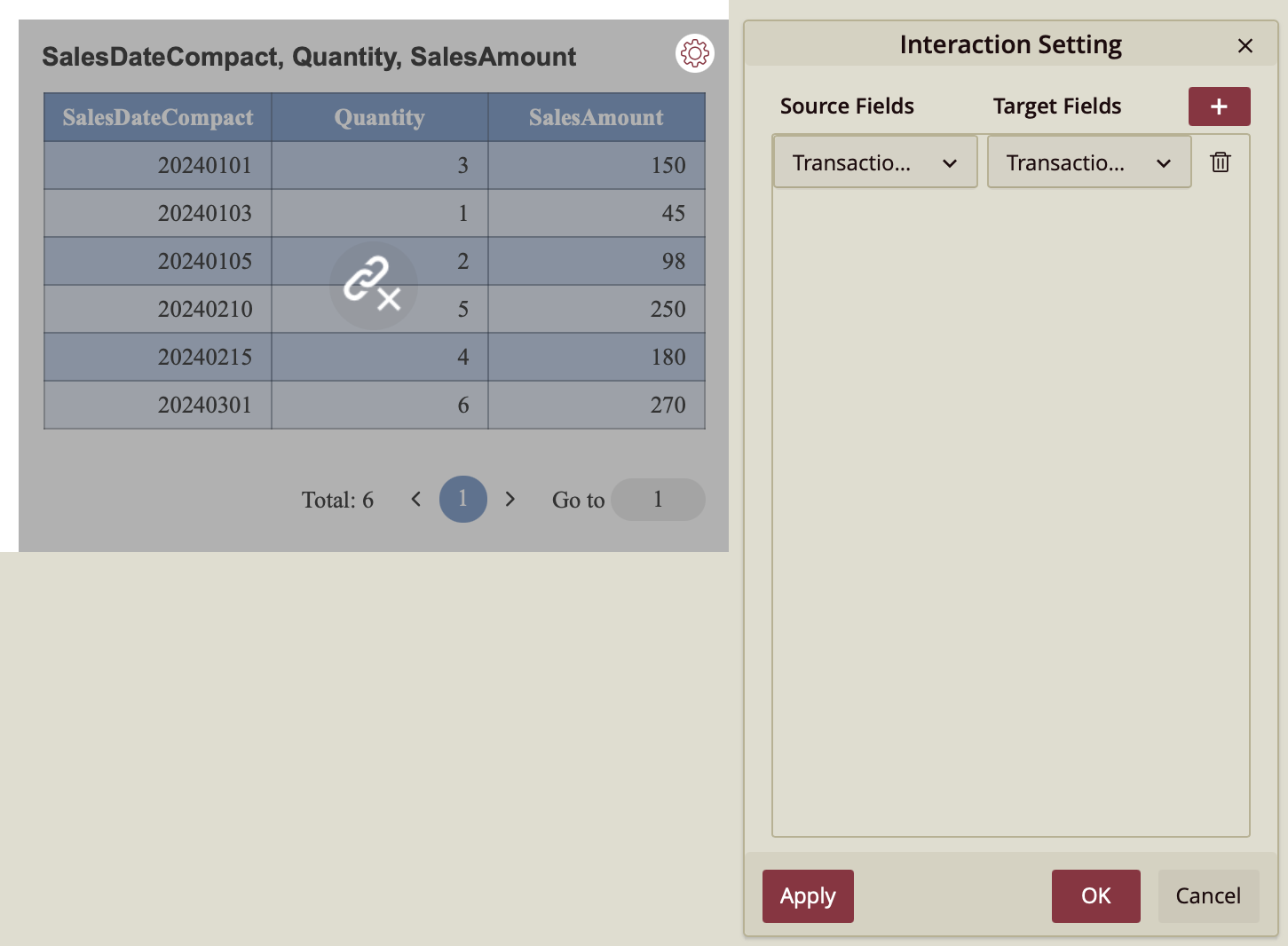
This creates a cross-dataset link, allowing date selections from the slicer to filter the compact-date dataset.
Preview the Dashboard
Select Preview from the ribbon.

Choose a date from the slicer.
Verify that the data table updates based on the selected date.
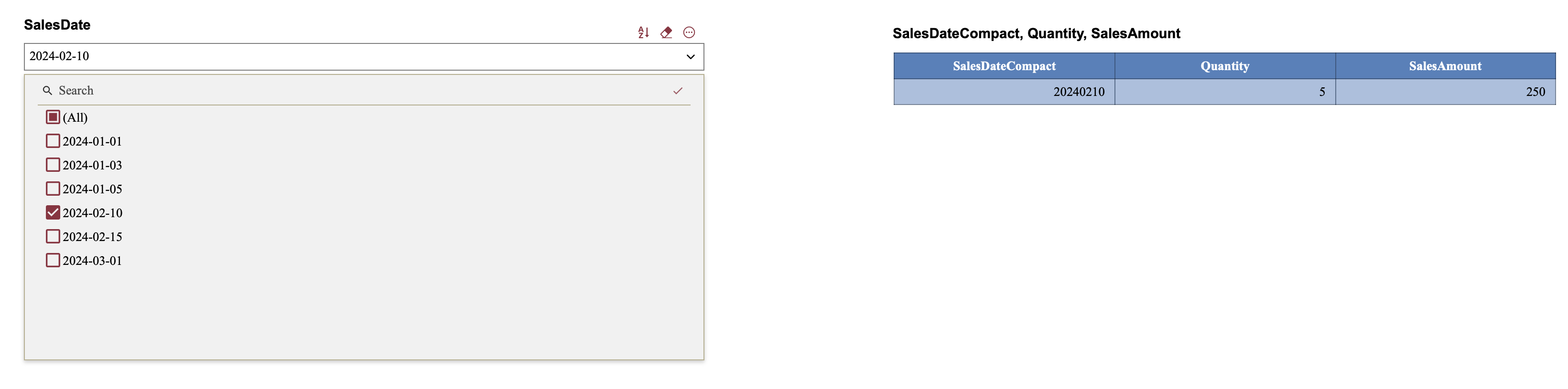
The compact-format date table should now filter according to the standard-format date selection.