-
Interactive DashboardsCreate interactive BI dashboards with dynamic visuals.
-
End-User BI ReportsCreate and deploy enterprise BI reports for use in any vertical.
-
Wyn AlertsSet up always-on threshold notifications and alerts.
-
Localization SupportChange titles, labels, text explanations, and more.
-
Wyn ArchitectureA lightweight server offers flexible deployment.
-
 Wyn Enterprise 7.1 is ReleasedThis release emphasizes Wyn document embedding and enhanced analytical express...
 -
 Choosing an Embedded BI Solution for SaaS ProvidersAdding BI features to your applications will improve your products, better serve your customers, and more. But where to start? In this guide, we discuss the many options.
-
Visual GalleryInteractive sample dashboards and reports.
-
BlogExplore Wyn, BI trends, and more.
-
WebinarsDiscover live and on-demand webinars.
-
Customer SuccessVisualize operational efficiency and streamline manufacturing processes.
-
Knowledge BaseGet quick answers with articles and guides.
-
VideosVideo tutorials, trends and best practices.
-
WhitepapersDetailed reports on the latest trends in BI.
-
 Choosing an Embedded BI Solution for SaaS ProvidersAdding BI features to your applications will impr...
 -

- Getting Started
- Administration Guide
-
User Guide
- An Introduction to Wyn Enterprise
- Document Portal for End Users
- Data Governance and Modeling
- View and Manage Documents
- Working with Resources
- Working with Reports
- Working with Dashboards
- Working with Notebooks
- Wyn Analytical Expressions
- Section 508 Compliance
- Subscribe to RSS Feed for Wyn Builds Site
- Developer Guide
KPI Card
Data Binding
Values – The main numeric or measurable data displayed in each KPI card (e.g., sales amount, total orders, or performance score).
Customization
Icon Style
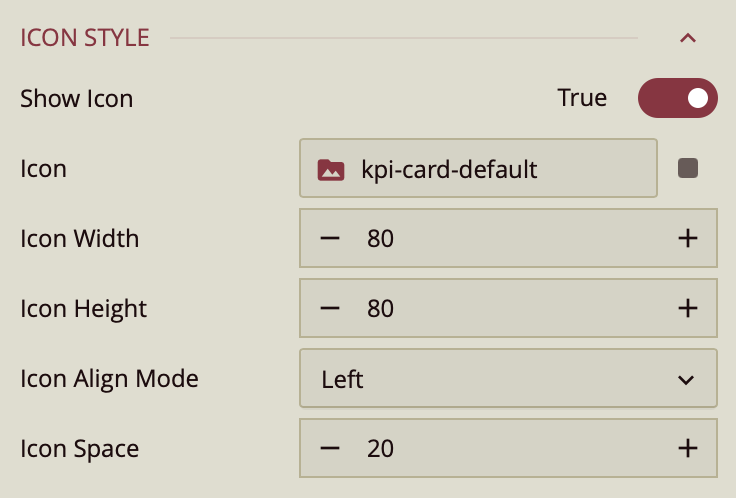
The Icon properties control whether and how an icon is displayed on a KPI card.
Displaying an Icon
Show Icon – Toggle to True to display an icon on the KPI card, or False to hide it.
Uploading an Icon
Icon Data Binding – Click the value slot to open the Upload Image window.
Select Image – Choose from images already uploaded to Wyn Enterprise, or click Upload Image to add an image from your local files.
Icon Appearance
Icon Width and Height – Enter numeric values to set the size of the icon.
Icon Alignment – Choose how the icon is positioned relative to the KPI value.
Icon Spacing – Adjust the space between the icon and the KPI value for optimal layout and readability.
Indicator Style
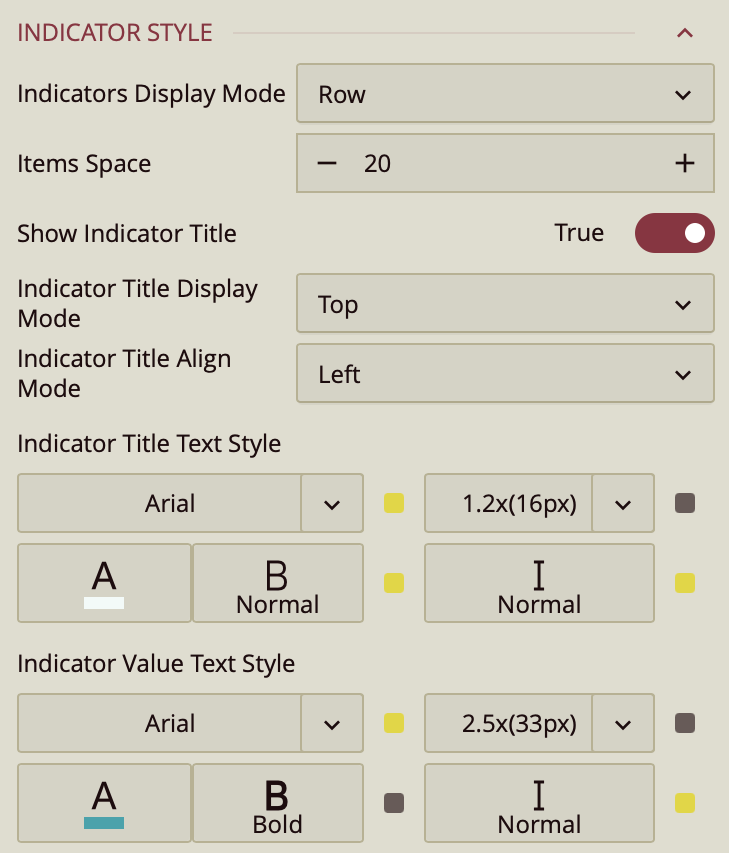
The Indicator Style properties allow you to customize how values and text are displayed on KPI cards or indicators.
Display Mode
Indicators Display Mode – When displaying two or more values, choose whether the values appear in a row or column layout.
Item Spacing
Items Space – Adjust the space between displayed values. Enter a numeric value to increase or decrease spacing for better readability.
Indicator Title
Show Indicator Title – Toggle True to display a title next to the KPI value, or False to hide it.
Indicator Title Position – Choose where the title appears relative to the value: Top, Bottom, or Left.
Indicator Title Align Mode – Adjust the alignment of the title text relative to the KPI value.
Text Style – Customize the font, size, weight, color, and style (italic or normal) for both the title and the KPI value independently.
Postfix Style
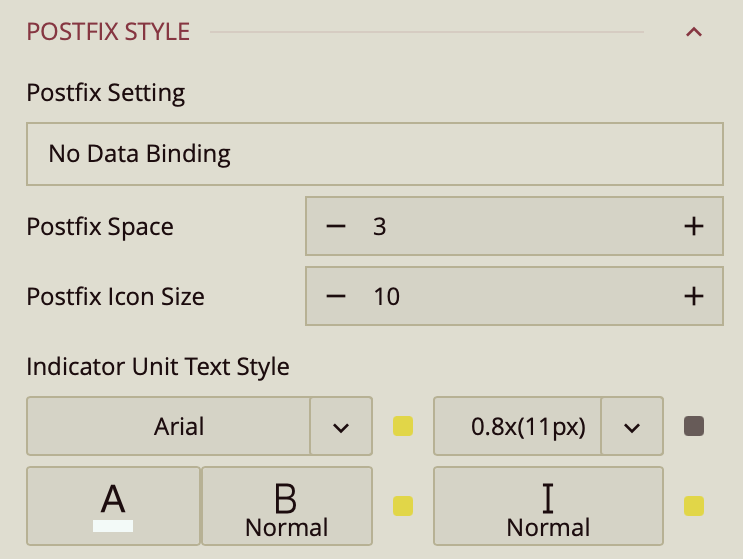
The Postfix Style allows adding a number, unit, or icon next to the KPI value.
Postfix Space – Adjust the spacing between the KPI value and the postfix.
Postfix Icon Size – Set the size of the postfix icon.
Indicator Unit Text Style – Customize the font, size, color, and style of the postfix text.
Content Align Style
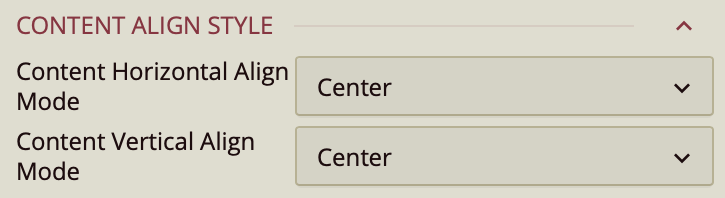
The Content Align Style properties control how all elements within the KPI card are positioned inside the card area. This includes the icon, indicator value, title, and postfix. These settings help ensure that the overall layout appears balanced and aligned according to your design requirements.
Content Horizontal Align Mode – Determines how the KPI card content is aligned horizontally within the card. By default, this property is set to Center, positioning the content evenly across the width of the card. You can change the alignment to Left to align the content toward the left edge, or Right to align it toward the right edge.
Content Vertical Align Mode – Determines how the KPI card content is aligned vertically within the card. The default value is Center, which vertically centers the content within the card area. You can set this property to Top to align the content toward the upper edge of the card, or Bottom to position it toward the lower edge.