-
Interactive DashboardsCreate interactive BI dashboards with dynamic visuals.
-
End-User BI ReportsCreate and deploy enterprise BI reports for use in any vertical.
-
Wyn AlertsSet up always-on threshold notifications and alerts.
-
Localization SupportChange titles, labels, text explanations, and more.
-
Wyn ArchitectureA lightweight server offers flexible deployment.
-
 Wyn Enterprise 7.1 is ReleasedThis release emphasizes Wyn document embedding and enhanced analytical express...
 -
 Choosing an Embedded BI Solution for SaaS ProvidersAdding BI features to your applications will improve your products, better serve your customers, and more. But where to start? In this guide, we discuss the many options.
-
Visual GalleryInteractive sample dashboards and reports.
-
BlogExplore Wyn, BI trends, and more.
-
WebinarsDiscover live and on-demand webinars.
-
Customer SuccessVisualize operational efficiency and streamline manufacturing processes.
-
Knowledge BaseGet quick answers with articles and guides.
-
VideosVideo tutorials, trends and best practices.
-
WhitepapersDetailed reports on the latest trends in BI.
-
 Choosing an Embedded BI Solution for SaaS ProvidersAdding BI features to your applications will impr...
 -

- Getting Started
- Administration Guide
-
User Guide
- An Introduction to Wyn Enterprise
- Document Portal for End Users
- Data Governance and Modeling
- View and Manage Documents
- Working with Resources
- Working with Reports
- Working with Dashboards
- Working with Notebooks
- Wyn Analytical Expressions
- Section 508 Compliance
- Subscribe to RSS Feed for Wyn Builds Site
- Developer Guide
Date Time
The Date Time element displays the current date and time in real time. It updates automatically based on the refresh interval you set. Adding this element to a dashboard provides viewers with a clear time reference, which is especially useful for real-time monitoring, live data dashboards, or time-sensitive reports.
Customization Options
Date Time in Wyn can be extensively styled and configured using the Inspector panel. Below are key settings you can modify:
Chart Style
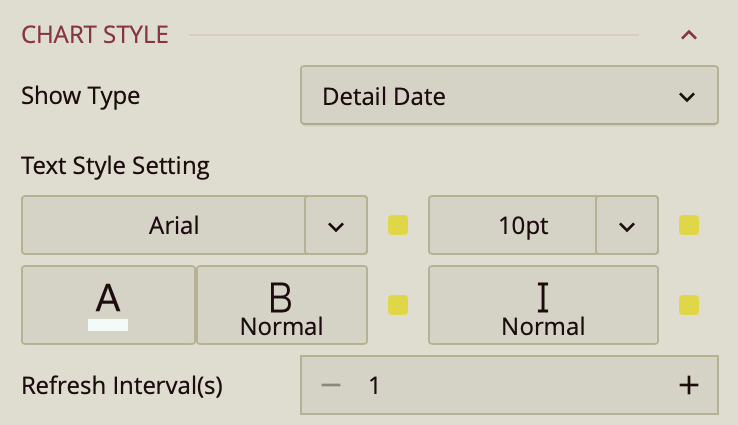
Show Type – Defines the format for displaying the date and time:
Detail Date – Shows the date with detailed components, such as day of the week, month, day, year, and time.
Long Date – Shows the date in a long format (for example, Tuesday, August 12, 2025).
Short Date – Shows the date in a compact numeric format (for example, 8/12/2025).
Custom – Allows you to define a custom date and time format.
Text Style Setting – Configures the appearance of the displayed date and time:
Font Family – Sets the typeface.
Size – Sets the text size in points or pixels.
Color – Sets the text color.
Weight – Sets the thickness of the text (e.g., normal, bold).
Style – Sets the font style (normal or italic).
Refresh Interval (seconds) – Sets how often the date and time are refreshed. By default, this is 1 second, which provides real-time updates.
Interaction
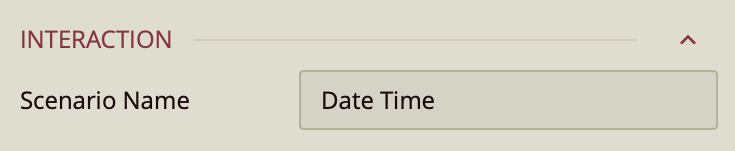
Scenario Name – Sets the name of the Date Time element as it appears in the Explorer pane. By default, this is Date Time, but you can enter a custom name to make it easier to identify within the dashboard’s structure.