-
Interactive DashboardsCreate interactive BI dashboards with dynamic visuals.
-
End-User BI ReportsCreate and deploy enterprise BI reports for use in any vertical.
-
Wyn AlertsSet up always-on threshold notifications and alerts.
-
Localization SupportChange titles, labels, text explanations, and more.
-
Wyn ArchitectureA lightweight server offers flexible deployment.
-
 Wyn Enterprise 7.1 is ReleasedThis release emphasizes Wyn document embedding and enhanced analytical express...
 -
 Choosing an Embedded BI Solution for SaaS ProvidersAdding BI features to your applications will improve your products, better serve your customers, and more. But where to start? In this guide, we discuss the many options.
-
Visual GalleryInteractive sample dashboards and reports.
-
BlogExplore Wyn, BI trends, and more.
-
WebinarsDiscover live and on-demand webinars.
-
Customer SuccessVisualize operational efficiency and streamline manufacturing processes.
-
Knowledge BaseGet quick answers with articles and guides.
-
VideosVideo tutorials, trends and best practices.
-
WhitepapersDetailed reports on the latest trends in BI.
-
 Choosing an Embedded BI Solution for SaaS ProvidersAdding BI features to your applications will impr...
 -

- Getting Started
- Administration Guide
-
User Guide
- An Introduction to Wyn Enterprise
- Document Portal for End Users
- Data Governance and Modeling
- View and Manage Documents
- Working with Resources
- Working with Reports
-
Working with Dashboards
- Tour the Dashboard Designer
- Create a Dashboard
- Dashboard Data Binding
- Scenarios
- Appearance
- Component Management
- Parameters
- Interactions
- Finalize Your Dashboard
- Using AI in Wyn
- Working with Notebooks
- Wyn Analytical Expressions
- Section 508 Compliance
- Subscribe to RSS Feed for Wyn Builds Site
- Developer Guide
Data Exploration Toolbars
Data Exploration Buttons in Wyn Dashboards are a collection of quick-access tools that let the dashboard user interact with, customize, and analyze dashboard scenarios directly. These buttons are context-aware—only appearing when they're relevant to the selected scenario—and are designed to support exploration without leaving the dashboard canvas.
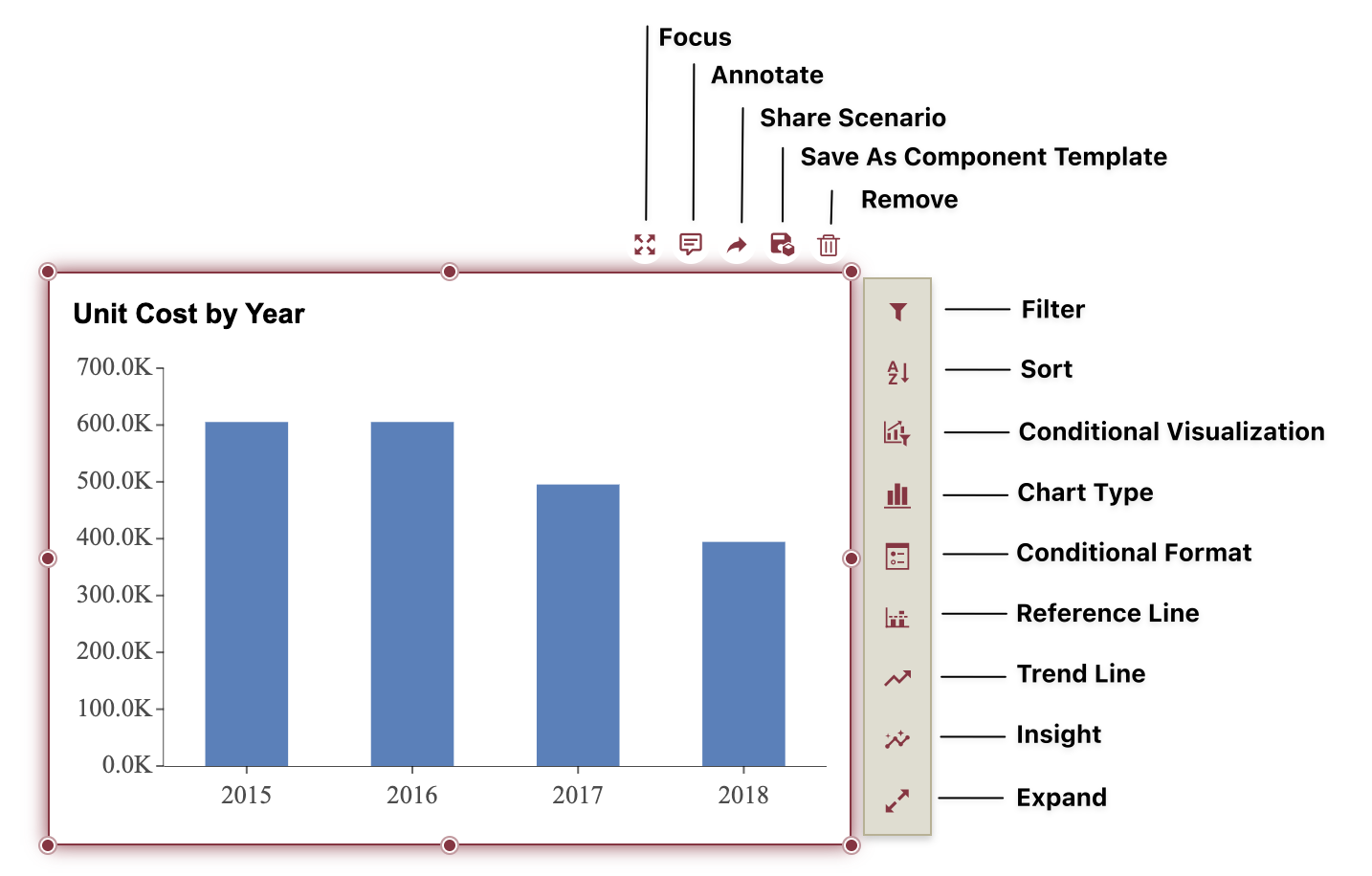
Button Layout
There are two sets of data exploration buttons, organized by placement:
Horizontal Action Bar (top of the scenario)
These buttons help with general interaction and layout adjustments:
Focus – Enlarge the scenario to fill the dashboard canvas.
Add Annotations – Add comments, highlights, or callouts.
Share Scenario – Generate embeddable code to share the scenario via
<iframe>or<div>.Save as Component Template – Save a customized scenario as a reusable template.
Remove – Remove the scenario from the dashboard.
Vertical Action Bar (right of the scenario)
These buttons support in-depth data interaction and customization:
Filter – Apply data-level filters to narrow down what’s shown.
Sort – Change the order in which data appears.
Conditional Visualization – Apply dynamic color, size, or visibility rules.
Chart Type – Change the chart type while preserving the bound data.
Conditional Format – Add formatting rules (e.g., highlights) based on data values.
Reference Line – Add static lines to visualize constant or aggregated benchmarks.
Trend Line – Visualize projected trends or forecasts using different regression models.
Insight – Automatically detect and display data patterns (e.g., outliers, trends, majorities).
Expand – Temporarily resize the scenario to fit all of its content.
Button Availability
Not all buttons are available on every scenario. A button may be hidden if:
The feature is not applicable to the selected visualization type.
The dashboard author has disabled it.
The feature is not supported for that scenario configuration.
This ensures that users only see options that are relevant and usable in the current context.
Summary
The Data Exploration Buttons are designed to enhance your workflow by bringing powerful tools directly to the scenario. Whether you’re digging into trends, customizing appearance, or sharing insights, these buttons allow you to explore and interact with data more effectively—without switching views or breaking your flow.