-
Interactive DashboardsCreate interactive BI dashboards with dynamic visuals.
-
End-User BI ReportsCreate and deploy enterprise BI reports for use in any vertical.
-
Wyn AlertsSet up always-on threshold notifications and alerts.
-
Localization SupportChange titles, labels, text explanations, and more.
-
Wyn ArchitectureA lightweight server offers flexible deployment.
-
 Wyn Enterprise 7.1 is ReleasedThis release emphasizes Wyn document embedding and enhanced analytical express...
 -
 Choosing an Embedded BI Solution for SaaS ProvidersAdding BI features to your applications will improve your products, better serve your customers, and more. But where to start? In this guide, we discuss the many options.
-
Visual GalleryInteractive sample dashboards and reports.
-
BlogExplore Wyn, BI trends, and more.
-
WebinarsDiscover live and on-demand webinars.
-
Customer SuccessVisualize operational efficiency and streamline manufacturing processes.
-
Knowledge BaseGet quick answers with articles and guides.
-
VideosVideo tutorials, trends and best practices.
-
WhitepapersDetailed reports on the latest trends in BI.
-
 Choosing an Embedded BI Solution for SaaS ProvidersAdding BI features to your applications will impr...
 -

- Getting Started
- Administration Guide
-
User Guide
- An Introduction to Wyn Enterprise
- Document Portal for End Users
- Data Governance and Modeling
- View and Manage Documents
- Working with Resources
- Working with Reports
-
Working with Dashboards
- Tour the Dashboard Designer
- Create a Dashboard
- Dashboard Data Binding
- Scenarios
- Appearance
- Component Management
- Parameters
- Interactions
- Finalize Your Dashboard
- Using AI in Wyn
- Working with Notebooks
- Wyn Analytical Expressions
- Section 508 Compliance
- Subscribe to RSS Feed for Wyn Builds Site
- Developer Guide
Conditional Format on Charts
In this guide, we’ll walk through the steps for applying a highlight rule to a table column, and then we’ll finish with a practical example using the AdventureWorks Data Warehouse.
Step 1: Select the Table
In your Wyn dashboard, select the table you want to format.
Once selected, the action buttons appear on the right-hand side.
Step 2: Open Conditional Formatting
Click the Conditional Formatting button from the action menu.
The Conditional Formatting window will open.
Step 3: Configure the Rule
In the window, locate the option Set for.
Choose the column you want to format (for example, Total Quantity).
Next, find the option Based On.
Set this to Field Value.
Open the dropdown menu for Style.
Choose Highlight Cell Rules.
From the sub-menu, select Greater Than...
Step 4: Define the Condition
In the pop-up window that appears, enter the threshold value for your rule.
Example: 1000 (to format all cells greater than 1000).
After the word With, choose the style you want to apply.
Example: Light Red Fill with Dark Red Text.
Click OK to apply the formatting.
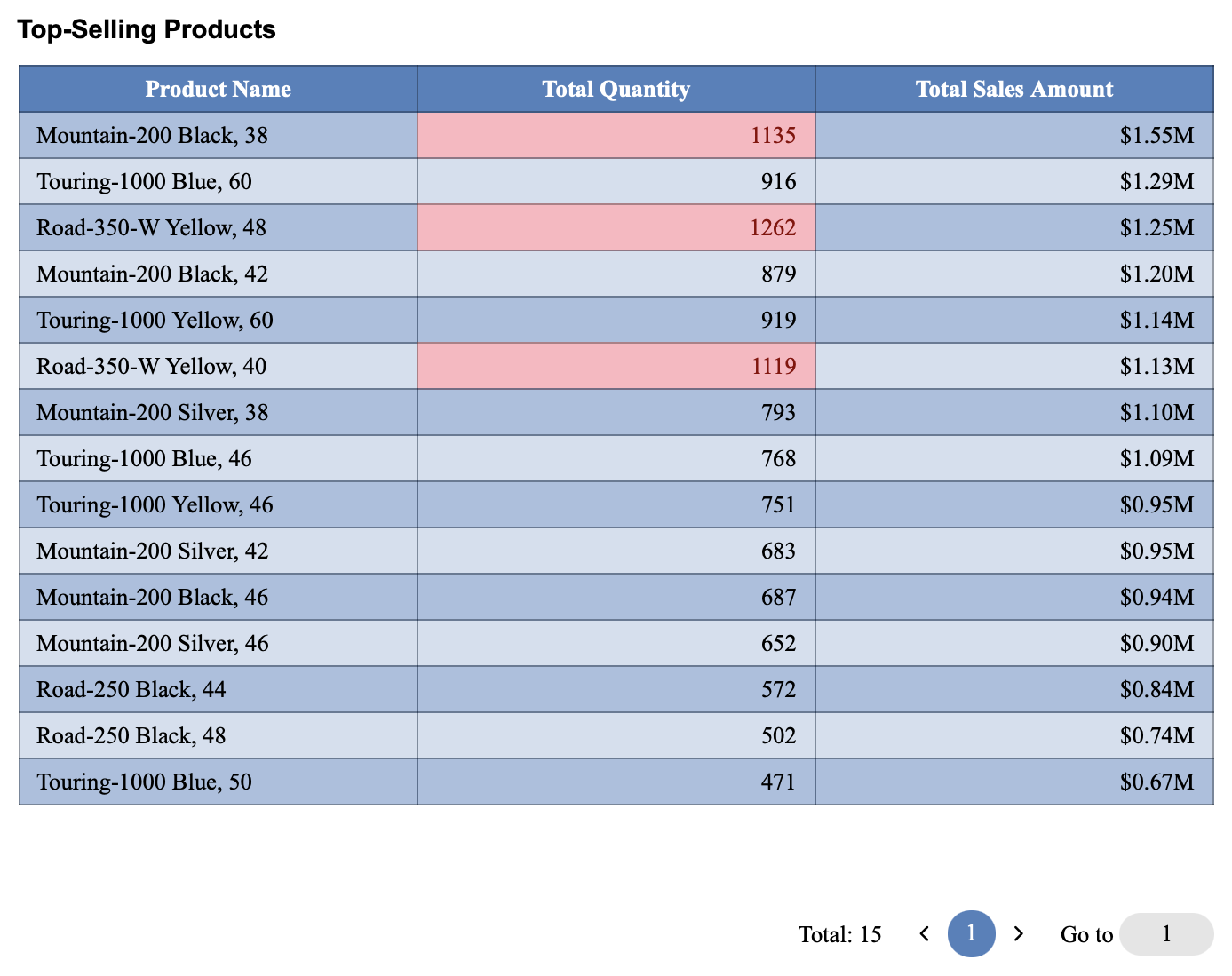
Example: Highlighting Quantities Greater than 1000
Here’s a sample query you can use against the AdventureWorksDW data warehouse to produce a table of products and their total sales and quantities:
SELECT TOP 15
    p.ProductKey,
    p.EnglishProductName AS ProductName,
    SUM(f.SalesAmount) AS TotalSalesAmount,
    SUM(f.OrderQuantity) AS TotalQuantity
FROM
    FactResellerSales AS f
JOIN
    DimProduct AS p ON f.ProductKey = p.ProductKey
JOIN
    DimDate AS d ON f.OrderDateKey = d.DateKey
WHERE
    d.CalendarYear = 2013
GROUP BY
    p.ProductKey,
    p.EnglishProductName
ORDER BY
    TotalSalesAmount DESC;
When you apply conditional formatting to the TotalQuantity column and set a rule for values greater than 1000, Wyn will automatically highlight those cells with your chosen style.
For example:
Any product with a
TotalQuantityabove 1000 will appear with a light red fill and dark red text, making it easy to spot higher-volume products at a glance.