-
Interactive DashboardsCreate interactive BI dashboards with dynamic visuals.
-
End-User BI ReportsCreate and deploy enterprise BI reports for use in any vertical.
-
Wyn AlertsSet up always-on threshold notifications and alerts.
-
Localization SupportChange titles, labels, text explanations, and more.
-
Wyn ArchitectureA lightweight server offers flexible deployment.
-
 Wyn Enterprise 7.1 is ReleasedThis release emphasizes Wyn document embedding and enhanced analytical express...
 -
 Choosing an Embedded BI Solution for SaaS ProvidersAdding BI features to your applications will improve your products, better serve your customers, and more. But where to start? In this guide, we discuss the many options.
-
Visual GalleryInteractive sample dashboards and reports.
-
BlogExplore Wyn, BI trends, and more.
-
WebinarsDiscover live and on-demand webinars.
-
Customer SuccessVisualize operational efficiency and streamline manufacturing processes.
-
Knowledge BaseGet quick answers with articles and guides.
-
VideosVideo tutorials, trends and best practices.
-
WhitepapersDetailed reports on the latest trends in BI.
-
 Choosing an Embedded BI Solution for SaaS ProvidersAdding BI features to your applications will impr...
 -

- Getting Started
- Administration Guide
-
User Guide
- An Introduction to Wyn Enterprise
- Document Portal for End Users
- Data Governance and Modeling
- View and Manage Documents
- Working with Resources
- Working with Reports
-
Working with Dashboards
- Tour the Dashboard Designer
- Create a Dashboard
- Configure Dashboard
- Dashboard Data Binding
-
Scenarios
- Common Scenario Properties
-
Charts
- Common Chart Properties
- Column Chart
- Range Column Chart
- Column Chart - Breakdown of Properties
- Stacked Column Chart
- Percent Stacked Column Chart
- Bar Chart
- Range Bar Chart
- Stacked Bar Chart
- Percent Stacked Bar Chart
- Area Chart
- Range Area Chart
- Stacked Area Chart
- Percent Stacked Area Chart
- Line Chart
- Pie Chart
- Donut Chart
- Rose Chart
- Radial Stacked Bar Chart
- Sunburst Chart
- Bar Chart in Polar Coordinates
- Stacked Bar Chart in Polar Coordinates
- Radar Chart
- Filled Radar Chart
- Scatter Chart
- Bubble Chart
- Treemap
- Candlestick Chart
- Funnel Chart
- Card Chart
- Combined Chart
- Decomposition Tree
- Tables
- Indicators
- Maps
- Slicers
- Others
- Topology
- ECharts
- 3D Scenes
- Floorplan
- Component Templates
- Appearance
- Component Management
- Parameters
- Interactions
- Finalize Your Dashboard
- Using AI in Wyn
- Working with Notebooks
- Wyn Analytical Expressions
- Section 508 Compliance
- Subscribe to RSS Feed for Wyn Builds Site
- Developer Guide
Drill Down
Drill-down allows you to further break down data within your scenario to gain a more granular view. By setting a drill-down dimension, you essentially add a secondary grouping to the data under your primary group. For example, if your chart displays sales by year, adding a drill-down could break a specific year’s data into sales by product category for that year.
Drill-down functionality is configured in the Data Binding Tab. You need to select the mode as either Pre-set Targetsor Pre-set Path, which enables the corresponding data binding slot: Drill Down Targets or Drill Down Path.
Pre-set Targets
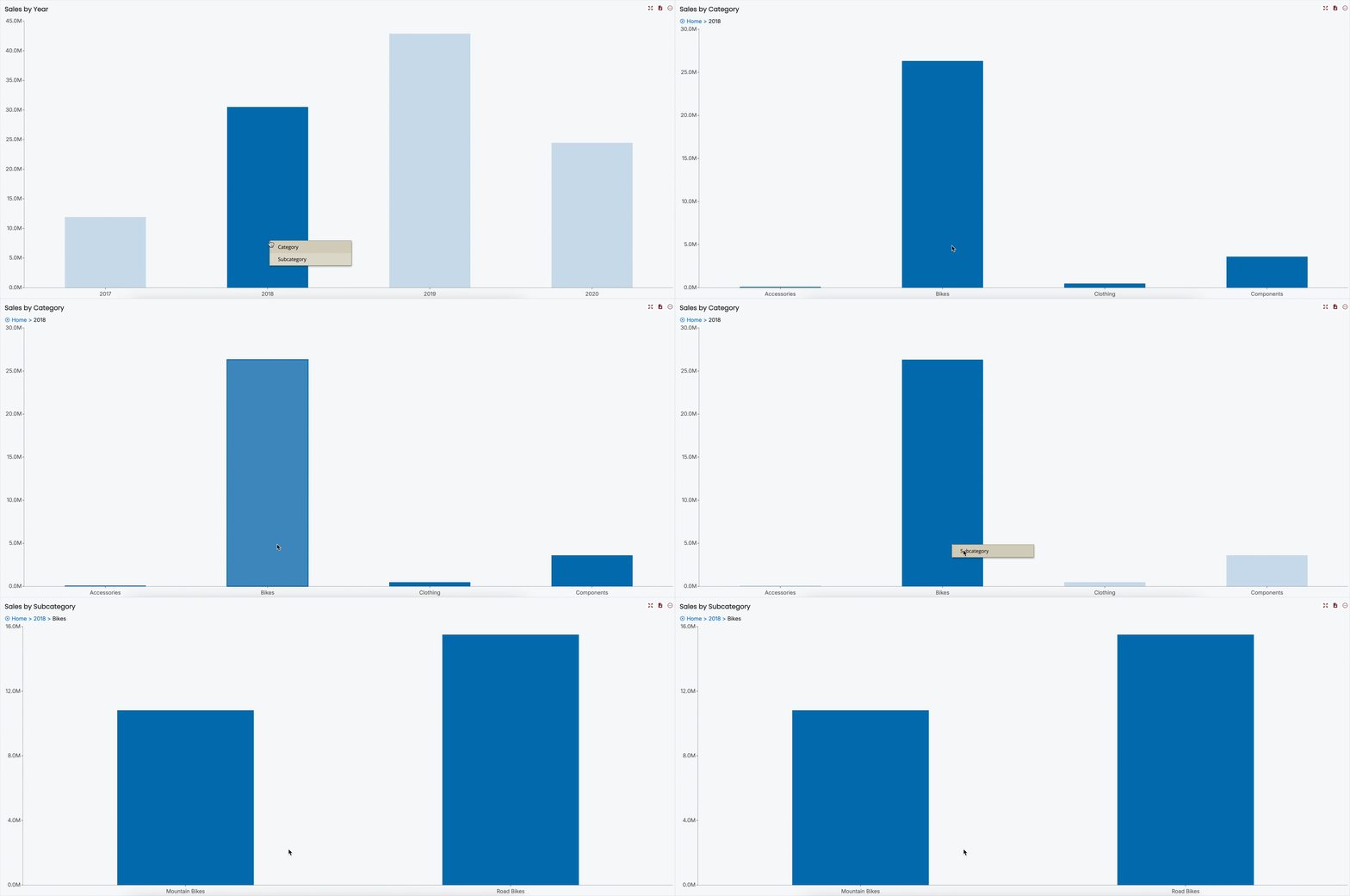
When using Pre-set Targets, clicking on a data point in preview opens a context menu with your pre-set target dimensions. Selecting a dimension breaks down the data point by that dimension. For example, clicking a year could let you choose to break it down by Product Category or Region.
Pre-set Paths
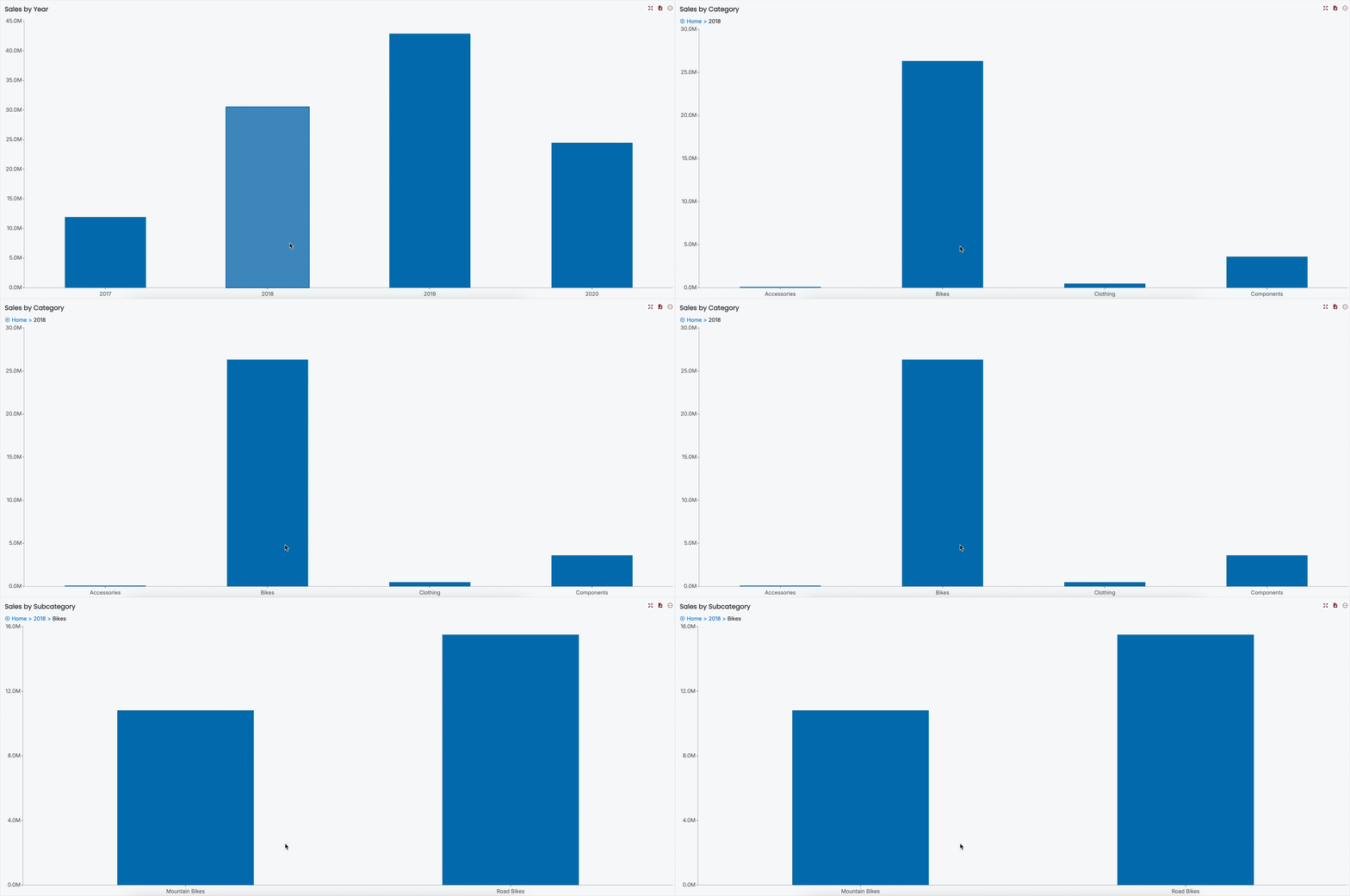
Pre-set Paths behave differently. Clicking a data point in preview automatically drills down by the pre-set dimension. If multiple dimensions are configured, clicking the data point repeatedly will drill down further through the defined path.
Properties
You can customize drill-down behavior via the Inspector Panel, particularly the breadcrumb menu that appears once you drill down.
Position
The Position property sets where the breadcrumb menu appears on the scenario. Default is Top Left, but it can also be set to Top Center, Top Right, Bottom Left, Bottom Center, or Bottom Right.
Home Name
Home Name refers to the first item in the breadcrumb menu—the original view without any drill-down. It is automatically labeled "Home," but you can provide a custom name.
Font
You can customize the appearance of the breadcrumb menu using the following font-related properties:
Font family
Font size
Font weight
Font style (italic or normal)
These settings ensure the breadcrumb menu remains readable and visually consistent with the dashboard.
Current Level Font Color & Other Levels Font Color
The breadcrumb menu font is interactive. Current Level Font Color sets the color of the currently selected drill-down item (e.g., if you click 2018, that year will appear in this color). Other Levels Font Color sets the color of the remaining items in the breadcrumb menu that are not currently selected.