-
Interactive DashboardsCreate interactive BI dashboards with dynamic visuals.
-
End-User BI ReportsCreate and deploy enterprise BI reports for use in any vertical.
-
Wyn AlertsSet up always-on threshold notifications and alerts.
-
Localization SupportChange titles, labels, text explanations, and more.
-
Wyn ArchitectureA lightweight server offers flexible deployment.
-
 Wyn Enterprise 7.1 is ReleasedThis release emphasizes Wyn document embedding and enhanced analytical express...
 -
 Choosing an Embedded BI Solution for SaaS ProvidersAdding BI features to your applications will improve your products, better serve your customers, and more. But where to start? In this guide, we discuss the many options.
-
Visual GalleryInteractive sample dashboards and reports.
-
BlogExplore Wyn, BI trends, and more.
-
WebinarsDiscover live and on-demand webinars.
-
Customer SuccessVisualize operational efficiency and streamline manufacturing processes.
-
Knowledge BaseGet quick answers with articles and guides.
-
VideosVideo tutorials, trends and best practices.
-
WhitepapersDetailed reports on the latest trends in BI.
-
 Choosing an Embedded BI Solution for SaaS ProvidersAdding BI features to your applications will impr...
 -

- Getting Started
- Administration Guide
-
User Guide
- An Introduction to Wyn Enterprise
- Document Portal for End Users
- Data Governance and Modeling
- View and Manage Documents
- Working with Resources
- Working with Reports
-
Working with Dashboards
- Tour the Dashboard Designer
- Create a Dashboard
- Configure Dashboard
- Dashboard Data Binding
-
Scenarios
- Common Scenario Properties
-
Charts
- Common Chart Properties
- Column Chart
- Range Column Chart
- Column Chart - Breakdown of Properties
- Stacked Column Chart
- Percent Stacked Column Chart
- Bar Chart
- Range Bar Chart
- Stacked Bar Chart
- Percent Stacked Bar Chart
- Area Chart
- Range Area Chart
- Stacked Area Chart
- Percent Stacked Area Chart
- Line Chart
- Pie Chart
- Donut Chart
- Rose Chart
- Radial Stacked Bar Chart
- Sunburst Chart
- Bar Chart in Polar Coordinates
- Stacked Bar Chart in Polar Coordinates
- Radar Chart
- Filled Radar Chart
- Scatter Chart
- Bubble Chart
- Treemap
- Candlestick Chart
- Funnel Chart
- Card Chart
- Combined Chart
- Decomposition Tree
- Tables
- Indicators
- Maps
- Slicers
- Others
- Topology
- ECharts
- 3D Scenes
- Floorplan
- Component Templates
- Appearance
- Component Management
- Parameters
- Interactions
- Finalize Your Dashboard
- Using AI in Wyn
- Working with Notebooks
- Wyn Analytical Expressions
- Section 508 Compliance
- Subscribe to RSS Feed for Wyn Builds Site
- Developer Guide
Percent Stacked Bar Chart
Stacked bar charts are a visualization used to display how multiple sub-categories contribute to a total value within each horizontally arranged category. You can use stacked bar charts to compare part-to-whole relationships while still being able to see overall totals for each bar. This layout is especially effective when category names are long or when horizontal orientation provides a clearer view. This article explains the requirements for creating a stacked bar chart and details the key formatting and interaction properties that help you refine its presentation.
Example
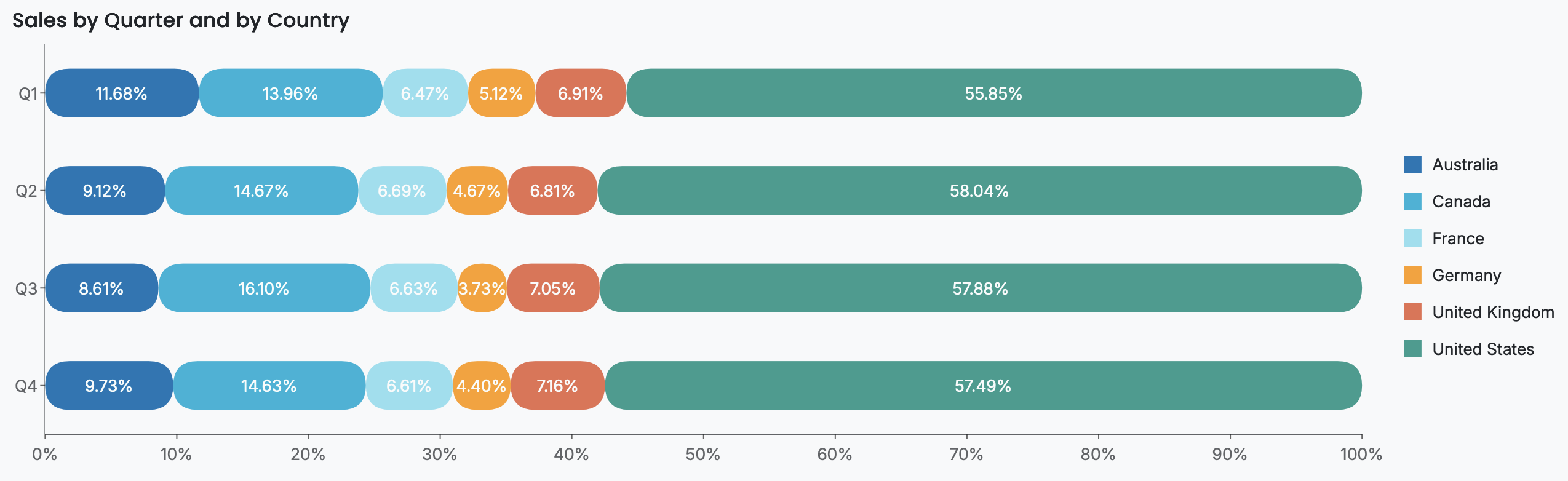
This is an example of the percent stacked bar chart that displays sales by quarter and region, using the Adventure Works datamodel,
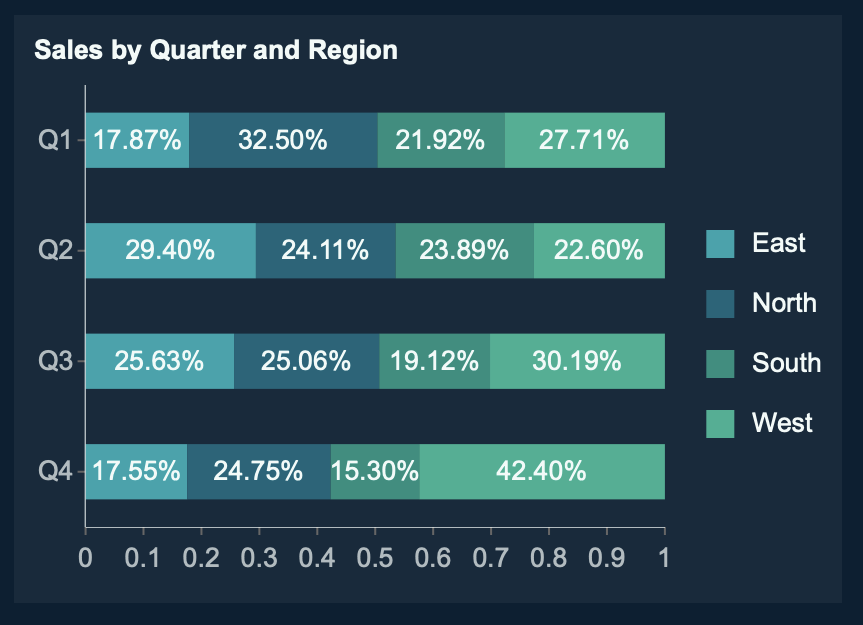
The Revenue attribute is bound to the Values data binding slot. The OrderDate(Quarter) is bound to the Axis (Category) slot. The Region attribute is bound to the Legend (Series) slot. The Quick Functions on the Revenue attribute has been set to Percentile Calculation. In the dialogue window, the Calculation type has been specified as Percentile Along the Axis(Category). The title has been set to Sales by Quarter and Region. The Show Data Label property has been enabled.
Data Binding
The Data Binding tab lets you map your dataset fields to the chart’s visual elements. The available data binding slots determine what data is displayed and how it appears in the chart.
Values – Bind the numeric field or measure that determines the size/length/value of each bar, slice, point, or shape. Larger values produce proportionally larger bars/slices/points.
Axis (Category) – Bind the field whose distinct values define each bar/slice/point category. These values appear along the X-axis, Y-axis, or around the circledepending on the chart type.
Legend (Series) – Bind the field that determines the grouping shown in the chart legend. Use this to categorize and color bars/slices/lines by an additional dimension.
Trellis Columns – Bind a field to create multiple charts arranged in columns, each filtered by a unique value in that field.
Trellis Rows – Bind a field to create multiple charts arranged in rows, each filtered by a unique value in that field.
Tooltip – Bind additional fields to display as contextual information when users hover over a bar, slice, point, or shape.
Drill Down – Configure interactive navigation into more detailed data. You can set Drill Down Mode to:
Pre-set Targets – Specify fields or charts to drill into when an element is clicked.
Pre-set Paths – Define a hierarchical path so users can explore data through multiple levels.
Customize Percent Stacked Bar Chart
A percent stacked bar chart displays the proportional distribution of values within each category along a horizontal axis, allowing users to compare how individual series contribute to a whole rather than comparing absolute totals. After adding the visualization to the designer and binding your dataset, configure the following fields in the Data Binding tab:
Values – The numeric measure that is aggregated and then normalized to represent each series as a percentage of the total value for its category. The resulting percentages are rendered along the horizontal axis, with each bar representing 100% of the category total.
Axis (Category) – The category field displayed on the vertical axis. This slot typically contains categorical data, such as time periods, product groups, or locations.
Legend (Series) – A secondary categorical field that divides each bar into stacked segments. Each series represents a proportion of the category’s total, enabling comparison of relative contributions across categories.
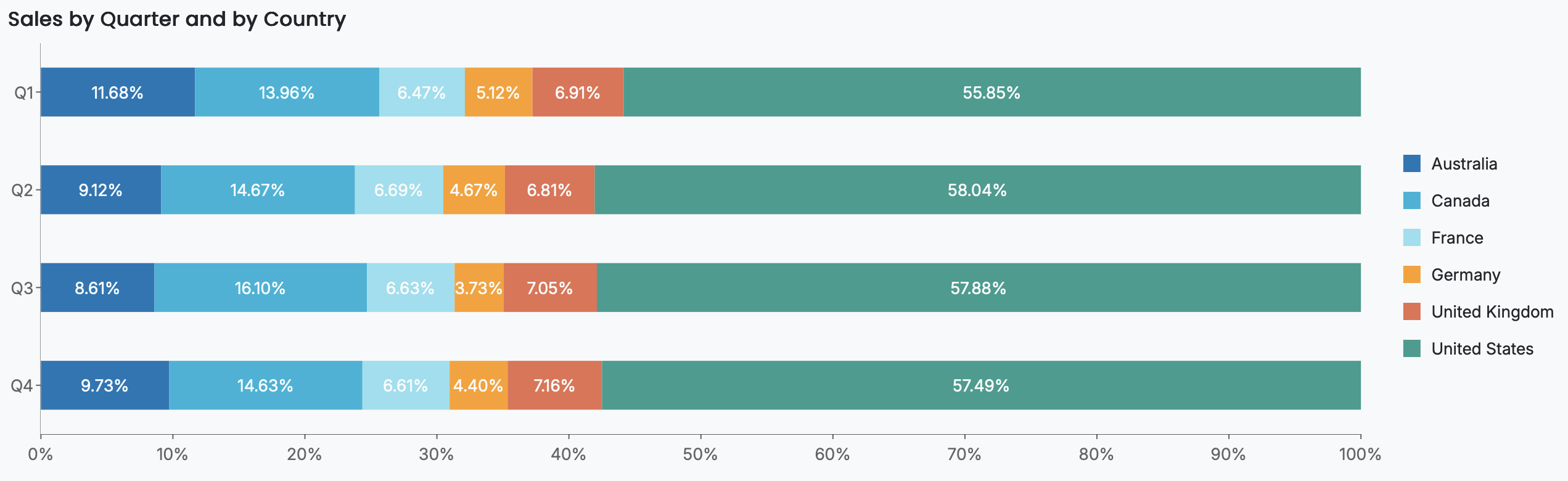
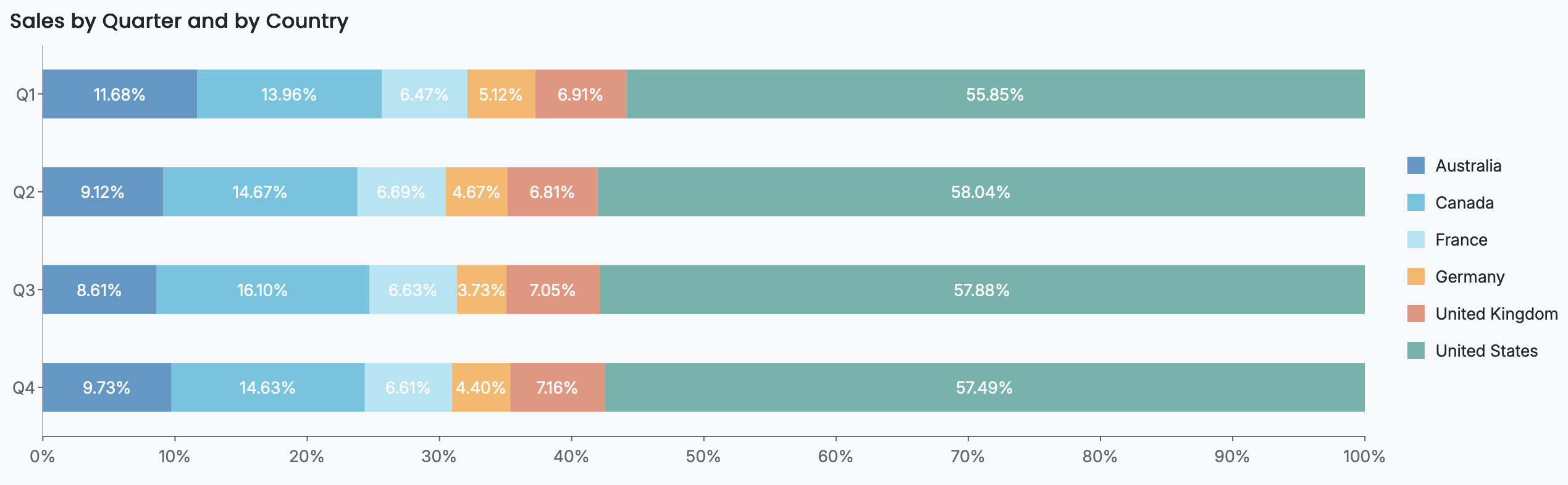
For example, a percent stacked bar chart may plot Sales in the Values slot. A quick function is applied to the Salesmeasure so the values are calculated as percentages of the total along the Axis (Category), ensuring that each bar represents 100% of its category. Quarter is bound to the Axis (Category) slot and Country to the Legend (Series) slot. Additionally, Show Data Label in the Inspector Panel is toggled to True so the percentage values are displayed directly on each stacked segment, making relative comparisons easier to interpret.
Customize the Chart Style
The Chart Style section contains the visual and formatting settings that define the appearance of your column chart. These options are managed in the Inspector Panel and include layout, spacing, color, and stylistic adjustments that help you tailor the chart to your dashboard’s design requirements.
Scenario Name
The Scenario Name is the label shown in Wyn’s Explorer.
Choose a name that reflects the purpose of the visualization.
For more details, see Explorer documentation.

Palette
Controls whether the chart uses theme colors or custom colors.
Off (default): chart uses the dashboard theme.
On: unlocks manual color selection for each column.

Color Assignments
Defines custom colors when Maintain Color Assignments is enabled.
Assign colors to individual categories or series.
Use when theme colors do not meet your design needs.

Graph Opacity
Adjusts the transparency of the columns.
Default is 100% (fully opaque).
Lower values create translucent columns for layered or subtle visual styles.
Auto Gap Width
Automatically manages spacing between columns.
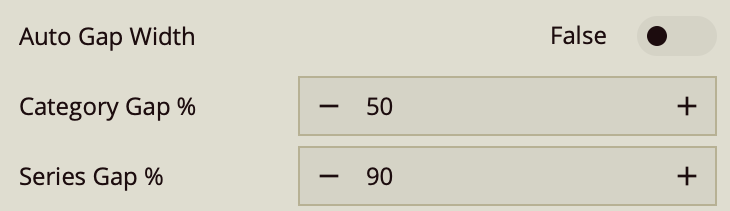
On: Wyn determines optimal spacing.
Off: manually set Category Gap and Series Gap.
Category Gap controls spacing between categories; Series Gap controls spacing within grouped columns.
Corner Radius
Rounds the edges of the columns.
Apply a uniform radius or expand to set values per corner.
Use for softer, more modern visual styling.
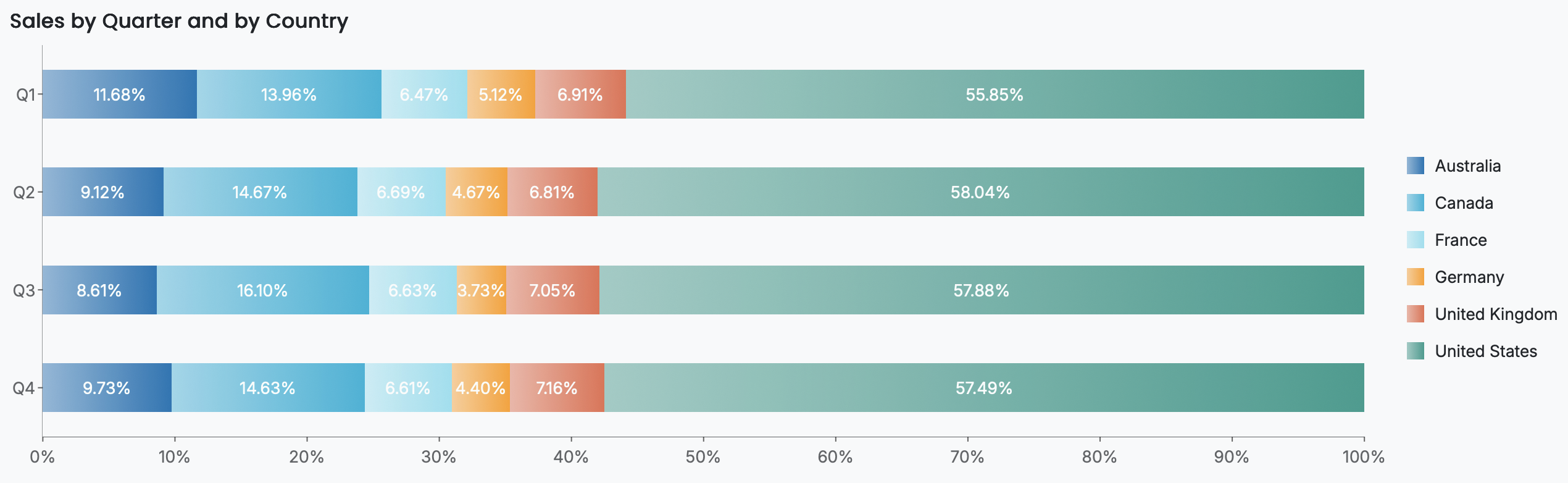
Auto Gradient
Applies a gradient fill to column colors.
On: Wyn auto-generates gradient effects.
Off: columns use flat colors.
Padding
Adds spacing between the chart and the scenario’s boundaries.
Increase padding for a more open layout.
Reduce padding to maximize plot area.

See Also
Property Reference
Chart Style
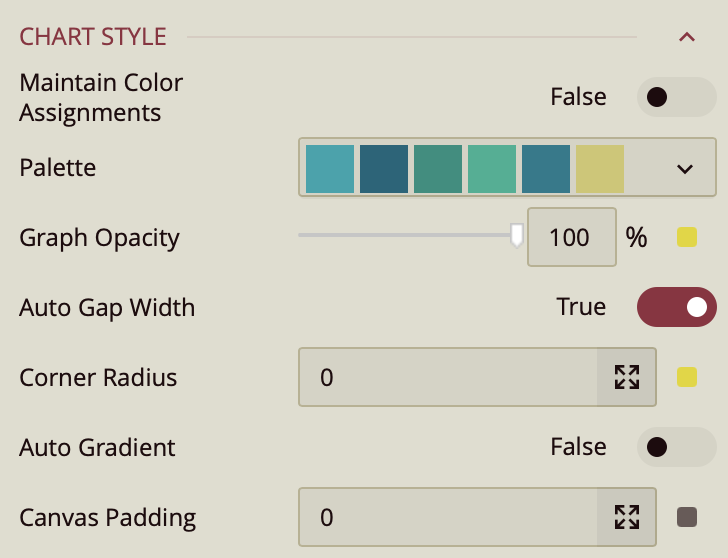
Maintain Color Assignments: Toggle this to True if you want to manually assign specific colors to individual data values instead of using automatic color mapping.
Palette: Lets you customize the color scheme applied to the chart. Use the dropdown to choose from available color palettes based on the current Theme.
Graph Opacity: Controls the transparency of the chart. Set to 0% for fully transparent or 100% for fully opaque.
Auto Gap Width: Enabled by default. This controls the spacing between bars. To manually define the gap width, switch this setting to False.
Corner Radius: Adjusts the roundness of the corners on bars. Use the arrow controls to set the radius for each edge.
Auto Gradient: When enabled, applies a gradient effect to the chart colors for a more dynamic visual appearance.
Canvas Padding: Adds space around the chart to separate it from the edges of the scenario or dashboard layout.
Data Visualization

Top N Grouping – When enabled, limits the displayed data to the top N items based on a chosen measure (e.g., top 10 categories by sales). This is useful for focusing on the most significant data points.
Additional Option: When this setting is turned on, a Show property appears, allowing you to enter a numeric value for N (the number of top items to display).
Default: Off.
Include All Dimensions – When enabled, ensures that all available dimension values are included in the visualization, even if they have no corresponding measure values. This can help maintain consistent category representation across views. Default: Off.
Data Labels
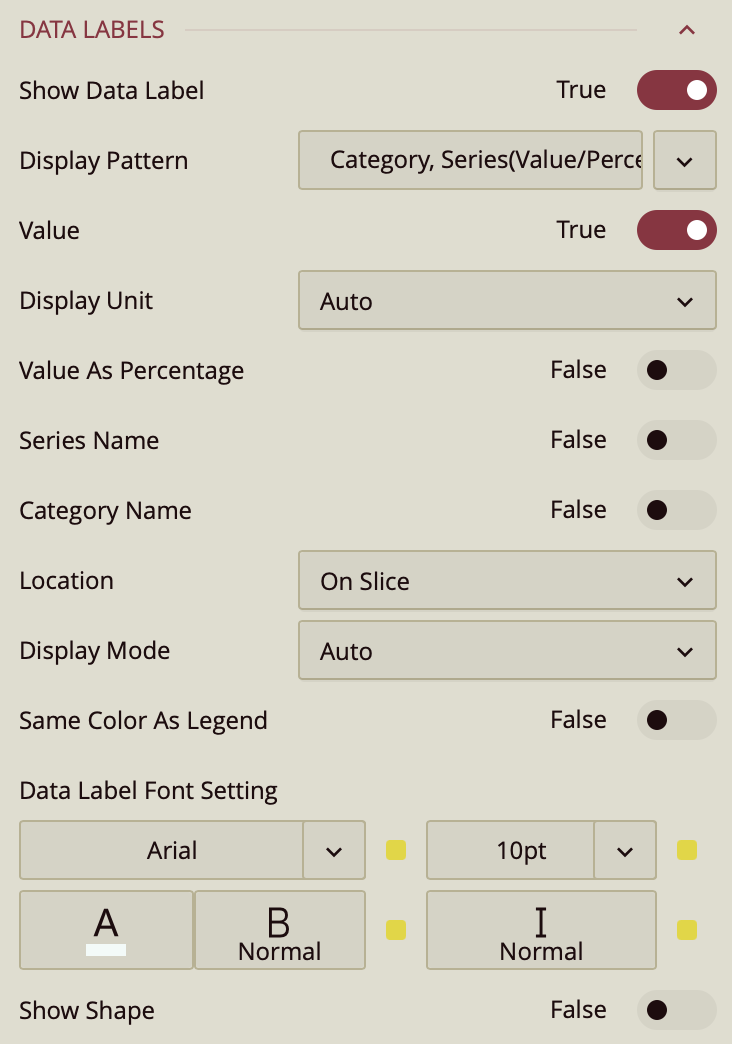
Show Data Label: Toggle this on to enable data labels on the chart.
Display Pattern: Choose a label structure from:
Category
Series (Value)
Category Series Value
Note: This controls the format, but not which elements are shown.
Toggle Visibility for Each Element:
Value – must be set to true to display values.
Series Name – toggle on to display the series name.
Category Name – toggle on to display the category.
Display Mode: Set to All to show all enabled elements together.
Label Location: Choose between On Slice or Around.
Same Color as Legend: Toggle on to match the label color with the legend entry.
Font Settings (same as title):
Font family, size (pt), color, weight, and italic styling.
Show Shape: Toggle on to add a background shape to the label.
Upload a Shape Image.
Adjust placement and size with:
Shape X Center
Shape Y Center
Shape X Scale
Shape Y Scale
Tooltip
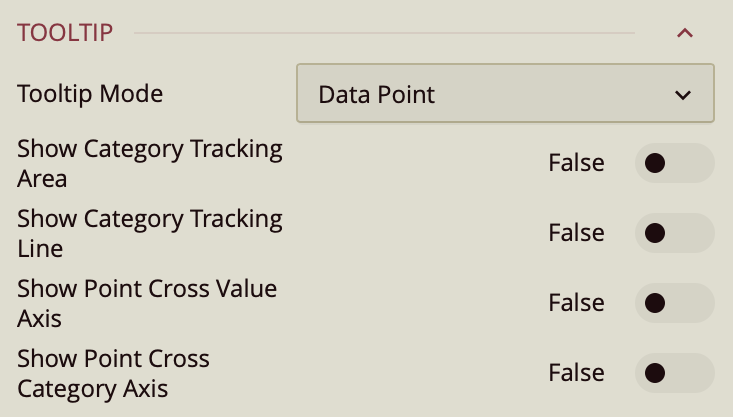
Tooltip Mode – Determines how tooltips are displayed when hovering over the chart:
None – Disables tooltips.
Data Point (default) – Shows a tooltip for the specific data point under the pointer.
Category – Shows a tooltip for all data points that share the same category value.
Show Category Tracking Area – Highlights the entire area of the chart that corresponds to the hovered category, helping visually connect related data points.
Show Category Tracking Line – Draws a vertical or horizontal line (depending on chart orientation) across the chart at the hovered category to make it easier to see alignment across series.
Show Point Cross Value Axis – Draws a line from the hovered point to the value axis, making it easy to identify the exact value.
Show Point Cross Category Axis – Draws a line from the hovered point to the category axis, making it easy to identify the exact category.
Axis (Category)
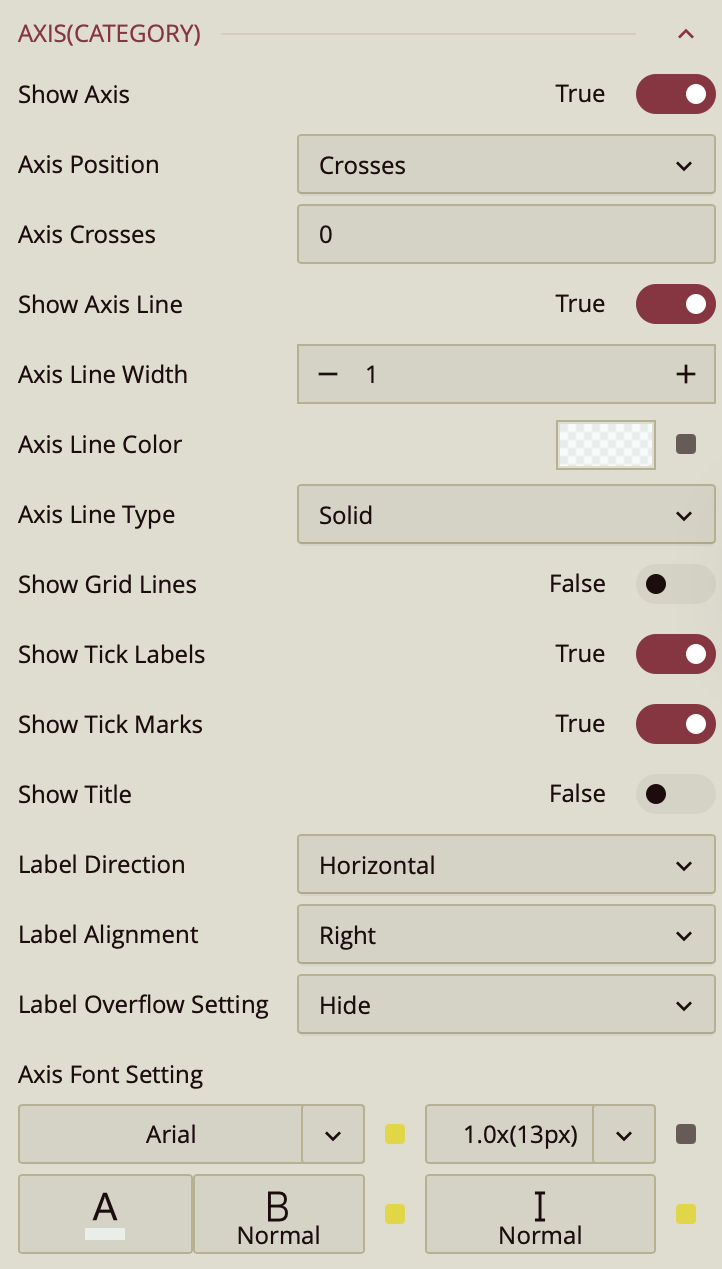
The Category (Y) Axis settings give you full control over the vertical axis of the chart.
Show Axis: Enabled by default. Toggle off to hide the Y-axis entirely.
Axis Position: Set the axis placement using the dropdown options:
Zero,Bottom, orTop.
Axis Line and Grid
Show Axis Line: Enabled by default. Controls the visibility of the axis line. You can customize its line type(Solid or Dashed), color, and width.
Show Grid Lines: Disabled by default. Enable to add horizontal grid lines across the chart, and customize their type, color, and width.
Show Split Area: Disabled by default. Toggle on to highlight alternating background bands, and define Odd Area Colorand Even Area Color.
Labels and Tick Marks
Show Tick Labels: Enabled by default. Use this toggle to show or hide the axis labels.
Label Direction: Choose how labels are displayed:
Horizontal,Vertical, orDiagonal.Label Overflow: Define how long labels behave when space is limited:
Hide,Ellipsis, orWrap.Show Tick Marks: Enable this toggle to display tick marks along the axis.
Title and Font Styling
Show Title: Disabled by default. Turn this on to add a title to the Y-axis. Once enabled, the axis automatically takes the name of the data attribute it is bound to. To change that, you can enter a title in Custom Title.
Axis Font Settings: Customize the appearance of axis labels and title by adjusting the font family, size, color, weight, and style.
Value Axis

The Value (X) Axis settings let you configure the numerical axis of your chart, typically displayed horizontally.
Show Axis: Enabled by default. Toggle this off to hide the entire axis.
Min Value / Max Value: Define a fixed range for the axis.
Interval: Set custom spacing between tick marks.
Reversed: Flip the axis direction (e.g., highest values on the left). Disabled by default.
Axis Position: Choose whether the axis appears at the Top or Bottom of the chart.
Axis Line and Grid
Show Axis Line: Enabled by default. Controls the visibility of the axis line. Customize the line’s type (Solid or Dashed), color, and width.
Show Grid Lines: Disabled by default. Enable to display horizontal lines across the chart. You can customize their line type, color, and width.
Show Split Area: Highlight alternating vertical bands by setting Odd Area Color and Even Area Color.
Labels and Tick Marks
Show Tick Labels: Enabled by default. Toggle this to show or hide labels along the axis.
Format: Choose how labels are displayed (General, Number, Currency, Percentage, or Custom).
Display Unit: Scale values using Auto, None, Thousands, Millions, etc.
Label Direction: Set label orientation to Horizontal, Vertical, or Diagonal.
Show Tick Marks: Toggle to display or hide the tick marks themselves.
Title and Units
Show Title: Disabled by default. Once enabled, the axis automatically takes the name of the data attribute it is bound to. To change that, you can enter a title in Custom Title.
Show Unit's Label: Enable this option to display a unit label (e.g., USD, %).
Font Customization
Axis Font Settings: Customize the axis text by choosing the font family, size, color, weight, and style.
Legend
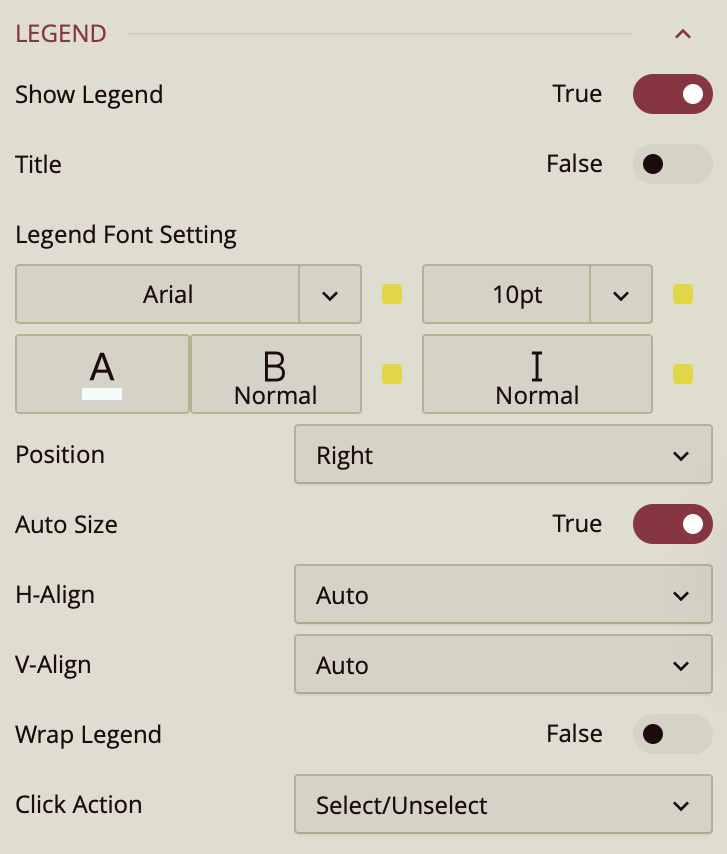
By default, the Show Legend toggle is set to True, which displays the legend on the chart. To include a title for the legend, enable the Title toggle as well. Once enabled, the legend automatically takes the name of the data attribute it is bound to. To change that, you can enter a title in Custom Title. You can customize the title by setting the Font Family (e.g., Arial), Font Size, Text Color, Font Weight (such as bold), and applying Italic styling if desired.
The Title Alignment property allows you to position the legend title to the left, center, or right of the chart area.
The legend is set to Auto Size by default. To manually define the legend size, disable this setting by setting Auto Size to False. You can also control the Horizontal and Vertical Alignment, which are both set to Auto by default, but can be changed using dropdown options. To allow legend labels to wrap across lines, set the Wrap Legend option to True.
Trellis
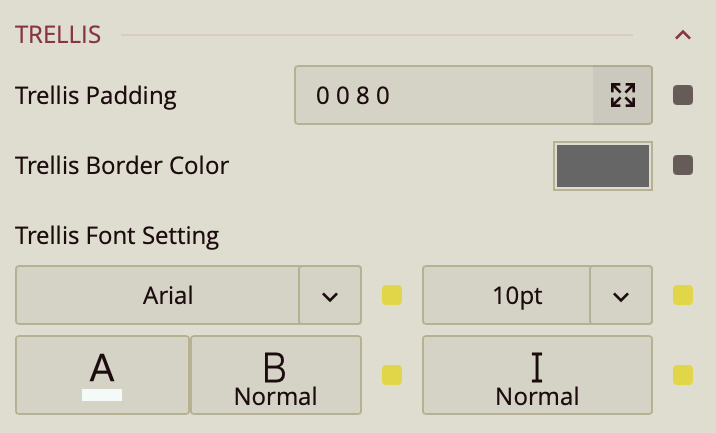
Use the Trellis properties when you create a Trellis Chart. This can be done in the Data Binding Tab. Drag and drop the attribute to Trellis.
You can set the Padding around the Trellis Chart to control the spacing between the chart content and its edges. You can also define a Trellis Border Color to outline each panel of the trellis. Additionally, the Trellis Font Settings allow you to customize the font family, size, color, weight, and style of the text used in the trellis layout.
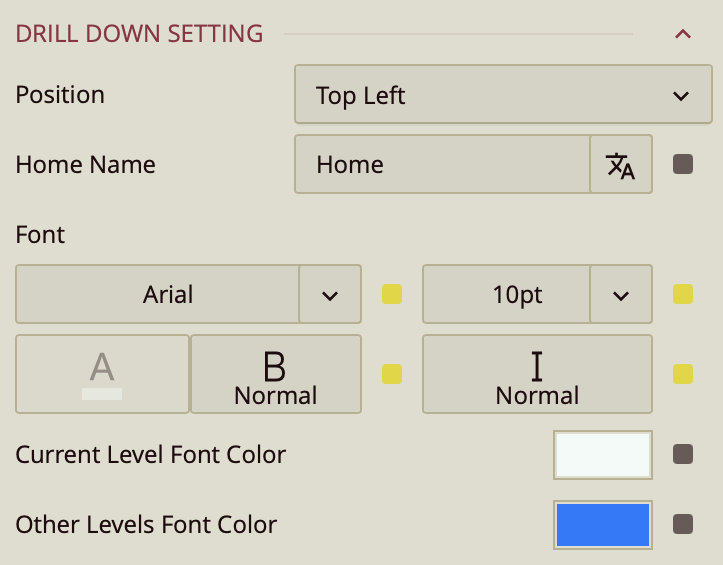
Position – Determines where the drill-down navigation bar is displayed on the chart. Options include:
Top left (default)
Top center
Top right
Bottom left
Bottom center
Bottom right
Home Name – Specifies the text label for the top-level view in the drill-down hierarchy. The default label is Home, but you can change it to something more descriptive, such as All Regions or Main Category.
Font – Configures the font family, size, color, weight (e.g., bold), and style (e.g., italic) for all drill-down navigation text.
Current Level Font Color – Sets the color for the label of the currently active drill-down level, helping it stand out from other levels.
Other Levels Font Color – Sets the color for labels representing all non-active drill-down levels, allowing users to visually distinguish between the active and inactive levels in the navigation path.