-
Interactive DashboardsCreate interactive BI dashboards with dynamic visuals.
-
End-User BI ReportsCreate and deploy enterprise BI reports for use in any vertical.
-
Wyn AlertsSet up always-on threshold notifications and alerts.
-
Localization SupportChange titles, labels, text explanations, and more.
-
Wyn ArchitectureA lightweight server offers flexible deployment.
-
 Wyn Enterprise 7.1 is ReleasedThis release emphasizes Wyn document embedding and enhanced analytical express...
 -
 Choosing an Embedded BI Solution for SaaS ProvidersAdding BI features to your applications will improve your products, better serve your customers, and more. But where to start? In this guide, we discuss the many options.
-
Visual GalleryInteractive sample dashboards and reports.
-
BlogExplore Wyn, BI trends, and more.
-
WebinarsDiscover live and on-demand webinars.
-
Customer SuccessVisualize operational efficiency and streamline manufacturing processes.
-
Knowledge BaseGet quick answers with articles and guides.
-
VideosVideo tutorials, trends and best practices.
-
WhitepapersDetailed reports on the latest trends in BI.
-
 Choosing an Embedded BI Solution for SaaS ProvidersAdding BI features to your applications will impr...
 -

- Getting Started
- Administration Guide
-
User Guide
- An Introduction to Wyn Enterprise
- Document Portal for End Users
- Data Governance and Modeling
- View and Manage Documents
- Working with Resources
- Working with Reports
-
Working with Dashboards
- Tour the Dashboard Designer
- Create a Dashboard
- Configure Dashboard
- Dashboard Data Binding
-
Scenarios
- Common Scenario Properties
-
Charts
- Common Chart Properties
- Column Chart
- Range Column Chart
- Column Chart - Breakdown of Properties
- Stacked Column Chart
- Percent Stacked Column Chart
- Bar Chart
- Range Bar Chart
- Stacked Bar Chart
- Percent Stacked Bar Chart
- Area Chart
- Range Area Chart
- Stacked Area Chart
- Percent Stacked Area Chart
- Line Chart
- Pie Chart
- Donut Chart
- Rose Chart
- Radial Stacked Bar Chart
- Sunburst Chart
- Bar Chart in Polar Coordinates
- Stacked Bar Chart in Polar Coordinates
- Radar Chart
- Filled Radar Chart
- Scatter Chart
- Bubble Chart
- Treemap
- Candlestick Chart
- Funnel Chart
- Card Chart
- Combined Chart
- Decomposition Tree
- Tables
- Indicators
- Maps
- Slicers
- Others
- Topology
- ECharts
- 3D Scenes
- Floorplan
- Component Templates
- Appearance
- Component Management
- Parameters
- Interactions
- Finalize Your Dashboard
- Using AI in Wyn
- Working with Notebooks
- Wyn Analytical Expressions
- Section 508 Compliance
- Subscribe to RSS Feed for Wyn Builds Site
- Developer Guide
Legend
The Legend is a chart feature that identifies how data points are grouped and distinguished, most commonly through color. Legends are available for nearly all chart types, with the exception of the Treemap and the Candlestick Chart.
The Candlestick Chart uses a specialized Moving Average Legend, which is discussed separately in the Candlestick Chart article.
While the Legend is a common feature across charts, its appearance and behavior vary depending on how the chart is structured and how the data is bound.
Legends and Grouped Charts
Legends most commonly appear when a chart includes a secondary grouping. A secondary grouping allows you to further break down data within each primary category.
For example, if you want to visualize Sales by Year and by Product, the chart displays Year as the primary grouping and Product as the secondary grouping. This configuration typically produces what is known as a grouped chart.
A grouped column chart is created by binding:
A numerical field to the Values data binding slot
A categorical field to the Axis (Category) data binding slot
A second categorical field to the Legend (Series) data binding slot
For more information about this configuration, see the Bind Data and Add Scenarios article.
This setup produces two results: it creates a grouped chart, and it automatically generates a legend. Each group is displayed using a different color, and the legend identifies what each color represents.
Charts That Use a Secondary Grouping
Any chart that includes a secondary categorical value—also referred to as a secondary grouping—displays a legend. In practical terms, this means that any chart with a field bound to the Legend (Series) data binding slot has a legend.
This includes column charts and their variants, bar charts and their variants, area charts and their variants, the line chart, radar charts and their variants, as well as scatter and bubble charts.
Charts Without a Category Axis
Some charts do not use an Axis (Category) slot and instead rely on the Legend (Series) slot as their primary grouping. These charts behave differently with respect to legends.
Pie Charts and Variants
Pie charts and their variants use numerical values bound to the Values data binding slot and categorical values bound to the Legend (Series) data binding slot. In these charts, the Legend (Series) represents the primary grouping.
Multiple categorical fields can be bound to the Legend (Series) slot, allowing the pie chart to be further broken down into subcategories. However, the legend is not enabled by default. To display it, you must go to the Inspector Panel and toggle Show Legend to True.
Pie charts use data labels by default to distinguish slices. You can choose to keep the data labels, add a legend, or remove the data labels and rely entirely on the legend.
Funnel Charts
Funnel charts also use a Values data binding slot and a Legend (Series) data binding slot. When numerical values are bound to the Values slot and categorical values are bound to the Legend (Series) slot, the funnel chart automatically generates a legend.
In this case, the legend reflects the categorical breakdown of each stage in the funnel.
Show Legend
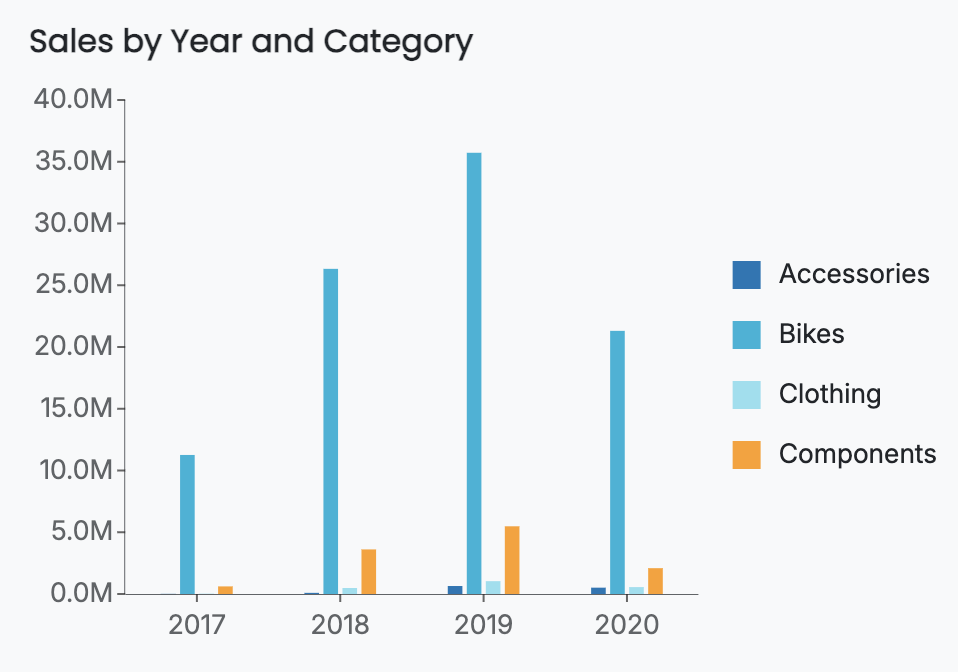
Show Legend is automatically enabled for the column chart, bar chart, area chart, line chart, radar chart, scatter chart, and bubble chart when you add a secondary grouping. For example, this is a column chart with a legend.
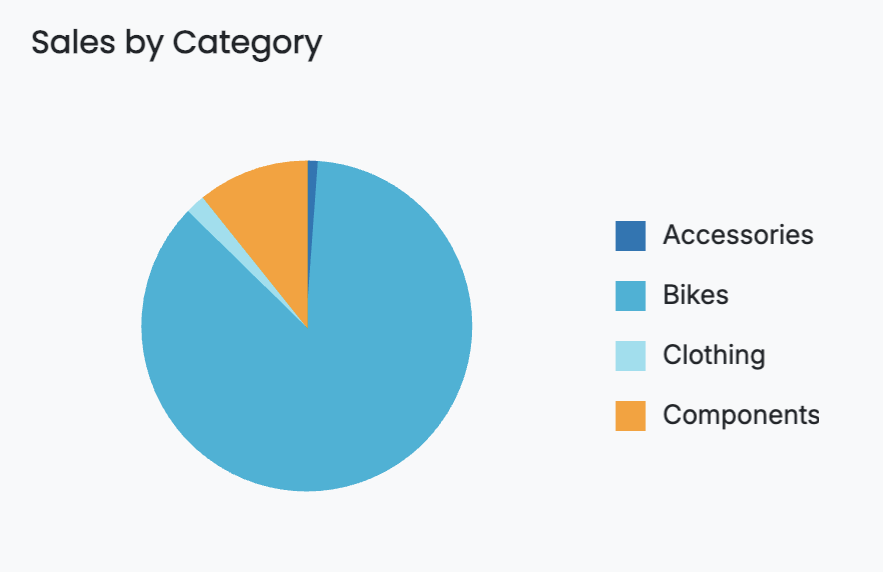
For the pie chart and its variants, the Show Legend property is disabled by default. You can enable Show Legend for a pie chart and disable Show Data Label if you prefer to identify slices using a legend instead of labels. For example, this is a pie chart with a legend and no data labels.
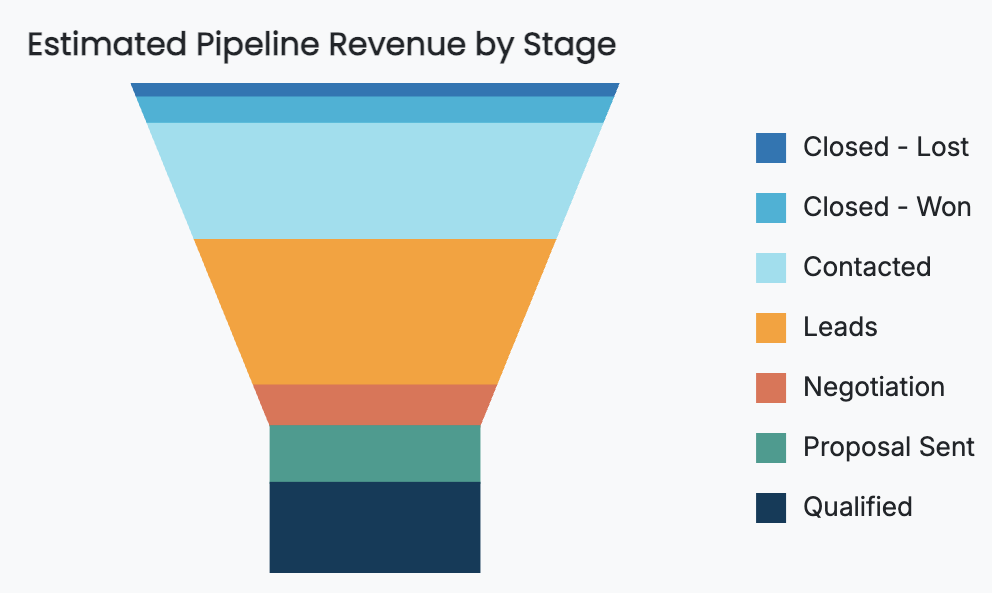
The legend is also automatically enabled for the funnel chart. For example, this is a funnel chart where you can also see the legend.
Title and Custom Title
By default, legends do not display a title. You can add one by toggling the Title property to True.
When enabled, the title is automatically generated from the name of the data field bound to the Legend (Series) slot in the Data Binding tab. You can override this value by specifying a Custom Title.
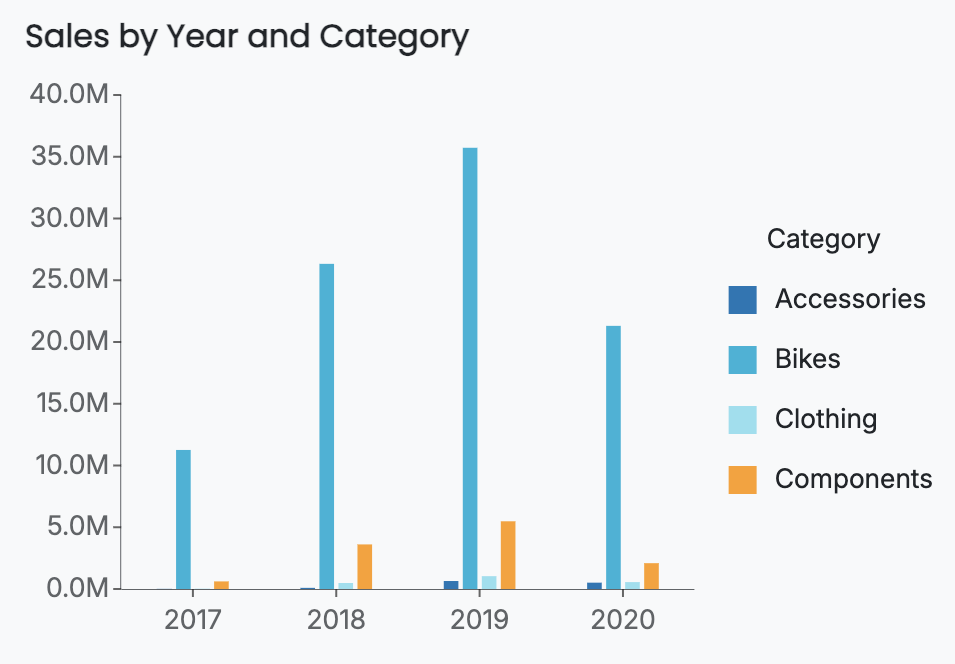
For example, this is a grouped column chart with a legend title set to "Category".
Legend Font Settings
You can further customize the appearance of the legend title by adjusting the following font-related properties:
Font family
Font size
Font color
Font weight
Font style (italic or normal)
Legend Position
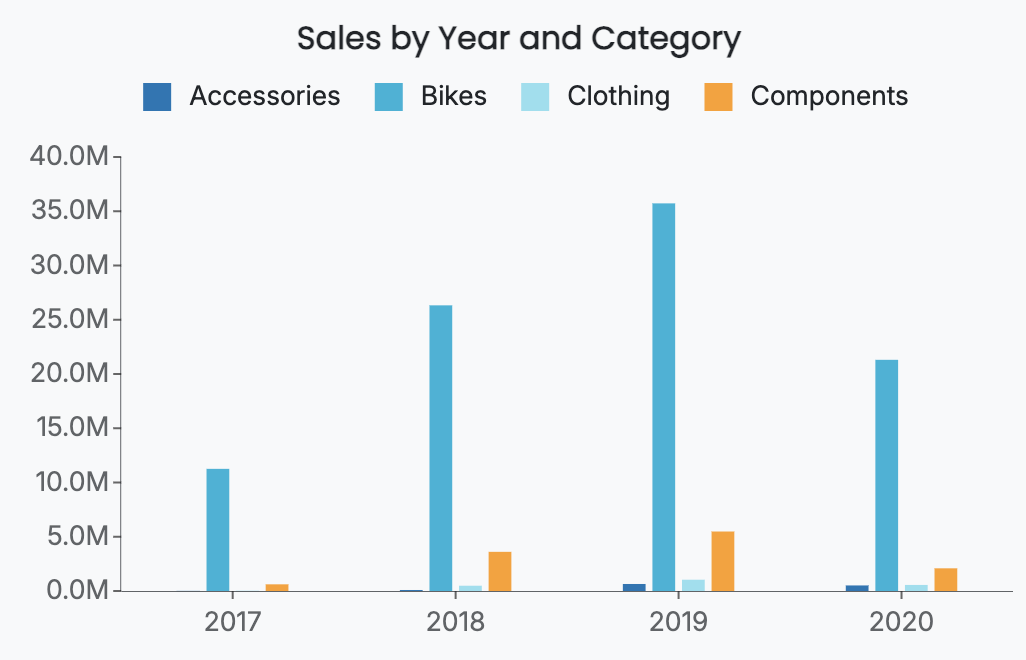
You can change where the legend appears relative to the chart. By default, the legend is displayed on the right.
You can set the legend position to Left, Right, Top, or Bottom. For example, this is a column chart with the legend positioned at the top.
Auto Size
By default, legends are sized automatically. You can override this behavior by toggling Auto Size to False.
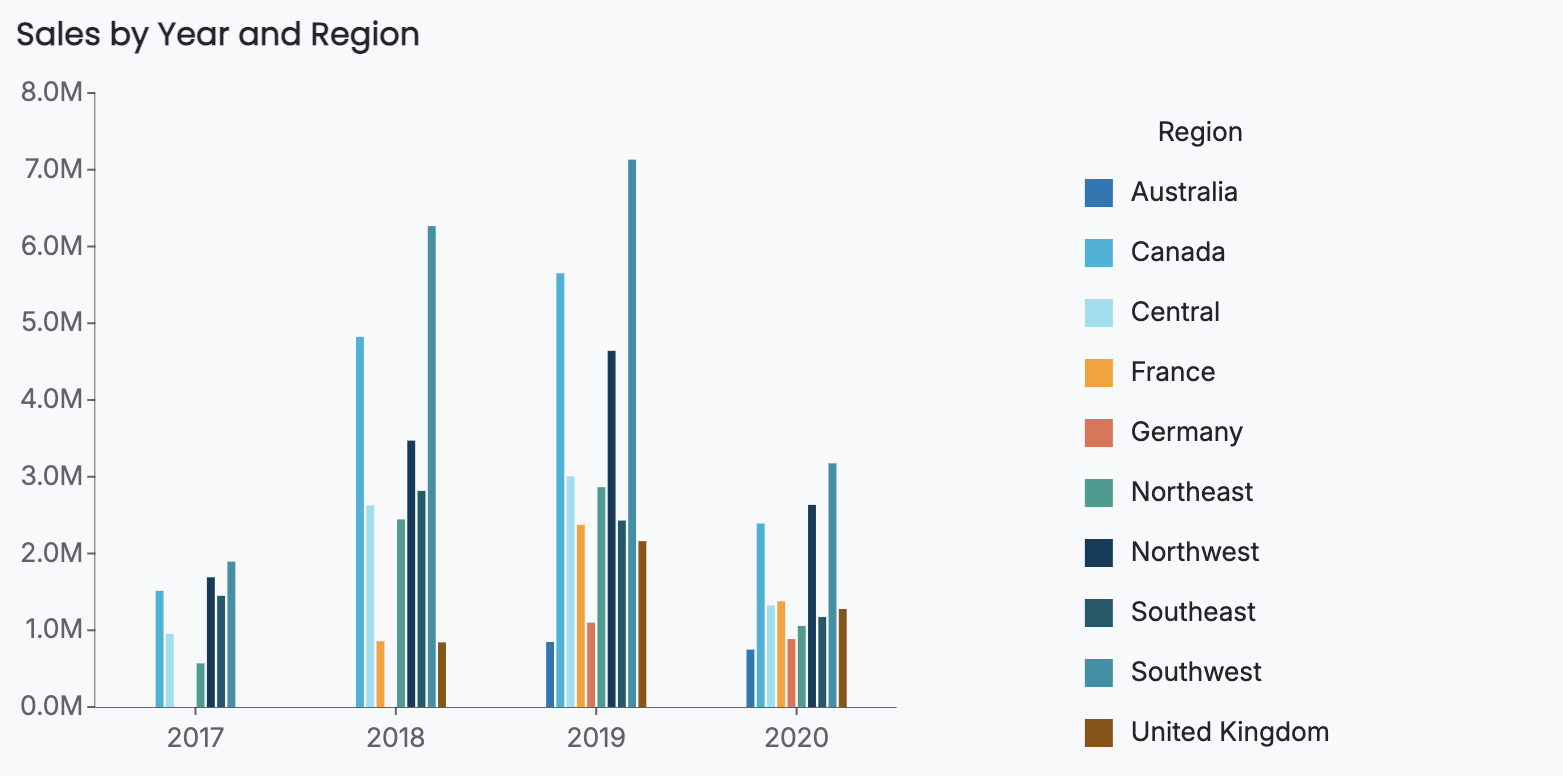
Disabling Auto Size enables the Width property. This is useful when legend names overflow outside the bounds of the scenario, or when Wrap Legend is enabled, and legend items extend beyond the available space.
Adjusting the Width property increases the space allocated to the legend while simultaneously reducing the chart's size, ensuring that the legend content remains legible within the scenario.
For example, this is a scenario where the legend Width property has been set to 40%.
H-Align and V-Align
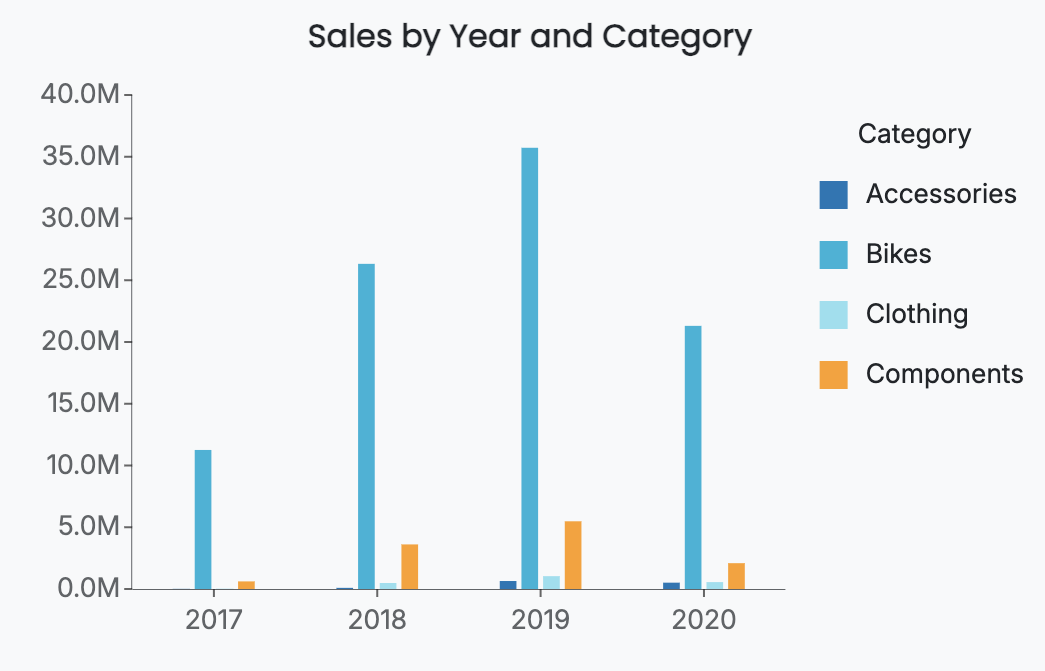
You can control the horizontal and vertical alignment of the legend using H-Align and V-Align.
H-Align can be set to left, center, or right
V-Align can be set to top, middle, or bottom
For example, this is a scenario where the legend is aligned to the center horizontally and to the top vertically.
Wrap Legend
The Wrap Legend property allows legend items to wrap into multiple columns instead of appearing in a single vertical list.
For example, this is an example of a wrapped legend.
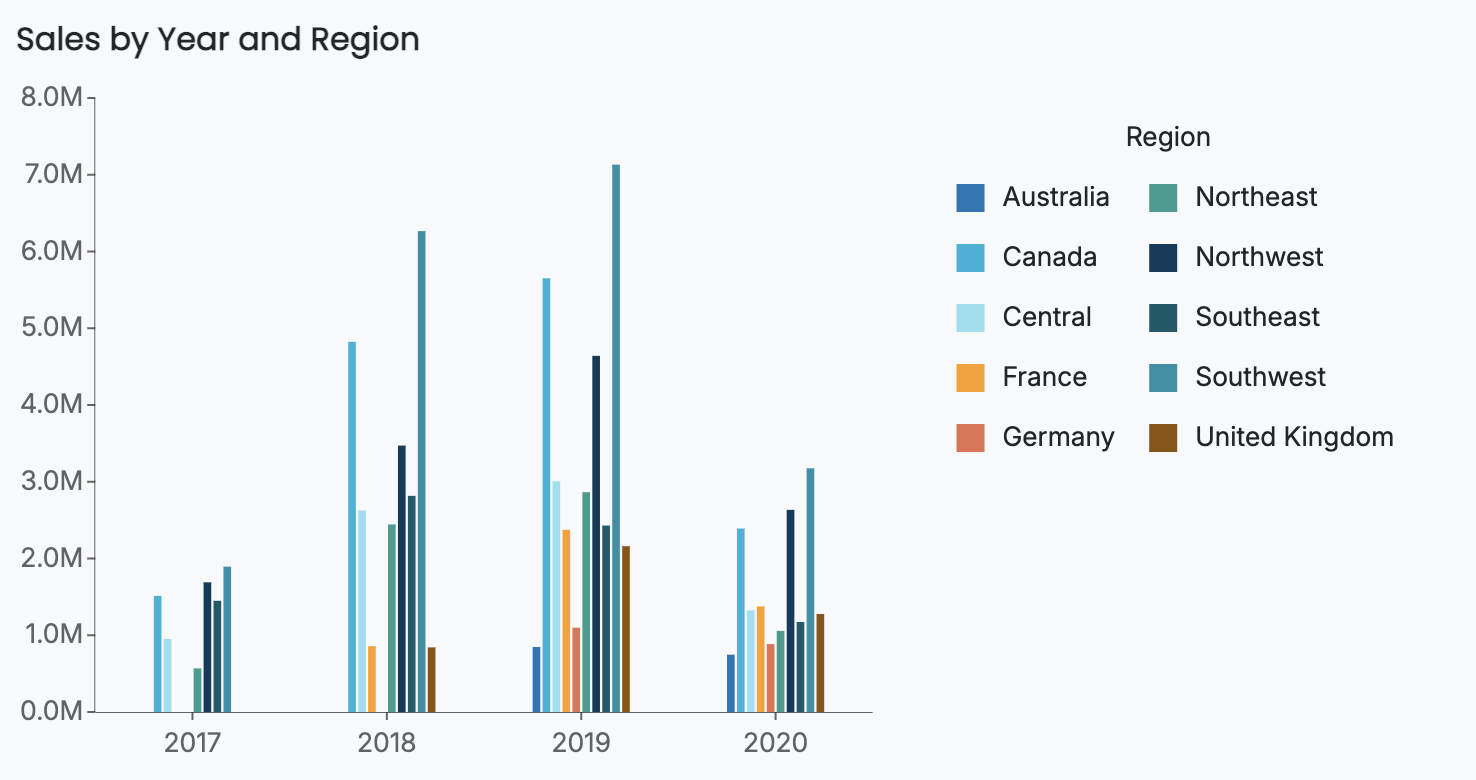
Click Action
Click Action controls how users can interact with the legend. You can choose between two options: Select/Unselect or Hide/Show.
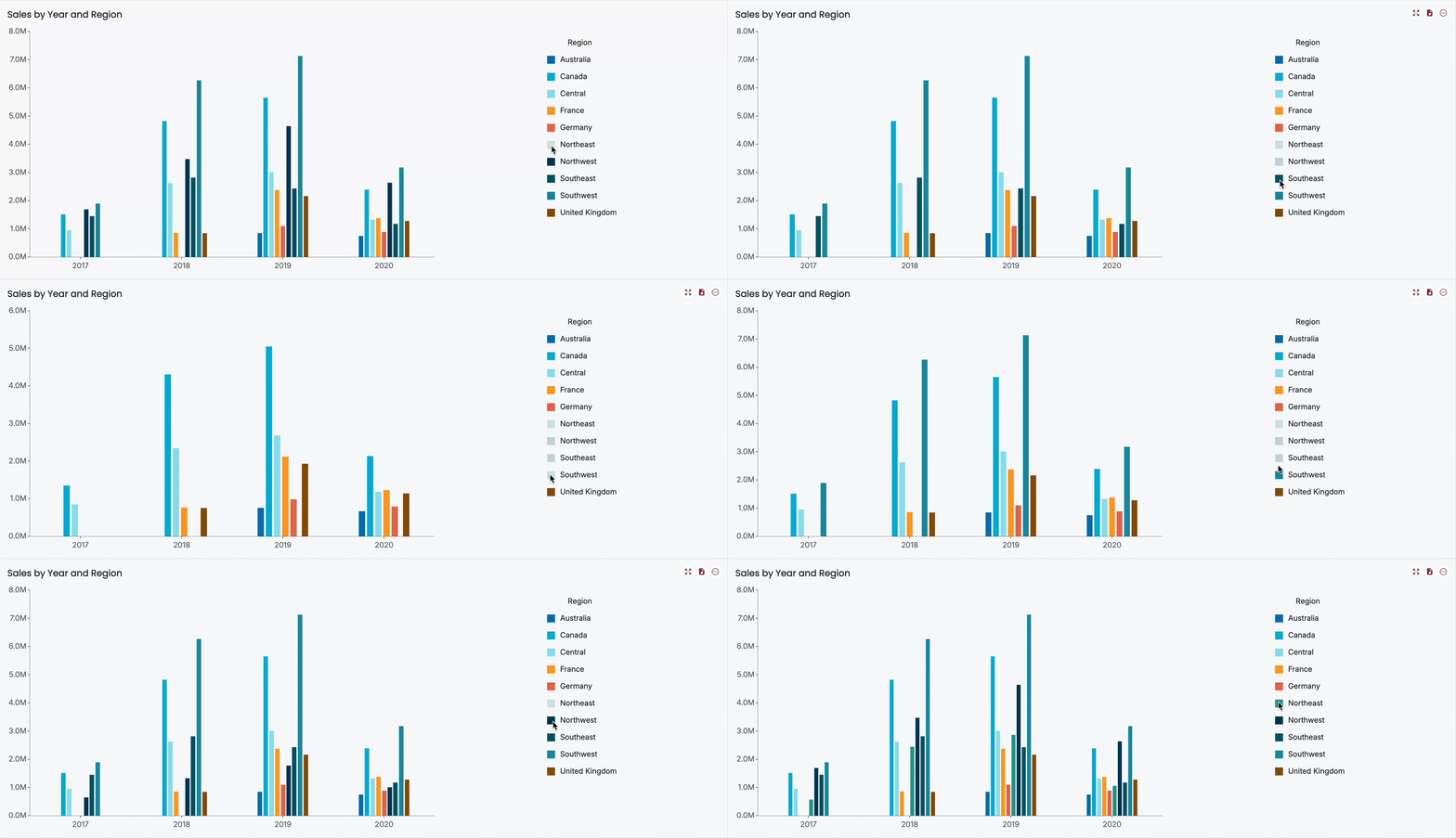
Select/Unselect allows you to select a single secondary grouping in the legend and view it isolated across the primary grouping. For example, see the GIF below.
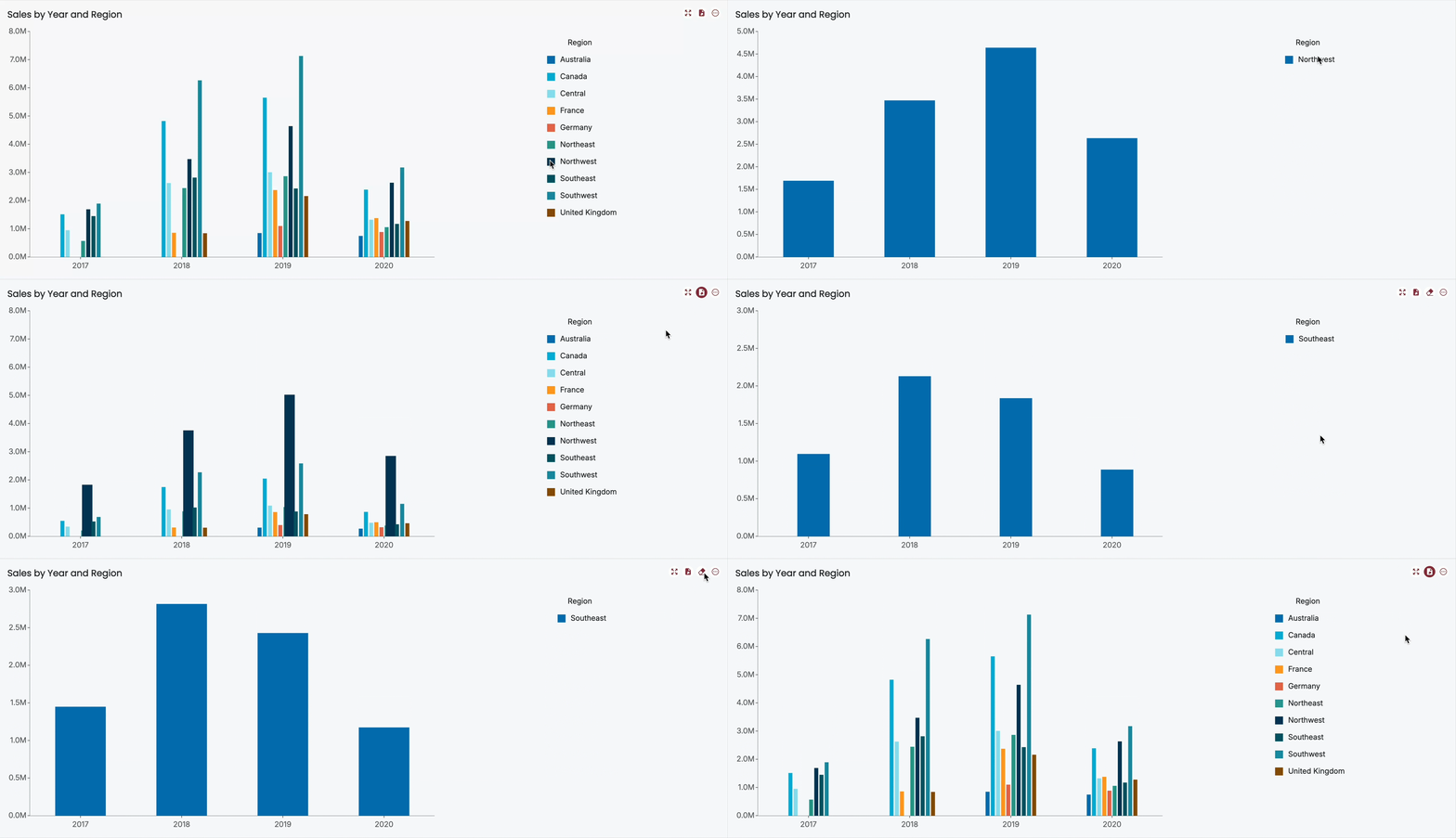
Hide/Show allows you to hide a specific data series by clicking its legend item. Clicking the item again makes the data visible once more. For example, see the GIF below.